
Check your login methods
Open Settings → Security → Two-step verification. The Login methods area shows your login email and whether a login phone has been added.
Make sure you can access the email or phone you plan to use. An SMS verification method requires a login phone first. Follow the portal’s verification prompts when adding or changing a login method.
Choose an available verification method
Authenticator app
Select Enable beside Authenticator app and complete the setup shown in the portal. Keep any setup information private.
SMS
Add and verify the login phone through the portal before setting up SMS verification.
Email code
Select Enable beside Email code and complete the instructions sent through the portal’s verification flow.
Follow the current prompts through completion. Starting setup is not the same as enabling a method: return to this screen and check the displayed status.
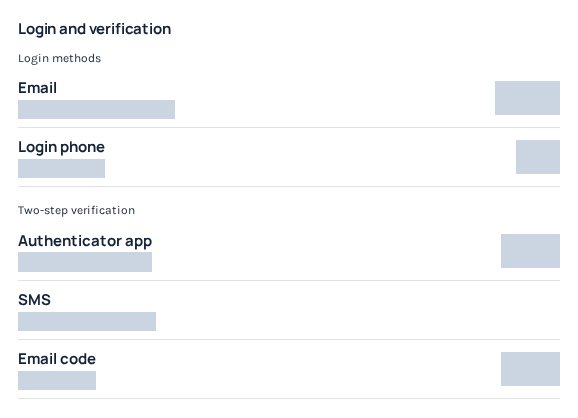
Login and verification separates login methods from authenticator, SMS and email-code verification. Account identifiers, method states and action buttons are hidden here. Check the options and prerequisites shown in your own account. Open the image for a larger view.
Review signed-in devices
Open Security → Active sessions to review account sessions. If you choose to sign a device out, make sure you understand which device will lose access.
For team members, use their own accounts and appropriate permissions. Sharing the owner’s login makes it harder to control access or identify who changed a setting.
Open Security → Team activity to review recorded team sessions. Filter by team member, period and activity type: changes, security, views or calls. Concurrent logins are separate sessions; the owner’s own session is excluded from this team view.
Review connected sign-in providers
Open Security → Connected sign-in to manage Google or GitHub connections. A connected provider is another way to sign in; your IllyVoIP password remains separate.
Follow the identity-confirmation steps shown in the portal. Removing the final connected provider requires your current password. Connected sign-in does not replace reviewing your two-step verification settings.
If a verification method is unavailable
Use another method only if it has already been configured and the sign-in screen offers it. If you cannot complete verification, contact support through the official contact page and describe the point where sign-in stops.
Include the method involved and the error message. Never send your password, a one-time verification code, an authenticator setup code or an API key in the request.
Keep calling and integration credentials separate
Two-step verification protects portal sign-in. It does not replace SIP credentials, API keys or webhook signing secrets. Keep each credential in the system that needs it, and review integrations separately when access changes.
Trusted devices and signed-in sessions
Trust a device only when it is private and under your control. The Portal can show trusted access for 30 days, but this is not a promise that every session remains usable regardless of logout, revocation or security changes. Review the device list and use its available revocation actions for unfamiliar sessions. Use the main Log out action to end your current session.
When changing your password, review the choice about revoking other devices and trusted access. Keep recovery codes private; use one only when the recovery flow requests it. Do not approve an unfamiliar login just to dismiss an alert.
Keep a working sign-in method
Connected Google, GitHub or other offered sign-in methods do not reveal or replace your separate IllyVoIP password. Follow the confirmation flow, complete the provider sign-in and return to the same browser. Removing the final connected sign-in requires your current password. Before changing access, confirm that you can still use another supported method.
Complete authenticator setup and verify the final state
- Open the two-step verification controls from your own authorized session.
- Choose the authenticator setup action and complete the current-password confirmation when requested.
- Add the newly displayed setup information to your authenticator privately. Do not share its QR code or setup secret in screenshots or support messages.
- Enter the current code from the authenticator in the Portal's verification field and submit the enable step.
- Return to the method list and check that it shows enabled. Creating or scanning a QR code alone is not completion.
If setup is interrupted, reopen the security controls and follow the current verification prompts. If the flow issues new setup information, use that information rather than codes from an abandoned setup. Save recovery codes privately when the completed flow offers them, and acknowledge the saved-code prompt only after storing them securely. A completed security change can require you to sign in again; check the enabled status after returning.
Review trusted access without locking yourself out
- Confirm that you still have a working sign-in and verification method before changing access.
- Open Active sessions and compare the listed browser/device details and activity with devices you recognize.
- Use the offered sign-out or revocation action for a device you no longer control. Check which session the action affects before confirming.
- When changing your password, read the choice about other devices and trusted access rather than assuming all sessions will be treated the same way.
- Check the resulting session list and keep your remaining sign-in method available.
A trusted browser holds revocable access; it is not a replacement for protecting the device itself. Avoid trusting a shared computer. If you lose access to a verification method, use another already configured method only when the sign-in flow offers it, or contact official support for account review. This guide does not provide a way to bypass verification or promise automatic recovery.
Reviewed 10 October 2026 against the current IllyVoIP Portal and service implementation. Options depend on account access and current service availability.
Connect Google or GitHub to the account you are already using
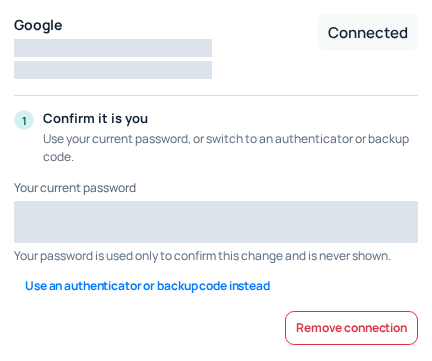
Start from the existing IllyVoIP account’s Settings, not a new registration. Connecting a provider establishes another sign-in method for that account. Before continuing, check that both the IllyVoIP account and the provider account are the ones you intend to associate.
- Open Settings and the connected sign-in controls. Locate the Google or GitHub card and read whether it is already connected.
- Use the card’s connect action. Complete the requested identity confirmation: use the current password, or the authenticator or backup-code option only when the interface offers it.
- In the provider’s authorization window, check the selected Google or GitHub identity before approving. If it is wrong, cancel and select the correct provider account.
- Return to the same browser session in IllyVoIP and check the provider card again. A provider consent page by itself is not proof that linking finished.
Do not create a second IllyVoIP account to work around a connection error. Keep the original session open and record the exact message if the provider cannot be attached. Existing account associations and the returned authorization result need to be resolved before trying again.
Remove a connected sign-in method safely
- Confirm that you have another usable way to sign in. If this is the final connected provider, make sure you know the account password first.
- Open the connected provider’s remove action and read the identity-confirmation requirement.
- For removal of the final provider, supply the current password. An authenticator code does not replace that password requirement. For other removals, use only the verification methods actually offered.
- After completing removal, check that the provider card is no longer connected. Keep the current session until you have confirmed that your remaining sign-in method works.
Removing a provider link is not deletion of the Google or GitHub account and is not the same as signing out every existing IllyVoIP device. Review the separate session controls if device access is the concern. If you cannot satisfy the required confirmation, use account recovery or Support rather than removing additional methods.
Reviewed 12 October 2026 against the current IllyVoIP controls, implementation and applicable references. Available options depend on account permissions and service state.