
Use this guide to check and, when justified, disable SIP ALG on a supported TP-Link Deco system while troubleshooting IllyVoIP calls. SIP ALG inspects SIP traffic and may alter information used to establish calls through a router. In some setups it conflicts with the phone or PBX's own NAT handling.
Disabling it is a controlled diagnostic step, not a universal requirement or a guaranteed cure for one-way audio. This guide covers the Deco app workflow documented by TP-Link. Archer, Omada and other routers have different interfaces and should use their own model-specific instructions.
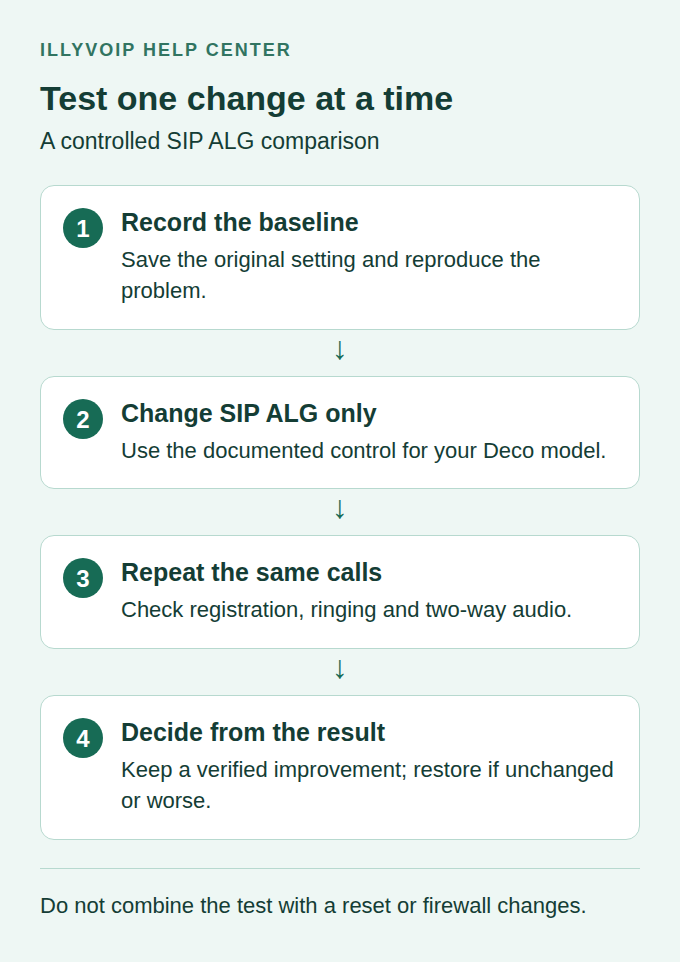
1. Decide whether an ALG test fits the problem
Start with the actual symptom: registration timeouts, incoming calls that stop ringing after an idle period, or connected calls with missing audio. These symptoms can have several causes. Record the exact failure before touching the router.
First verify that the IllyVoIP SIP account uses the correct hostname, destination port, transport and credentials. For silent calls, check mute, microphone permission, selected audio device and matching media encryption. An ALG change will not repair an incorrect password or a muted microphone.
A network comparison is useful if it is practical and permitted. If the same device and intended account work on a second trusted network, note that result. It points toward a difference in the network path, but it does not identify SIP ALG as the cause by itself.
2. Identify the Deco model, firmware and operating mode
Open the Deco app with an account authorized to manage the correct network. Record the Deco model, hardware revision, firmware version and app version. Check the exact model against the applicability list and current firmware information in TP-Link's official SIP ALG instructions.
Determine whether Deco is working as the router or as an access point. TP-Link's Router versus Access Point comparison lists SIP ALG as a Router-mode feature. When Deco is in Access Point mode, the upstream router manages routing/NAT; its configuration may be the relevant one.
Do not change Deco's operating mode just to reveal the SIP ALG option. That changes the network design and can affect addressing and connectivity. If another modem/router is in front of a Router-mode Deco, record both devices: more than one routing layer may be involved.
3. Record a baseline and the original setting
Choose a time when a short network change and test will not interrupt important calls. Tell the person responsible for the network what you are testing. Keep access to the app and record the original SIP ALG state so you can restore it.
| Baseline check | What to record |
|---|---|
| SIP registration | Current account status and any exact error. |
| Outgoing call | Whether the call connects and both sides hear. |
| Incoming call | Whether the configured number rings the intended device and has two-way audio. |
| Idle behavior | Whether the failure appears only after the phone has been idle. |
| Hold or transfer | Whether the problem begins after that specific action. |
| Original router state | SIP ALG On/Off, device mode and the firmware/app versions. |
Use numbers and endpoints you control. Normal call charges may apply. Record timestamps and timezone for each result. Do not include SIP passwords, router passwords or private account information in screenshots of your test notes.
4. Find the SIP ALG control in the Deco app
TP-Link documents this path:
- Launch the Deco app and select the correct network.
- Open More.
- Open Advanced.
- Open NAT Forwarding.
- Select SIP ALG.
Compare the app with the genuine screenshots in TP-Link's linked instructions. Menu placement and availability can vary with model, hardware revision, firmware, operating mode and app version.
If SIP ALG is already off, record that fact. There is nothing to disable in this control, so continue diagnosing the original problem rather than toggling unrelated settings. If the control is absent, follow the checks in the next section.
5. If the option is missing, check scope before changing anything
- Confirm that you selected the intended Deco network in the app.
- Check whether your account has permission to manage its advanced settings.
- Check Router versus Access Point mode.
- Use the product support page for the exact model and hardware revision to verify the available feature and menu path.
- If Deco is an access point, identify the upstream router and use that router's official documentation.
Do not assume that an absent toggle means ALG is enabled. Avoid factory resets, operating-mode changes or installing firmware for another hardware revision. If a firmware update is relevant, review the correct release notes and plan it separately; combining an update with this comparison makes the result harder to interpret.
6. Disable only SIP ALG and repeat the same tests
- After recording the current On state, turn SIP ALG off.
- Save or confirm if the app asks you to.
- Wait for the setting to apply. Follow an explicit device prompt if it requires another action; do not assume a factory reset or full-network reboot is necessary.
- Allow the affected client to register again if its connection was interrupted.
- Repeat the same outgoing and incoming calls using the same devices, accounts and destinations.
- Check audio in both directions and repeat the idle or hold/transfer condition that previously failed.
Keep the SIP transport, codec, audio-encryption policy, firewall rules and port-forwarding configuration unchanged during this comparison. Do not enable DMZ or disable the firewall. Those are separate, broader changes and would prevent a useful one-variable test.
If your topology includes a second router, do not change both routers at once. Record which device changed and the result before deciding whether the other device needs investigation.
7. Decide whether to keep or restore the setting
| After the change | Next action |
|---|---|
| Original failure is resolved and other tests pass | Record the result and retained setting. Repeat the relevant idle test before relying on it. |
| No measurable improvement | Restore the recorded original state and continue investigating the specific failure. |
| A new failure appears | Restore the original state promptly, then confirm the previous behavior returns. |
| Results vary between attempts | Keep the evidence and investigate intermittency; one successful call is insufficient to identify the cause. |
Restore the setting through the same SIP ALG page and save if prompted. Repeat the baseline call checks after restoration. If app access was lost, use the network administrator's normal recovery process rather than resetting the entire system without a configuration backup.
A verified improvement is useful evidence for this installation. It does not establish that every Deco model, every SIP service or every connection should use the same setting.
8. Continue troubleshooting with the right evidence
If the problem remains, return to the stage that fails: registration, number routing, call rejection or media. For registration, compare the endpoint and transport and preserve the final response. For audio, examine the negotiated media addresses, encryption and reachable media path. For incoming calls, confirm the IllyVoIP number's destination and account availability.
Provide Support with the Deco model/hardware/firmware, operating mode, upstream-router details, affected phone or PBX version, exact symptom, timestamps and before/after results. Include the original and tested ALG states. Use the secure support channel for any call references or private network information.
The call reports guide explains where to find a matching call record. A connected call record alone cannot establish that ringing, audio or keypad input worked at the device.
Frequently asked questions
Should I always disable SIP ALG for IllyVoIP?
No blanket setting is appropriate for every network. Use the documented control when there is a reason to test it and retain the change only after verifying the required call behavior.
Why is SIP ALG missing in Access Point mode?
Deco is not performing the router role in that mode. Check the upstream router and the exact device documentation rather than changing operating mode.
Is disabling SIP ALG the same as disabling the firewall?
No. This procedure changes one SIP-processing feature. Leave the firewall and unrelated network protections in place.