
If a VoIP call connects but only one person can hear, or neither person hears anything, start by identifying the missing audio direction. A connected call proves that some call signaling succeeded. It does not prove that the audio packets reached the correct device or that the device could play them.
This guide covers SIP phones, softphones and PBXs using IllyVoIP. Work from the simplest local checks toward the media path. Record each result and change one setting at a time. Avoid resetting a working account or opening broad firewall access before you know which part of the call is failing.
1. Describe exactly who cannot hear whom
Make one test call to a number you control and use the same two endpoints for comparison. Normal call charges may apply. Write down whether you initiated the call or received it, when it connected and which side could hear.
| Observation | First useful check |
|---|---|
| You hear the other person; they cannot hear you | Your microphone, mute state, app permission and audio leaving your device. |
| They hear you; you cannot hear them | Your speaker/headset selection, volume and audio arriving at your device. |
| Neither side hears anything after answer | Both local audio devices, negotiated media/encryption and the media path. |
| Audio disappears after hold or transfer | The media negotiation and path after that specific action. |
| Speech breaks up rather than disappearing | Wi-Fi signal, packet loss, jitter and network load. |
| Only ringing or an announcement is missing before answer | Early-media behavior; test answered conversation separately. |
Use concrete descriptions such as “outgoing call, my microphone reaches the remote side, but their voice is silent here.” “Incoming audio” can mean either an incoming call or the audio received by one participant, so it is often too ambiguous for a support report.
2. Rule out local microphone and speaker problems
- Check mute on the handset, app, headset and any physical headset cable or control.
- Select the intended microphone and speaker in the calling app and operating system.
- Grant microphone permission to the app if it was denied.
- Check whether Bluetooth has routed sound to another device.
- Try the handset's speakerphone or a known working wired headset as a controlled comparison.
- Use the operating system's microphone-level or recording test, where available, to confirm the selected microphone captures sound.
If changing the audio device fixes the call, keep that result separate from a network diagnosis. A local microphone test confirms capture on the computer; it still does not prove the app sent that audio during the SIP call.
On mobile, note whether the problem occurs only when answering from the lock screen, after Bluetooth reconnects or when switching between Wi-Fi and mobile data. Those conditions can change the app's audio session or media path.
3. Establish the scope of the failure
Repeat a small set of comparisons without changing the SIP account:
- One outgoing and one incoming answered call, if an incoming number is configured.
- The same device on a second trusted network, if permitted.
- A different authorized device or extension using its own intended configuration.
- A call before and after hold/resume, only if that action triggers the problem.
- A second destination you control, to distinguish one remote system from all destinations.
Keep a short record of device, network, destination, direction and result. If only one destination fails, include a working comparison for Support. If every extension on a PBX fails in the same way, inspect the shared PBX/provider media path before changing each phone.
Do not register the same identity on several test devices without considering how the service handles competing registrations. That can introduce a new incoming-call problem while you are diagnosing audio.
4. Match the audio-encryption mode on both sides
Open Services → SIP Lines in IllyVoIP and review the line's audio-encryption setting. Compare it with the phone or PBX configuration.
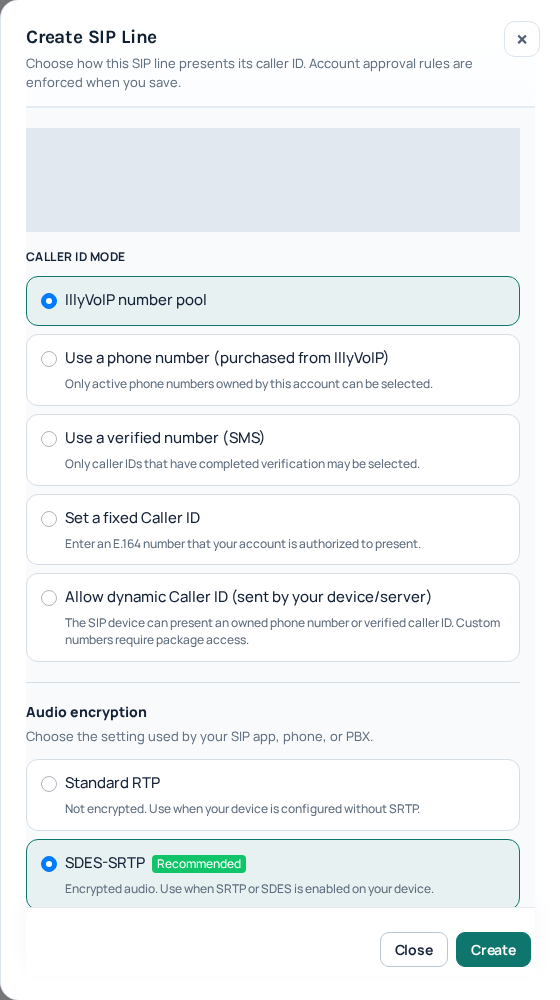
Standard RTP and SDES-SRTP are different media configurations. A line configured for SDES-SRTP needs a compatible device or PBX using the appropriate key exchange. A generic “secure calls” toggle might offer another method, such as DTLS or ZRTP, which is not interchangeable with SDES.
TLS is the SIP signaling transport. It does not automatically enable matching SRTP audio. Conversely, changing the media mode is not a fix for an incorrect SIP hostname or transport. Compare the complete agreed configuration and preserve any required encryption policy.
If calls work in the foreground but fail through a mobile push service, check that app's documented push/encryption limitations. Do not assume a push-delivered call negotiates media exactly like a foreground call.
5. Check codec negotiation
The two sides of each media connection need compatible codecs. On a PBX call, the phone-to-PBX and PBX-to-provider connections may negotiate separately, with the PBX translating between them when supported.
Review the codec actually negotiated for a failed call, not only the list of enabled codecs. Compare it with a working call. If an administrator suspects codec incompatibility, test one mutually supported codec on a bounded test account and document the result. Do not force every production call to a different codec without evidence.
A codec mismatch may reject a call altogether, while missing or unusable media may produce a connected but silent call. Preserve the exact call result and any media-negotiation error rather than labeling every failure “NAT.”
6. Trace the media path through routers and PBXs
SIP establishes the call; RTP or SRTP carries its audio. Those flows can use different ports and, depending on the design, different hosts. Allowing the SIP destination port alone does not establish that the media path is working.
Have the network or PBX administrator inspect the media addresses and ports advertised in the call's SDP and compare them with the packets actually sent and received. A private address advertised to an endpoint that cannot route to it is a useful clue. It is not a reason to replace every address with the public IP: local calls and remote calls can require different treatment.
Check the real topology: phone behind router, PBX behind router, remote extension, VPN, double NAT or carrier-grade NAT. The correct correction depends on where translation occurs and which system should remain in the media path.
Do not copy a generic RTP port range from another provider. Use your PBX's configured media range and the current network requirements supplied for your deployment. Keep rules scoped to the intended service and preserve the firewall's other protections.
7. Review PJSIP NAT settings when you manage the PBX
For Asterisk PJSIP, the official NAT configuration guide explains these distinct controls:
| Setting or concept | What to verify |
|---|---|
| Local networks | The networks Asterisk should treat as local. |
| External media address | The reachable external media address when the relevant NAT rewriting applies. |
| External signaling address | The external address used for SIP signaling; it is separate from media handling. |
| Direct media | Whether media can bypass the PBX, and whether the endpoints can reach each other when it does. |
| Symmetric RTP | Whether media should be returned to the address/port from which it was received for the affected endpoint. |
The corresponding PJSIP option names are local_net, external_media_address, external_signaling_address, direct_media and rtp_symmetric, in the order shown above.
These are diagnostic checkpoints, not a universal configuration to paste into production. Asterisk's example uses another provider and illustrative addresses. In FreePBX or another managed distribution, use its supported administration controls; generated configuration files may be overwritten.
If audio stops only after hold or transfer, compare the new SDP and media destination after that event. A successful initial call does not prove that the new path is reachable. Collect that exact sequence for the PBX administrator.
8. Treat SIP ALG as a controlled possibility
Some routers inspect or modify SIP traffic through a SIP ALG feature. If the evidence points to signaling or media-address rewriting, inspect the setting for the exact router model and firmware. Record its original value, make only that change during an agreed test window and repeat the same calls.
Keep the change only when the results support it; restore the original value if it does not help or causes a regression. Do not combine an ALG change with a new codec, changed ports and a router reset, because you will not know which change mattered.
9. Verify the fix and send focused evidence
Repeat the original failing call, a working comparison, both call directions and any hold/transfer or idle condition that previously failed. Confirm that audio reaches both sides. Check the relevant entry in call reports, but remember that a completed CDR does not prove the conversation was audible.
For Support, include the timestamp/timezone, call reference, affected direction, device/PBX versions, network topology, encryption mode and the comparison results. Share full numbers or packet captures only through the secure support channel. Captures may contain private signaling and, for unencrypted RTP, conversation audio; collect only the required test interval.
Frequently asked questions
Why does the call connect if the firewall is blocking audio?
Signaling and media are separate flows. The call can be accepted even when its media packets cannot reach the intended address or port.
Does an answered call report prove two-way audio?
No. Verify the conversation from both ends. Call records describe the call's signaling and accounting outcome.
Should I disable encryption to fix silence?
First match the agreed media configuration on both sides. Do not remove a required encryption policy as a shortcut.