
Decide which records should sync
Before connecting, agree which team owns contact updates and whether calls, SMS, recordings and appointments should be included. Check that you are using the intended HubSpot account and have permission to connect it.
Open Settings → Integrations → CRM Integration. Review the HubSpot connection state. If it is not connected, use Connect and review the authorization steps shown before approving access.
Review each sync option
Import contacts from CRM
Bring CRM contacts into IllyVoIP.
Export IllyVoIP leads to CRM
Send IllyVoIP leads to the connected CRM.
Log calls / Log SMS to CRM
Choose whether calling and messaging activity is logged.
Attach recordings to call logs
Choose whether recordings are attached to call logs. Review who can access those records in the CRM.
Import CRM appointments
Bring CRM appointments into the IllyVoIP workflow.
Choose the options your team needs. A connected status alone does not tell you which types of data are included.
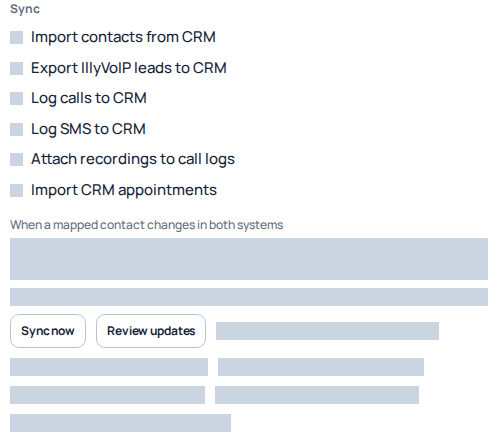
HubSpot sync offers separate contact import/export, call and SMS logging, recording attachment and appointment options. Saved selections and account-specific sync details are hidden; Sync now and Review updates were not used. Open the image for a larger view.
Choose how to handle contact conflicts
The setting When a mapped contact changes in both systems offers two approaches:
- Ask me each time (Review updates) keeps conflicting contact changes for review.
- Automatically sync in both directions uses the automatic behavior shown in the integration.
Choose deliberately before editing the same contact in both places. Use Review updates to inspect pending changes when the review option is selected.
Check progress after a sync
The portal states that sync runs automatically while the CRM is connected. Sync now starts a background sync, so allow it time to finish before investigating a missing result.
Check the separate last-sync information for contacts, calls, SMS and calendar activity. A recent calls check does not prove that a particular contact or appointment was synchronized.
Compare one known record in the intended direction and review pending contact updates. Avoid repeatedly disconnecting or reconnecting as a first troubleshooting step.
If the expected record is missing
- Check the connected account and relevant import, export or logging option.
- Review the appropriate last-sync time and any pending updates.
- Record which system contains the source record and what is missing in the other.
- Give support the record reference, time and sync direction, with credentials and unrelated contact details removed.
Keep authorization, sync and calling separate
Review the Connected status and wait for Saving to finish after changing an option. A connection can be authorized while its Enabled switch is off; authorization alone does not enable all synchronization. CTI calling is another setting, described in calling inside your CRM.
When reviewing a conflicting mapped contact, compare the proposed CRM and IllyVoIP values and select the intended direction. This is not a general-purpose custom-field mapping designer. Check the linked record after completion before editing it again.
Disconnect with a clear data decision
Use Disconnect only when you intend to disconnect that account. Read the confirmation and verify the resulting state. Do not assume it deletes contacts, activities or recordings already copied to either system. If changing CRM accounts, check the old connection and existing contact links with your administrator before enabling new imports or exports.
Resolve a contact update that needs your decision
When your selected synchronization policy asks for review, open the CRM update decisions in the HubSpot integration. Review each pending contact against the values shown on both sides. Do not approve a whole set just because the contacts have similar names.
- Open Settings → Integrations and the HubSpot CRM controls. Confirm that you are reviewing the intended connected CRM account.
- Open CRM update decisions. The count indicates decisions waiting for attention, not a count of successfully updated contacts.
- For each row, compare the IllyVoIP and CRM versions. Check the actual fields and the indication of which side changed.
- Choose Apply CRM → IllyVoIP when the CRM values should win, or Apply IllyVoIP → CRM when the IllyVoIP values should win. Read the arrow as the direction of the update.
- Wait for the decision to finish and the review list to refresh. Verify the affected contact’s intended fields before handling another ambiguous record.
For example, if your team corrected a contact in IllyVoIP while an older value remains in HubSpot, importing that CRM version would undo the correction. Decide from the actual values and your team’s source of truth, not simply from which application you opened most recently.
When a decision cannot be applied
If the interface says that an update needs support review before another decision, stop on that contact and preserve the message. Repeating the opposite direction, reconnecting HubSpot or importing the same contacts again does not resolve an uncertain previous update. Supply Support with the affected contact’s internal reference, the chosen direction and the time; send personal contact details only through the appropriate private support channel.
Another person may change the contact while you are reviewing it. If the screen refreshes with changed values or rejects an outdated decision, read the new comparison before deciding again. Do not assume the version you saw earlier is still current.
Keep the review policy aligned with your team
Use the review policy when a person must approve competing changes. Switching to automatic synchronization is a separate choice about future updates, not a repair for a blocked pending decision. After a policy change, check the integration’s current status and review any outstanding decisions deliberately. Call logging, SMS logging and appointment import are separate integration features; a contact decision does not verify those features.
Reviewed 12 October 2026 against the current IllyVoIP controls, implementation and applicable references. Available options depend on account permissions and service state.