
PJSUA is the PJSIP project’s command-line SIP client. You can configure it as an IllyVoIP endpoint, inspect registration and deliberately test a call from a computer you control. It is a different application from Asterisk’s res_pjsip module: an Asterisk pjsip.conf file is not a PJSUA configuration file.
The configuration options in this guide were checked against PJSIP 2.16 source and the official CLI documentation on October 11, 2026. Builds differ in audio, TLS, SRTP and CLI support. Inspect your actual executable before using an example. This guide uses a basic UDP/plain-RTP account example only where that matches the selected IllyVoIP line; it does not instruct you to weaken an encrypted line.
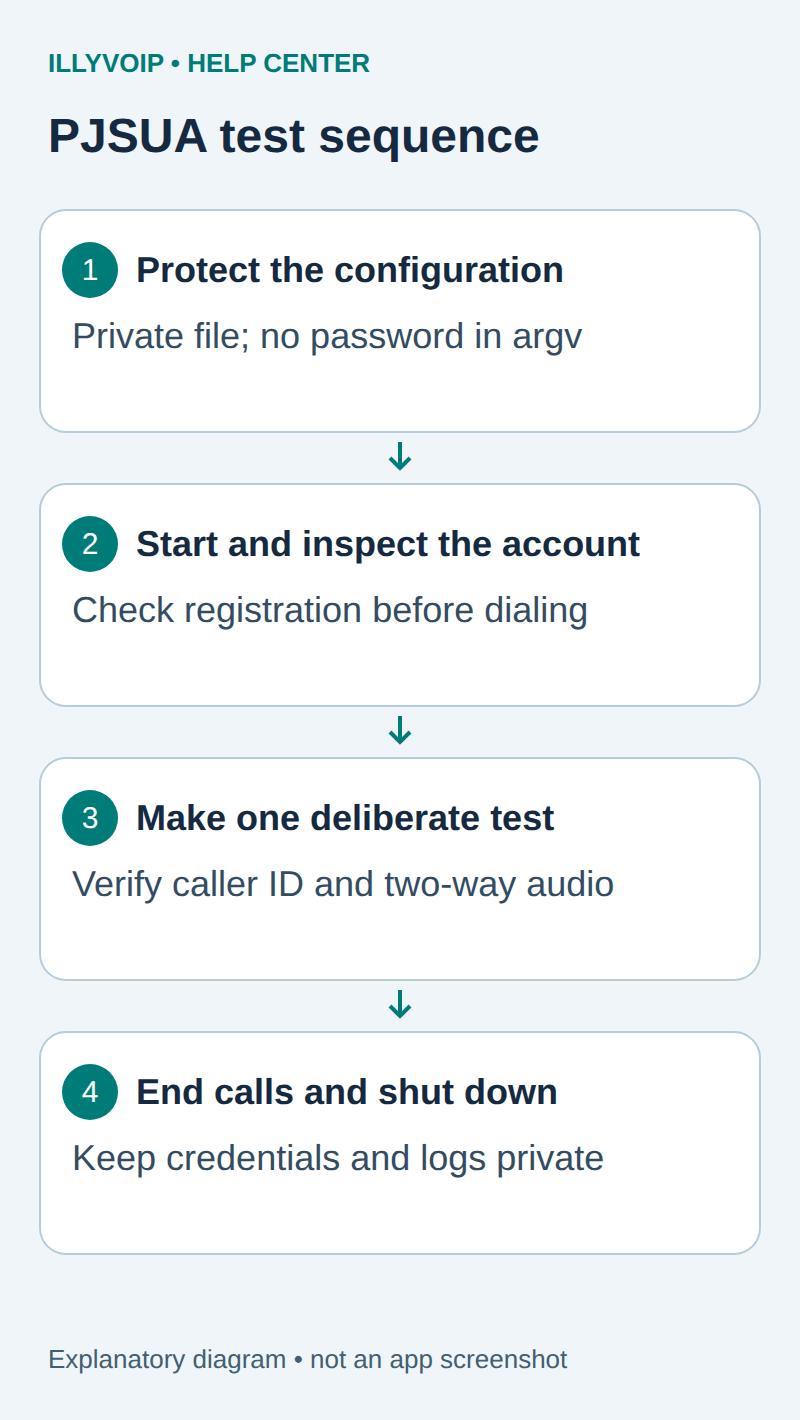
1. Prepare a client and a dedicated test account
Obtain PJSUA from a trusted operating-system package or the official PJSIP project. Distribution package names and executable paths vary. A development library or Python binding alone does not necessarily install the command-line client.
pjsua --version
pjsua --help
Check for the account, configuration-file and CLI options used below. For audible calls, also confirm the build has a usable audio backend and that the account running it can access the intended microphone and speaker.
In IllyVoIP, open Services → SIP Lines, select a password-authenticated line and obtain its SIP username/password and Technical endpoints hostname, port and transport. Confirm media policy, caller ID, account readiness and balance. Do not use the Portal login as SIP authentication or alter a production IP-authenticated trunk to fit this example.
2. Create a private configuration file
Keep the password out of a shell command, shell history and a shared process listing. Create a private directory and file, then edit the file locally with an editor you trust:
umask 077
mkdir -p "$HOME/.config/pjsua-illyvoip"
touch "$HOME/.config/pjsua-illyvoip/account.cfg"
chmod 700 "$HOME/.config/pjsua-illyvoip"
chmod 600 "$HOME/.config/pjsua-illyvoip/account.cfg"
The following is a template, not a ready-to-run account. Replace every uppercase placeholder. The reserved example hostname intentionally cannot reach a real service. This example explicitly selects UDP and ordinary RTP; use it only for a line whose endpoint and media policy permit that combination.
--id=sip:SIP_USERNAME@sip.example.invalid
--registrar=sip:sip.example.invalid:5060;transport=udp
--realm=*
--username=SIP_USERNAME
--password=REPLACE_WITH_SIP_PASSWORD
--no-tcp
--use-srtp=0
--use-cli
--cli-telnet-port=0
Use the actual registrar port instead of assuming 5060. The account identity is a SIP URI, while the username is the authentication identity. The wildcard realm lets the client use the supplied credential for the challenged realm; it does not remove the requirement for the correct SIP password.
PJSUA’s configuration file is parsed into option tokens, not executed as a shell script. Do not expect environment variables or shell escapes in this file to expand. If a value contains whitespace, its parser needs appropriate whole-token quoting, such as "--password=value with spaces". For unusual quote characters, consult the parser for the installed release rather than guessing. Never change a shared SIP password merely to avoid understanding configuration syntax.
3. Match other transport or encryption requirements deliberately
For TCP, TLS or mandatory SRTP, do not run the UDP/plain-RTP template unchanged. Check your build’s options against its matching documentation and use the line’s complete endpoint and audio policy. TLS requires a TLS-capable build, the correct server name/port, trusted certificates and peer verification. Enabling TLS does not automatically establish that media is encrypted.
Similarly, an “optional SRTP” setting can allow unencrypted negotiation and is not a substitute for a mandatory encryption policy. If you cannot verify the required combination, use a supported client configuration or ask Support. Do not add a random outbound proxy, STUN server or public address merely to make a registration indicator change.
4. Start PJSUA without automatically dialing
pjsua --config-file="$HOME/.config/pjsua-illyvoip/account.cfg"Do not append a destination URI to this startup command. Starting the configured account can send registration traffic, but this command does not ask PJSUA to place a call. Keep the CLI local: the example disables its telnet listener.
In CLI mode, use the commands shown by your build’s help/completion. The documented command for the account list is acc show. Select the intended account before a call if more than one is present. If --use-cli is unavailable, do not mix these commands with the legacy interactive menu; use that build’s documented interface instead.
Read the final registration state and response. An initial authentication challenge can be a normal part of registration; a continuing failure requires investigation. A local configuration error, DNS failure, final rejection and timeout are different problems.
5. Select real audio devices and make a controlled call
Review the startup audio-device list and your operating system’s microphone permissions. Check the installed build’s --capture-dev and --playback-dev options when selecting devices. PJSUA’s audio list shows conference/media ports; those are not a replacement for checking physical device access.
Do not use --null-audio to claim a microphone-and-speaker test. A headless client can establish signaling without providing useful speech.
- Choose one number you control and check the IllyVoIP rate and allowed caller ID first.
- In CLI mode, use the documented
call newcommand with the intended destination SIP URI. Build the user part from the correctly formatted telephone number, and use the correct service host and transport. - Confirm answer signaling, speech in both directions and expected caller ID separately.
- Use
call hangupto end the current call when finished; do not leave an unattended call open.
For example, the shape of a UDP call command is shown below.
call new sip:DESTINATION@sip.example.invalid:5060;transport=udpReplace the placeholders before using it; executing a real destination can create a chargeable call. This is a PJSUA CLI command, not a shell command.
6. Test incoming calls and shut down cleanly
To receive a public incoming call, an active IllyVoIP number must point to this SIP line. Call it from another telephone while PJSUA is registered. In the documented CLI, use call answer 200 to answer the current pending incoming call, then verify audio and use call hangup to end it. With multiple calls, check the current selection first; call next and call previous change that selection. Do not enable automatic answering as a shortcut for an ordinary interactive test.
When finished, end active calls and use shutdown in CLI mode. Confirm the process has exited. Protect or remove the local account file according to your credential policy; do not upload it to a support ticket.
7. Troubleshoot the failing stage
- Options rejected: compare the executable version and build capabilities with the example.
- Registration fails: check identity, registrar, credentials, transport, source-IP policy and the actual response.
- Registered but calls fail: check the selected account, destination URI, account readiness and caller-ID permission.
- Call answered without audio: check physical devices and mute state before investigating the negotiated network/media path.
- Incoming call missing: check the number destination and current registration; do not assume outgoing-call success establishes inbound routing.
Record the version, exact failure, time and public call reference. Diagnostic logs can contain identities and authentication material, so collect only what Support needs and redact secrets before sharing privately. Do not attach the complete configuration file.
References: PJSUA CLI manual and PJSIP 2.16 option definitions and configuration parser. Related: SIP registration troubleshooting. Documentation and local checks are not a paid-call or audio-device certification.