
PRTG can trigger an IllyVoIP SMS through a small server-side receiver that converts its notification into the SMS API’s JSON request. Use this adapter because the documented PRTG HTTP Action payload supports form-urlencoded data, while IllyVoIP expects JSON and API-key headers.
This is a custom integration for an administrator who can configure PRTG notifications and deploy an authenticated HTTPS receiver with durable storage. It is not a built-in IllyVoIP SMS provider in PRTG. Keep the account API key at the receiver rather than placing it in a public notification URL.
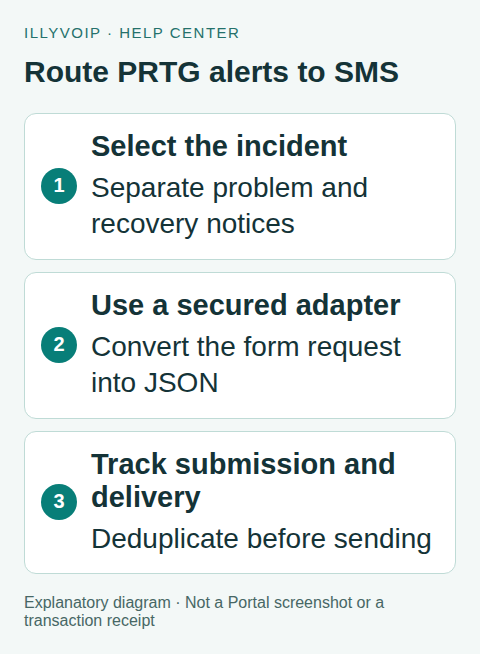
1. Choose a narrow alert policy
Select the host/sensor conditions that justify a text message, the authorized recipients and their availability periods. Decide whether a recovery message is required. Avoid treating every repeated check or every escalation as a new incident notification.
Choose a stable incident identity from the fields available in your PRTG version or from a receiver-side incident ledger. Keep the sensor identity, incident occurrence, phase and recipient distinct. A sensor ID alone cannot distinguish two separate failures several days apart.
2. Prepare the secure receiver
The receiver must accept only authorized PRTG requests, validate the form fields and allow only configured recipients/senders. Use an authentication method supported by your deployment, such as a protected ingress with dedicated credentials or a private authenticated network path. Do not rely on an unguessable URL alone for unrestricted paid sending.
Store the IllyVoIP key in the receiver’s secret store. Set request-size and rate limits, keep logs sanitized and reject arbitrary destination URLs or recipient lists supplied by an untrusted caller.
The receiver needs a durable notification table with a unique business identity and states for accepted, submitted, uncertain and rejected work. Atomically store/claim a notification before submitting its SMS.
3. Configure the PRTG notification template
- Open the notification-template settings for the intended PRTG installation.
- Create or edit a narrowly scoped template and enable Execute HTTP Action.
- Set the URL to your secured receiver.
- Select POST and map the required values into the form-urlencoded payload.
- Configure the appropriate TLS/SNI and authentication path for that receiver.
- Attach the template only to the intended notification trigger after tests pass.
Use PRTG’s current placeholder reference to select the exact sensor, state, timestamp/incident and message fields. Preview their resolved values. Do not assume a placeholder copied from another PRTG version expands in this operation.
Encode form values correctly: spaces, plus signs, ampersands and equals signs inside a message must remain data. A literal unescaped ampersand can turn part of the message into another form field. Test non-ASCII text too.
4. Map the event to the SMS request
After authentication and validation, the receiver maps the event to a reviewed sender, one permitted international recipient and a concise message. Freeze these values and a stable IllyVoIP request key in the durable record. Submit the following shape to POST /api/v1/sms/messages on the IllyVoIP API base URL:
{
  "from": "YOUR_APPROVED_SENDER",
  "to": ["YOUR_ON_CALL_RECIPIENT"],
  "message": "Monitoring alert: the approved service needs attention."
}
The receiver adds Content-Type: application/json, X-Api-Key and the saved Idempotency-Key. Use a JSON serializer. Do not send PRTG’s form body unchanged to IllyVoIP or embed the permanent key in a GET query string.
5. Separate acknowledgement from sending
Acknowledge the PRTG request only after durable receipt, then let a worker perform the SMS operation. Acknowledgement means the adapter accepted the alert; it does not mean the phone received a message.
Require the SMS API’s actual success and accepted message reference before marking the notification submitted. Store that reference and check delivery separately. If submission times out, retain the original payload/key and mark it uncertain. Do not have PRTG, the receiver and a manual script each retry independently with new identities.
Use one business record per intended incident/phase/recipient. A recovery notification gets its own phase. If repeated escalation texts are deliberately required, model each as a separate reviewed policy step rather than accidentally bypassing deduplication.
6. Account for PRTG notification behavior
The PRTG manual states that HTTP Action notifications are sent immediately rather than being grouped by the notification summarization setting. Configure trigger/escalation volume accordingly; do not assume an email summarization window limits these SMS requests.
The alternative Execute Program method is not available in PRTG Hosted Monitor. This walkthrough uses an HTTP receiver so that its architecture is explicit, but you must still verify the deployment’s ability to reach and authenticate to that receiver.
7. Test the adapter and workflow
Use synthetic events to check valid/invalid authentication, reserved form characters, an unapproved recipient, duplicate delivery, a new incident on the same sensor, recovery and a lost SMS response. Restart the receiver and confirm the ledger survives.
Then use one authorized test notification and review both PRTG’s record and IllyVoIP’s accepted ID/delivery state. Check sender eligibility, segments and cost before real sending. Enable the narrow trigger and monitor volume before broadening coverage.
Frequently asked questions
Can I paste the SMS API URL into PRTG and finish?
Not for this documented form action. The payload and authentication need the receiver described above.
Does a green PRTG notification prove SMS delivery?
No. It establishes the notification action’s result; delivery must be checked through the SMS record.
Related guides and references
- Send an SMS with the IllyVoIP API and track delivery
- Official reference: www.paessler.com
- Official reference: api.illyvoip.com
Reviewed 8 October 2026 using current IllyVoIP implementation and official references. Check your installed version and account options before applying settings. Examples do not certify a physical device or completed live integration.