
Add microphone and speaker choices to a custom IllyVoIP browser phone using the SDK’s device methods. Show users whether a selection was actually applied, and distinguish choosing the next call’s microphone from replacing audio on a call already in progress.
This guide assumes your application already initializes the current IllyVoIP WebRTC SDK with authorized short-lived browser credentials. Keep the permanent API key on your backend. Follow the SDK setup and lifecycle guides first; the snippets below operate on an existing phone instance and do not create a complete phone application.
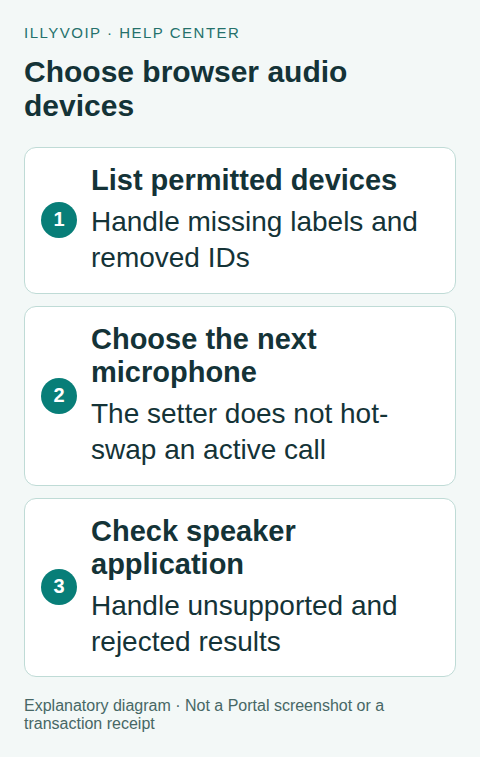
1. Prepare permission and a clear user action
Serve the application over HTTPS. Ask the user to enable audio through a visible action and explain why microphone access is needed. Browser permission, operating-system permission, hardware mute and speaker selection are different controls.
Do not repeatedly open permission prompts during rendering. If the application is embedded, check the relevant browser Permissions Policy and iframe permissions. A user can have a working microphone in another application while this origin remains blocked.
Device labels may be unavailable until permission is granted. Treat an empty label as a permission/privacy state rather than inventing a device name or treating the list as proof of failure.
2. List the available devices
After the application’s audio-permission step, call phone.listDevices(). Use each returned device’s actual ID and kind to populate your controls. Do not persist the first array position as the user’s device identity; device order can change.
const devices = await phone.listDevices();
const microphones = devices.filter(d => d.kind === 'audioinput');
const speakers = devices.filter(d => d.kind === 'audiooutput');
// Render these lists using the returned device IDs and available labels.
Handle a rejected enumeration with a visible explanation and a retry action. If the browser only offers the default output, allow that choice. Do not report that a selected external speaker exists merely because it appeared in a previous session.
3. Select the microphone before the next call
Use phone.setInputDevice(deviceId) after confirming the ID is in the current input list. The current SDK stores this selection and uses it when building subsequent audio constraints.
It does not replace the microphone track of an already active call. Disable the microphone selector during a call or explain that the choice applies to the next call. Do not display “microphone switched” on the active call solely because this setter resolved.
async function chooseNextMicrophone(phone, deviceId, callInProgress) {
  if (callInProgress) {
    return { applied: false, reason: 'Choose a microphone between calls.' };
  }
  const devices = await phone.listDevices();
  if (!devices.some(d => d.kind === 'audioinput' && d.deviceId === deviceId)) {
    throw new Error('The selected microphone is no longer available.');
  }
  await phone.setInputDevice(deviceId);
  return { applied: true, scope: 'next call media' };
}
Your application must supply an accurate in-progress state from the SDK lifecycle, including connecting/incoming sessions where media setup is underway. The helper is not a substitute for owning that lifecycle. If a microphone disappears, refresh the list and ask the user to choose again.
4. Apply speaker output and inspect the result
The SDK’s setOutputDevice uses the remote audio element’s browser output-selection support. It can resolve false when there is no applicable output-selection method, and it can reject when the browser denies or fails the change.
async function chooseSpeaker(phone, deviceId) {
  const applied = await phone.setOutputDevice(deviceId);
  return applied
    ? { applied: true, message: 'Speaker selection applied.' }
    : { applied: false, message: 'Use the browser or system default output.' };
}
Catch a rejection and keep the error visible without claiming success. Browser support, permissions and available devices vary. Output-device selection is separate from microphone permission; granting one does not establish the other.
Do not save a preference as successfully applied before the method’s actual result. If your application stores a desired output for later initialization, label it as a preference until the active audio element confirms it.
5. Refresh on device changes
Provide a Refresh control and, where supported, listen for browser device-change notifications while the component is mounted. Remove the listener during cleanup. Refresh the options after plugging in, unplugging or reconnecting a headset.
Keep desired selection and actual availability separate. An old device ID can disappear after browser privacy changes or a different session. Offer a deliberate default/fallback choice instead of silently claiming the missing device is active.
Clear account-specific phone state at logout. Avoid creating another SDK instance just to change a speaker; use the existing instance’s method and preserve the lifecycle owner.
6. Test the behavior in stages
Use mocked SDK methods to test empty lists, removed IDs, an active-call input selection, a speaker result of false and a rejected output change. Confirm the interface presents each result accurately.
Then test local browser permission and device enumeration on the actual supported browser/OS combinations. If you choose to make a paid live call, verify the intended microphone and speaker, then end it before changing the next-call microphone selection. Test unplug/replug and logout as separate cases.
A successful enumeration or local microphone test does not certify remote two-way call audio. Keep browser/OS version, SDK version and sanitized error for troubleshooting.
Frequently asked questions
Does setInputDevice hot-swap the active call? Not in the current implementation described here. It affects subsequent media constraints.
Should false from setOutputDevice be ignored? No. It means this method did not apply the requested output selection.
Related guides and references
- Add browser calling with the Webphone SDK
- Troubleshoot the webphone
- Official reference: developer.mozilla.org
Reviewed 9 October 2026 using current IllyVoIP implementation and official references. Check your installed version and account options before applying settings. Examples do not certify a physical device or completed live integration.