How to Manage Remote Employees Across Different Countries
A practical guide to team access, time zones, customer calls and follow-ups—with a closer look at how to organise the calling workflow in IllyVoIP.

A distributed team needs shared processes and a consistent way to handle customer conversations. Conceptual illustration.
Your sales representative is in Germany, your support team is in Kosovo, and another colleague works from Canada. Customers see one business. Behind the scenes, that business needs to coordinate people working in different places and at different times.
The challenge becomes clear when a customer calls near the end of a shift. Who answers? Where does the employee record what was agreed? Who follows up tomorrow? If those decisions are left to chance, distance quickly becomes a customer-service problem.
To manage remote employees across countries, define ownership, agree on working hours, give each person appropriate access, and keep customer conversations and next actions easy to find. Review service outcomes alongside activity so that your team knows what good work looks like.
This guide focuses on the daily management of remote sales, support and other customer-facing employees. It combines working practices with specific IllyVoIP workflows for employee access, business calling, queues, notes and reporting.
In this guide- Define responsibilities and working hours
- Set up employee access and calling identities
- Choose business numbers and caller ID
- Organise incoming calls with queues
- Keep notes and follow-ups with the customer
- Review performance in context
- Roll out a repeatable team workflow
- Frequently asked questions
1. Define responsibilities and working hours
Give each customer enquiry or task a named owner. That person should know the expected outcome, the deadline and when to involve someone else. “The support team will handle it” is less useful than “Elena will check the account and update the customer by their next business afternoon.”
Keep a shared schedule showing employee working hours, time zones, local holidays and planned leave. Compare that schedule with the hours your customers need help. An international team can extend your coverage, but having people in several countries does not automatically create a 24-hour service.
Agree on an overlap period for colleagues who need to collaborate directly. Use it for decisions, coaching and difficult cases. Routine progress updates can be written so that employees read them during their own working day.
Write deadlines with a date and named time zone. “Tomorrow at 3” is ambiguous across countries. Check recurring meetings around daylight-saving changes, and rotate inconvenient meeting times when no single slot suits everyone.
Use different tools for different jobs
Keep project deadlines in your task-management system, operating procedures in shared documentation and customer information in the agreed customer workspace. IllyVoIP supports the calling and customer-conversation side of this setup; your team still needs a clear process for assigning work and managing its schedule.
2. Set up employee access and calling identities
Individual employee accounts make it easier to organise access and understand calling activity. Avoid sharing the owner's login across the team.
In the IllyVoIP portal, open Contact Center → Agents. This screen brings together team users, SIP assignment and caller ID settings. The Create agent form includes employee details and a granular permissions list. The portal also states that a new SIP account is generated for each created agent.
There are two connected ideas here: the agent account determines the person's portal access, while the SIP account supplies their calling identity. A SIP account is the connection used by compatible calling software or equipment.
Match permissions to the employee's work
The permissions shown in the portal distinguish tasks such as viewing contacts, editing contact comments, seeing full phone numbers, accessing a team directory and viewing call reports. Billing and agent-management controls are separate.
Start with the access the person needs. A sales employee may need contacts, calling and their own reports. A supervisor may also need agent reporting or broader account visibility. Permissions to create agents, manage credentials, change permissions and control telephony settings should follow the person's responsibilities.
The portal also separates an employee's own call records from access to all account calls. Review this distinction deliberately when setting up supervisors.
Check the seat notice before creating another agent. Included seats and additional subscriptions depend on the account's plan. Adding users and increasing simultaneous calling capacity are also separate considerations.
See IllyVoIP's agent and SIP account features for an overview, then use the current portal to review your account's setup.
3. Choose business numbers and caller ID
Customers need a consistent way to contact the company even when employees work from different countries. Decide which business numbers to publish, who should receive their incoming calls and which caller ID employees should use for outbound calls.
IllyVoIP offers phone numbers in supported markets. Choose a number according to the customers you serve, rather than assuming it must match the employee's physical location. Availability and activation requirements depend on the country and number type.
The agent setup includes options for an owned phone number or a verified caller ID. Keep incoming routing and outgoing caller ID separate in your planning: verifying a number for caller ID does not transfer its incoming calls to IllyVoIP.
For everyday calling, IllyVoIP Business Voice supports the browser webphone and published Windows, iOS and Android apps. Choose the device and workflow each employee needs, then test that specific setup before assigning customer calls.
Include microphone quality, a suitable headset and a stable connection in onboarding. A successful login alone does not establish that an employee is ready to handle conversations.
4. Organise incoming calls with queues
A call queue gives incoming conversations a defined route to your team. It is particularly useful when several employees can answer the same business number.
In the portal, Services → Voice Agents → Manage queues opens queue management. The queue detail screen contains routing settings and a list of agents, with SIP lines used as queue members.
The current strategy choices include Ring all, Round robin, Least recent, Fewest calls, Random and Linear. Start with a strategy that fits the way your team actually works. For example, ringing everyone can suit a small shared team; an ordered approach may better suit a primary responder with backup colleagues.
The queue also exposes controls for ring timeout, retry delay, agent availability while ringing, recall rounds, maximum wait, maximum callers and wrap-up time. Queue members have priority and pause controls.
These settings deserve attention before launch. The interface explicitly allows unlimited recall and a zero maximum-wait setting that keeps a caller waiting until someone answers. Choose waiting limits intentionally and test what happens when no employee is available.
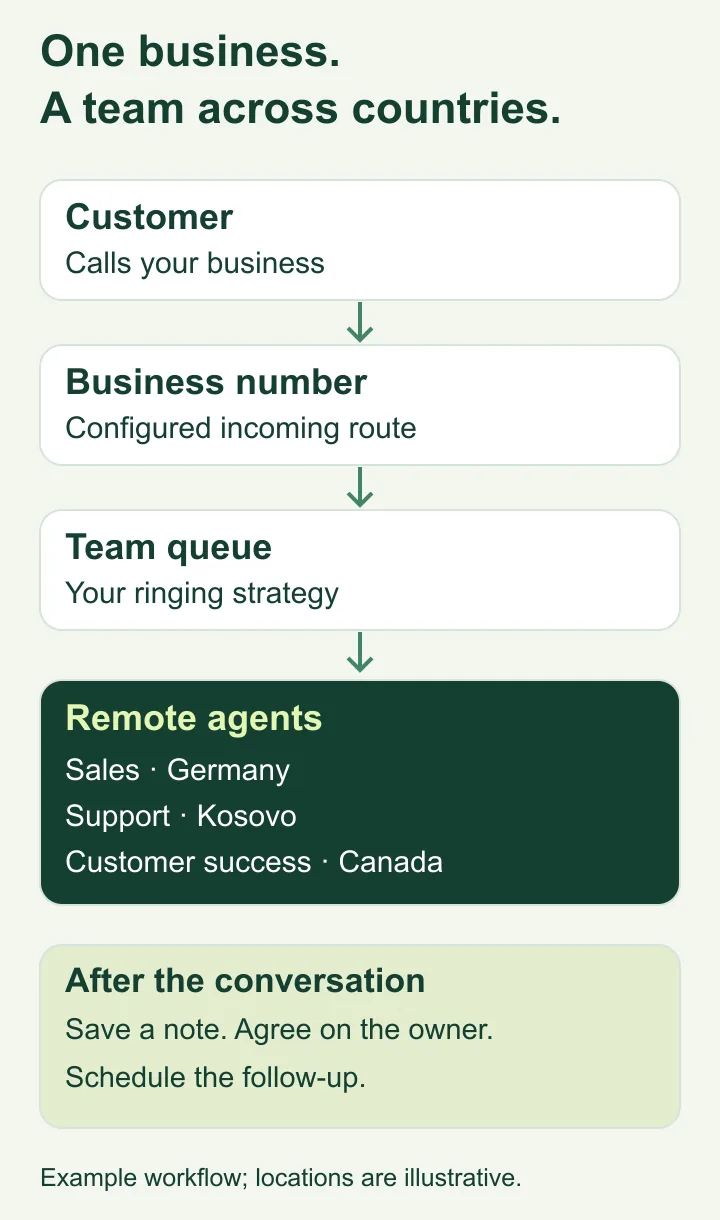
Keep a written coverage plan alongside the queue configuration. Employee location alone does not establish a shift schedule. Test the normal answer, busy-team and no-answer scenarios, including any separately configured fallback, before publishing the number.
Explore IVR and call queues for more information about incoming-call handling.
5. Keep notes and follow-ups with the customer
A distributed team needs enough context to continue a conversation when the original employee is unavailable. “Spoke to customer” is not a useful handover.
Open Contact Center → Agent Workspace. The workspace provides customer tools with Actions, Notes, Follow-up and Customer tabs. The Notes panel lets an employee draft while speaking and save the note to the contact. The Follow-up panel provides a date-and-time field, a description and a Create appointment action.
Use those tools as part of a consistent habit: record what happened, explain the next action and make responsibility clear in your team's agreed process. Check the displayed time zone before scheduling a callback across countries.
A useful handover note
Customer: Example Company
Request: Calling access for three remote sales employees
Completed: Discussed the team's countries and intended calling workflow
Next action: Confirm the requirements and send the proposed setup
Owner: Elena
Due: 15 October, 14:00 Europe/Berlin
Open question: Does the customer need a shared incoming number?
This is a fictional example, not a customer record. It illustrates the information a colleague needs to move the conversation forward.
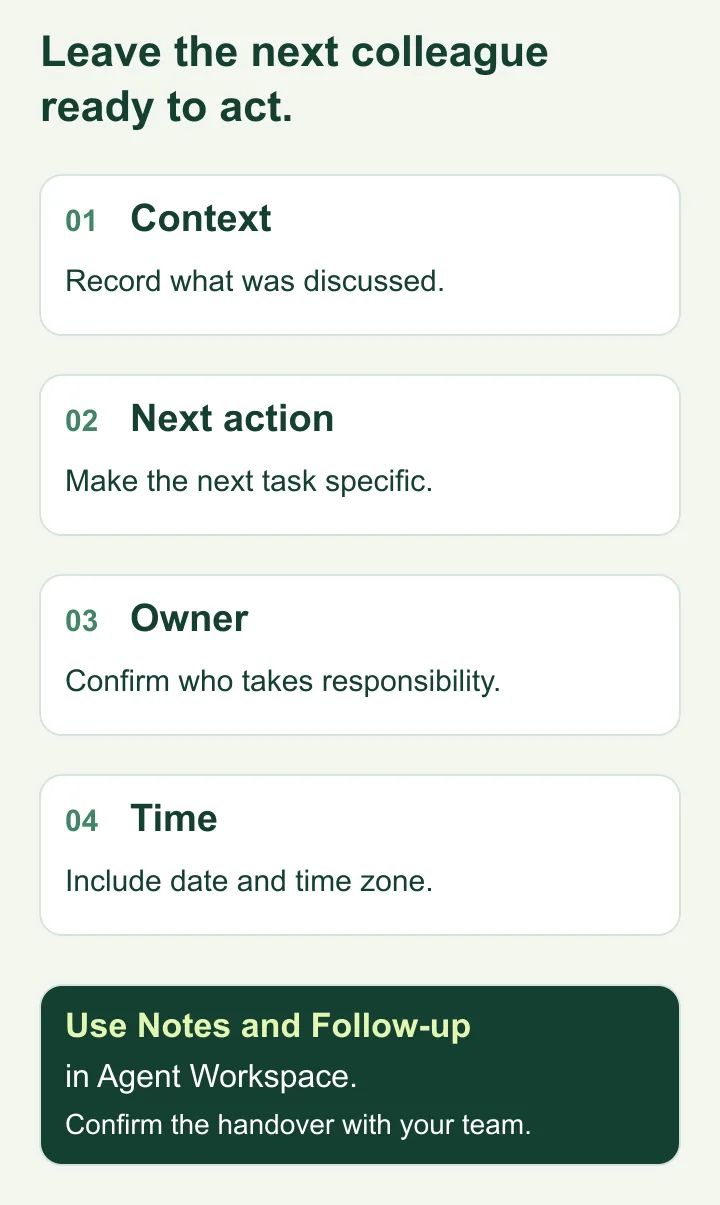
Saving a note or appointment is one part of the process. Make sure the receiving colleague has the appropriate access and knows they own the next step. Do not assume that writing a person's name automatically assigns or notifies them.
6. Review performance in context
Use reporting to identify questions worth investigating. Avoid judging employees by a single number.
In Analytics → Performance → Agents, the portal provides a date range and agent filter. The report includes calls, answered calls, answer rate, talk time, costs and presence information, with links to the underlying call detail records.
Presence fields include online, active and idle time when data is available. These are application activity indicators; they do not by themselves prove how much useful work an employee completed.
| Signal | Useful management question |
|---|---|
| Answer rate changes | Did calling times, destinations or the type of customer list change? |
| Repeated failed calls | Is there a calling-setup or destination issue that needs investigation? |
| Longer conversations | Are cases more complex, or does the employee need better guidance? |
| Higher spend | Which destinations and call volumes explain the increase? |
| Presence gaps | Was the employee working elsewhere, away from the app or outside their shift? |
Compare similar work over the same period. A support employee handling complex cases should not be measured against a salesperson making short introductory calls.
Alongside calling reports, review the outcomes your business records: completed callbacks, resolved issues, qualified opportunities and customer feedback. Call activity and business results answer different questions.
7. Roll out a repeatable team workflow
Start with a small pilot group and a single customer workflow. This makes it easier to discover unclear responsibilities or configuration problems before adding the rest of the team.
- Map coverage. List customer markets, employee working hours, languages and the owner of each type of enquiry.
- Prepare access. Review agent seats, create individual accounts and grant the permissions each role needs.
- Prepare calling. Check each employee's calling identity, device setup and intended caller ID.
- Connect incoming work. Configure the number's routing, queue membership and waiting behaviour for the chosen workflow.
- Rehearse the handover. Use an approved test contact to practise notes and appointments, and confirm the next colleague can access the information.
- Review the pilot. Check call records and customer outcomes, speak with the employees and resolve the problems before expanding.
Repeat the same checks when someone joins or changes roles. When an employee leaves, review their access, queue membership and open customer commitments together.
Maintain a short weekly review of customer coverage, overdue work and recurring problems. Pair it with individual check-ins so employees can raise workload concerns and request coaching. A predictable routine gives people room to work independently while keeping the business accountable to customers.
Frequently asked questions
How do you manage remote employees in different time zones?
Record working hours and time zones, define customer coverage, agree on useful overlap periods and use written handovers. Every callback or deadline should include an owner and an unambiguous date and time zone.
Can remote employees use one business calling platform?
Yes. IllyVoIP provides individual agent access, calling identities and tools for customer conversations. Prepare the employees' access, connectivity and calling setup, then confirm that it works for the locations and devices involved.
Can I restrict what an employee sees in IllyVoIP?
The agent form provides permissions for functions including contacts, comments, reports, billing and agent management. Several permissions distinguish an employee's own activity from full-account access. Review the available controls for each role.
Does adding an agent increase simultaneous call capacity?
No. Team access and simultaneous calling capacity are separate. Review the account's capacity and any additional seat charges before expanding your calling team.
Does the portal replace a complete employee-management system?
This workflow covers business calling and customer communication. Continue using your chosen systems for project planning, working schedules and other employee-management responsibilities.
Build a connected team across countries
Remote employees need clear expectations, useful customer context and a reliable way to handle calls. Start with those foundations, then improve the setup using what your employees and customers experience.
IllyVoIP brings agent access, business calling, incoming queues and call reporting into the same portal. Put those capabilities behind a clear operating process so your team can serve customers consistently across locations.
Create your IllyVoIP account or talk to our team about your employee locations, customer markets and calling requirements.