How to Use a Business Phone Number on Your Mobile with IllyVoIP
Return a customer’s call from the phone in your pocket. Here’s how to set up your number, caller ID and incoming calls with IllyVoIP.

A customer calls while you’re away from your desk. You can see the missed call, and you have five minutes to ring them back. The awkward part is deciding which phone to use: call from your personal number, or wait until you’re back at work?
A business calling app gives you another option. You can use the phone already in your pocket, with a separate number and calling setup for work.
This guide explains how to get that working with IllyVoIP, what to check before sharing your number, and how to avoid the small setup mistakes that make a simple phone call frustrating.
One phone, two different ways to make a call
Installing IllyVoIP doesn’t replace your phone’s normal dialer or change your SIM number. You open the IllyVoIP app when you want to make a call through your IllyVoIP account. Your usual phone app remains available for your mobile service.
That distinction matters when you return a customer’s call. If you want to use your business calling setup, start the call inside IllyVoIP. Calling from your phone’s normal dialer uses your mobile service and its caller-ID settings instead.
Think of a self-employed consultant visiting a client, or a small shop owner checking an order with a supplier. Neither needs to carry a second handset just to keep those conversations under a business number.
Get three things ready first
You’ll need an IllyVoIP account, the official app for your device, and a working internet connection. You’ll also need the calling services and balance required for the calls you want to make.
For incoming calls, you need an active number with its calls routed to the line or destination you intend to answer. Buying a number and choosing an outgoing caller ID are related tasks, but they are not the same setting.
- Your business number is the number customers dial to reach you.
- Your outgoing caller ID is the number you ask to present when you call someone.
- Your incoming routing determines where calls to your business number go.
Getting these three pieces aligned is more useful than downloading the app and immediately putting a new number on your website.
1. Download the official app and sign in
Visit the IllyVoIP apps page and follow the link for iPhone or Android. Existing customers can use their IllyVoIP account. If you’re starting from scratch, create your account and complete the setup requested for your services.
When the app asks for microphone access, allow it so people can hear you. Review the notification and incoming-call permissions too. On some Android devices, the phone also asks how an incoming call may appear on screen. The wording depends on your operating system.
If you’re joining a company account, use the access your administrator has assigned to you. Some settings may be managed by the account owner, so a missing option doesn’t necessarily mean something is broken.
2. Choose a number customers can call back
If you already have an active IllyVoIP number, check its incoming-call setup before ordering another one. Otherwise, review the available numbers and the requirements shown for your chosen country and number type.
A local number can be a practical choice when most customers are in one area. An international number may make sense when you serve a particular overseas market. Start with where your customers are and how they will contact you, rather than collecting numbers you don’t yet need.
Number availability, activation requirements and charges vary. Check the details for the actual number you are ordering. If you want to keep an existing business number, ask about porting before cancelling its current service.
3. Check your outgoing caller ID
Before your first customer call, check the caller ID selected for the line you’ll use. Choose an eligible number that belongs to you or that you are authorized to use, following the account’s verification requirements.
Typing a number into a field does not, by itself, establish permission to use it. And displaying a number on an outgoing call does not automatically make incoming calls to that number ring in your app. Those incoming calls still need the correct routing.
The simplest check is a short call to another phone you control. Look at the number that appears there. Then call that number back and check where it rings. It’s a small test, but it catches a surprisingly important difference between “I can make calls” and “customers can reach me.”
4. Make your first call and check the details
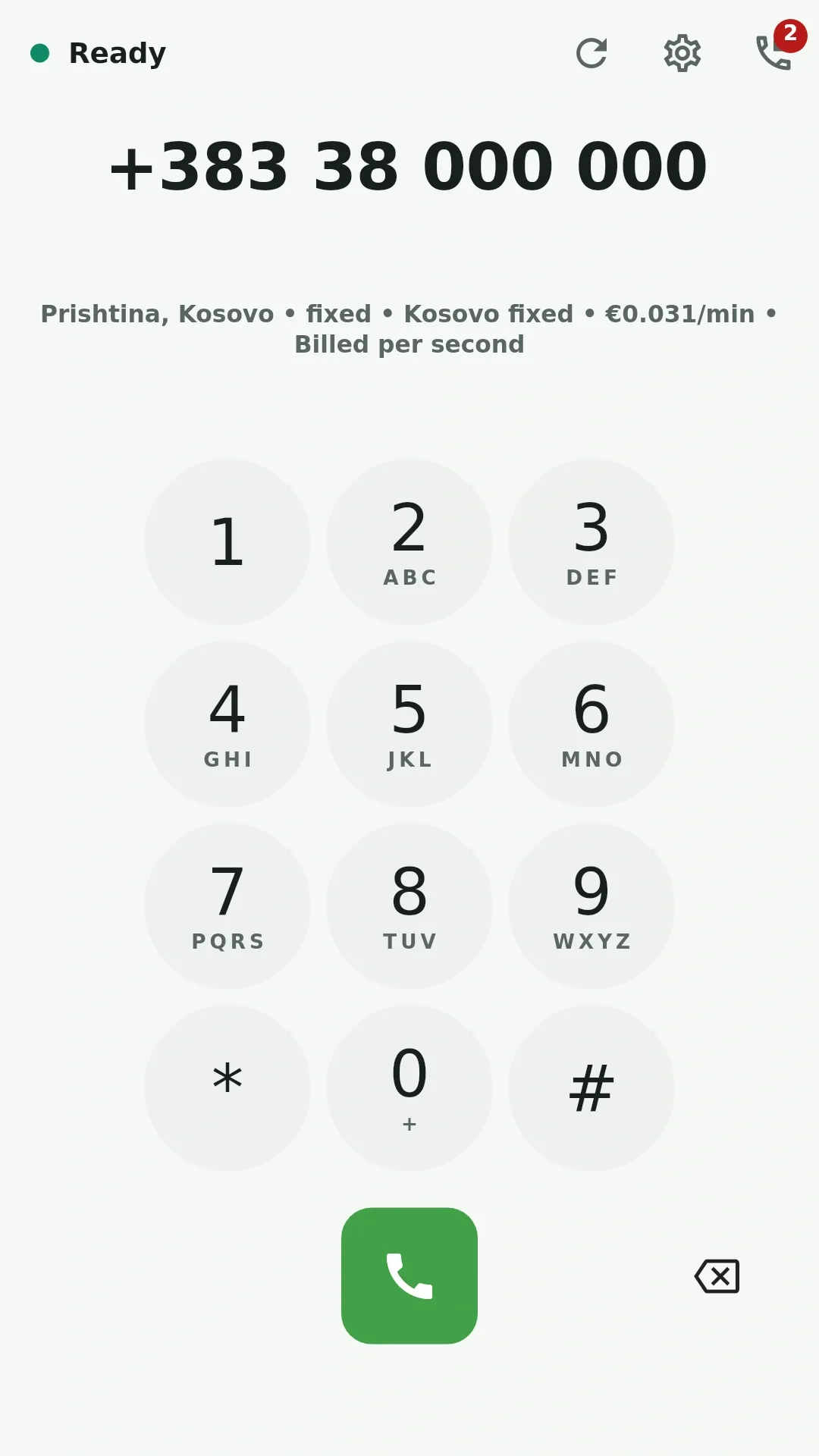
Open the app’s calling screen and enter the destination with its country code. Check the destination and any rate information shown before placing the call. For current service pricing, use the rates and pricing information and your account.
During your test, check audio in both directions. Can you hear the other person clearly? Can they hear you? If you use a Bluetooth headset, confirm that the audio is going to the headset you expect.
Afterwards, open your call history and find the call. Knowing where to look now makes it easier to return a missed call or give Support a precise example later.
5. Test incoming calls with the screen locked
A successful outgoing call is only half the setup. Use another phone to call your business number while your mobile is locked, in the same way you would normally carry it.
Check that the intended device rings, that you can answer, and that both people can hear each other. If you expect to use both Wi-Fi and mobile data during the working day, try your setup on each connection.
If the call reaches the wrong destination, review the number’s routing. If it reaches your line but the phone doesn’t alert you, check the app’s incoming-call permissions and your phone’s notification, Focus or Do Not Disturb settings.
A few habits that make everyday calling easier
Save useful contacts. A name in your recent calls is easier to recognize than an unfamiliar string of digits, especially when you’re moving between appointments.
Decide what happens when you cannot answer. Depending on your account setup, that might mean voicemail, another colleague or a team call flow. Test the option you choose rather than assuming unanswered calls will go where you expect.
Pay attention to the connection. A busy public Wi-Fi network may behave differently from your office connection. If audio breaks up, try a more stable connection and compare the result before changing several settings at once.
Keep charges visible. The app download and the services used inside it are different things. Number rental, calls and other enabled services can carry charges. Check the current rates and your balance before relying on the app for a busy day of calling.
If something isn’t working
Start with one clear example. Note the time and timezone, the number you called, the line you used and what happened. “The other person couldn’t hear me” is much more useful than “the call was bad.”
For incoming-call problems, include whether the screen was locked and whether you were on Wi-Fi or mobile data. For caller-ID problems, record what the receiving phone displayed. Send these details privately through Support in your account; don’t post customer numbers or credentials in a public comment.
You can also use the Help Center for account and service setup guidance.
Common questions
Do my customers need the IllyVoIP app?
No. For a normal phone call, they call your active business number using their own phone service. Your number’s routing determines where you answer it.
Can I keep using my personal mobile number?
Yes. Your normal mobile service remains separate. Use the IllyVoIP app for calls you want to place through your IllyVoIP account, and check the outgoing caller ID before using it with customers.
Can I use the same account on my computer?
IllyVoIP also offers a Windows app and a browser webphone. Check the setup and permissions for each device; you shouldn’t assume every device has identical features or incoming-call behavior.
Will every purchased number support SMS too?
Check the capabilities of the particular number and service. Having a number for voice calls does not automatically establish SMS support.
Start with one number and one test call
You don’t need to reorganize your whole business to get started. Set up the number you want customers to use, check the outgoing caller ID, and test a call in each direction. Once those basics work, add the contacts and call-handling options that suit your day.
Get the IllyVoIP app for your phone, or talk to our team if you need help choosing the right setup.