
Save a Call script on an IllyVoIP campaign to give agents a consistent opening, useful questions and a clear closing. The script is guidance displayed in the dialer; it does not automatically speak to the customer, replace a contact record or schedule a callback.
Before you edit
Identify the campaign and the people who will use it. Have permission to manage that campaign, and agree on its purpose, permitted claims and follow-up process. Keep personal customer information in the appropriate contact record rather than a script shared across the campaign.
You can prepare script text without starting calls. Starting the dialer to load a working campaign is an operational action; do that only when the campaign and agents are ready.
1. Add the script to a new campaign
- Open Auto Dialer → Campaigns and select New campaign.
- Enter the campaign name and choose the intended dial mode and dial order.
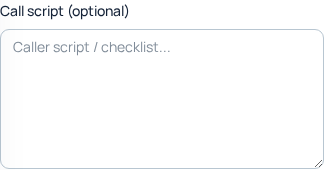
- Find Call script (optional) and enter your script. Separate the opening, questions and closing with short paragraphs.
- Review the other campaign details before selecting Create campaign. This creates a campaign, so do not submit a dummy one just to try the text box.
- Complete the agents, contacts and calling rules described in the campaign preparation guide before starting operation.
2. Update an existing campaign
- Open the intended campaign's management page.
- Find Call script in the campaign editor.
- Review the existing wording before editing. Preserve information the agents still need and remove outdated offers or instructions.
- Save the campaign settings with Save settings.
- Reopen the campaign and confirm that the saved script matches your intended wording. Tell the team what changed before relying on it in conversations.
Saving a script is separate from starting the campaign. If an agent already has a campaign loaded, check the displayed script before the next conversation instead of assuming an open screen has immediately refreshed.
3. Write a script agents can actually use
Here is an illustrative service follow-up script. Replace the bracketed instructions manually with your approved wording. They are writing prompts, not supported IllyVoIP merge fields.
Opening: Hello, this is [your name] from [company]. Am I speaking with the person who requested a follow-up?
Reason and permission: I'm calling about [the agreed subject]. Is now a suitable time for a short conversation?
Understand the need: What would you like us to help with? What have you already tried? Is there a particular deadline we should know about?
Explain the next step: Based on what you've told me, the next step is [approved action]. I will confirm any details I cannot verify rather than guessing.
Close: We agreed that [person] will [action] by [time]. Is there anything I should correct before we finish?
Add short alternatives for a wrong number, an inconvenient time and a request not to receive further calls. Keep promises within what your business can deliver. A script should help agents listen, not force them to read a paragraph after the customer has already answered the question.
4. Find the script in the agent dialer
- When authorized to begin work, open the agent dialer with the intended campaign.
- Locate the Script panel.
- Check that the loaded wording belongs to this campaign before using it with a customer.
- Use the contact's actual answers to guide the conversation, then save notes and the appropriate outcome through their own controls.
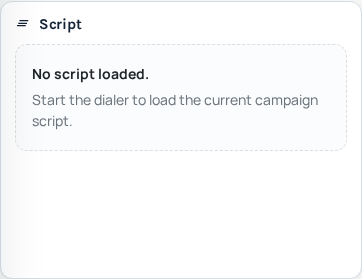
No script loaded. Start the dialer to load the current campaign script. is an empty state, not proof that your saved campaign text has disappeared. First check the campaign selection and its saved script. Do not start a live campaign solely to dismiss that message.
5. Keep notes, outcomes and callbacks separate
The script is shared guidance. Notes describe an individual conversation. An outcome records what happened, and a callback needs its agreed date and time. If the customer asks for a later call, use the callback workflow rather than adding “call tomorrow” to the shared script.
After an approved change, ask an agent to check the next loaded script. If it is blank or outdated, review the campaign and save result, then refresh the workspace at a safe point outside an active conversation. Report the campaign name and time to support if the mismatch remains; exclude the customer list and credentials.
Related guides
Use campaign preparation for readiness and running and supervising campaigns for outcomes, wrap-up and callbacks.
Reviewed 10 October 2026 against the current IllyVoIP Portal and service implementation. Options depend on account access and current service availability.