
Build a refreshable Excel table from IllyVoIP call-history JSON using Power Query. First export the complete supported API window privately, then let Excel read the local data file. This keeps the API key out of a workbook that may be shared with colleagues.
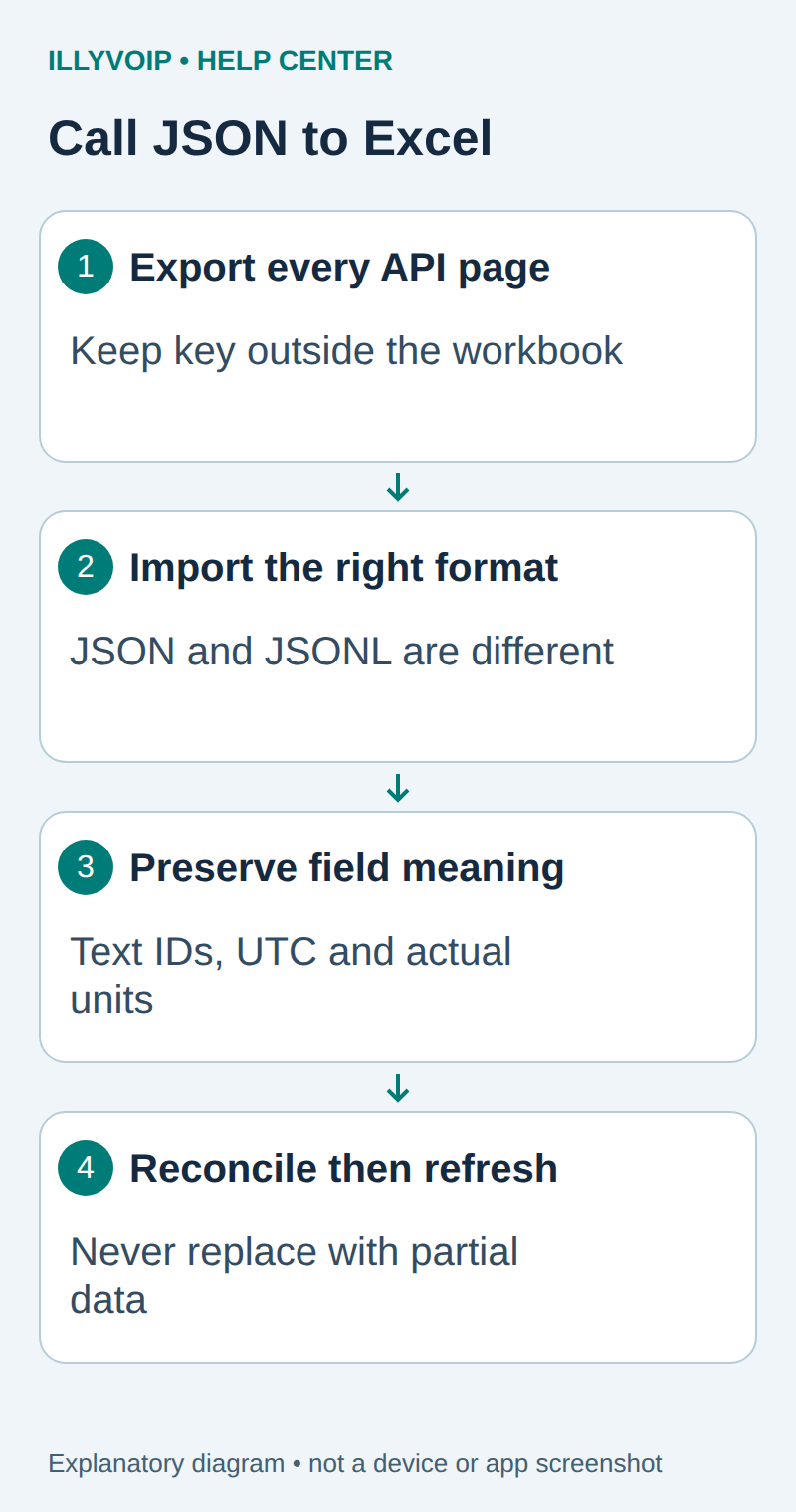
1. Export a complete reporting window
You need an IllyVoIP account permitted to use the relevant API, sufficient balance for paid operations and an API key. In the Portal, open Account settings → Developer tools and follow its verification prompts. Keep the key in your server’s secret configuration as ILLYVOIP_API_KEY, outside source control and shared documents. Read-only catalog and reporting requests are different from paid speech generation or SMS submission.
Use the call-history API export guide to obtain all pages. The Calls API supports a rolling days window from 1 to 31, an optional SIP identity filter, a page limit and an opaque cursor. It does not accept arbitrary Portal start/end-date filters.
The export example writes newline-delimited JSON as calls-export.jsonl only after the traversal completes. Do not point a report at its partial file. Record the requested scope, fetch time and final row count beside the export. A page size of 500 is not a complete-export guarantee.
2. Choose the correct JSON shape
Power Query’s JSON connector handles a normal JSON object or array. A JSONL export contains one JSON value per line and needs a line-by-line conversion. Do not wrap error pages or unfinished exports in brackets to make them appear valid.
For the JSONL output from the related guide, open a blank query in Excel’s Power Query Editor and use this M expression in the Advanced Editor. Replace the private file path deliberately. If your export is already a JSON array, use Data → Get Data → From File → From JSON instead.
let
    Lines = Lines.FromBinary(File.Contents("C:\PrivateReports\calls-export.jsonl")),
    Nonempty = List.Select(Lines, each Text.Trim(_) <> ""),
    Records = List.Transform(Nonempty, each Json.Document(_)),
    Calls = if List.IsEmpty(Records) then #table({}, {})
            else Table.FromRecords(Records)
in
    Calls
Exact menu labels depend on Excel version and platform. Use a desktop edition with Power Query. If parsing fails, inspect the saved export locally rather than making a paid or unrelated API operation to fix a spreadsheet problem.
3. Set types before building totals
Keep call_id as text, including the entire public CALL- reference. Preserve phone numbers and SIP identities as text so leading plus signs or long identifiers are not altered. Use started_at as the source timestamp; it is ISO-8601 UTC. Keep UTC and any local display conversion distinguishable.
| Item | Meaning or action |
|---|---|
| Identifiers and telephone values | Text; do not trim prefixes or treat phone numbers as arithmetic. |
| started_at | Parse as a timezone-aware value; retain the original if conversion is uncertain. |
| Duration fields | Use the documented unit for each actual returned field. |
| Amounts/currency | Use the actual field meaning and currency; do not invent a missing charge. |
| Missing optional values | Keep null/unknown distinct from zero. |
Remove automatic type-detection steps that damage identifiers. If a field is absent in the selected account’s response, leave it out rather than substituting a guessed alias.
4. Load and reconcile the table
Use Close & Load to create an Excel table. Compare its number of distinct call IDs with the completed export count. Check a few known timestamps and outcomes in the Portal using the same scope and timezone assumptions.
Build a PivotTable only after those checks. For example, count calls by outcome or day using fields actually returned. Keep the export window and fetch time visible on the report. Call counts or CDR amounts do not automatically equal settled invoices, account-balance movements or collected revenue.
5. Refresh without accepting partial data
Create a new complete export under a temporary private filename, validate it, then replace the report’s source deliberately. Refresh Power Query and verify the updated count and scope. If the API export fails, keep the previous completed source and mark its age; do not silently display a partial new window.
Overlapping rolling windows contain repeated call IDs. Either replace a snapshot in full or upsert into a deliberate archive by call ID. Appending every refresh will inflate totals. Preserve an earlier result while reviewing an unexpected drop or change.
Troubleshooting and sharing
- JSON parse error: distinguish JSONL from a JSON array and verify the file is not an API error body.
- Only one page: complete cursor pagination before import.
- Wrong local date: inspect UTC conversion and daylight-saving rules.
- Duplicate totals: inspect overlapping exports and call-ID deduplication.
Share only the columns and rows the recipient needs. Removing the API key does not remove customer data from the workbook. External file paths, cached query data and exported copies also need appropriate access control.
Related guides and reference
Microsoft JSON connector. IllyVoIP API reference. Reviewed October 11, 2026. Examples are instructional: local checks do not establish a completed paid request, live third-party integration or production PBX acceptance.