
A short SIP trace can show where a call setup or teardown differs from the expected sequence. Collect one representative call on a system you administer, stop the capture promptly, and give Support the matching call time and public reference. A packet capture is sensitive evidence, not a public troubleshooting attachment.
This walkthrough uses Wireshark 4.x terminology. Menu labels can vary by release. You need permission to capture on the relevant endpoint or network, enough private storage, and an agreed test destination. Capturing on your laptop will not automatically show traffic from a separate phone or PBX.
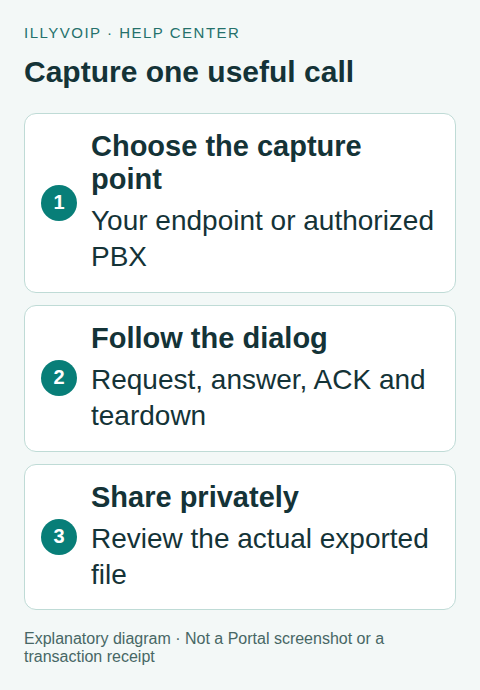
1. Decide what question the trace should answer
Choose a narrow symptom: registration rejected, an outgoing INVITE rejected, a call disconnected after answer, or changed behavior after transfer. Keep one working example if you have one. Write down the device address, selected IllyVoIP SIP region/hostname, transport, test time and timezone.
Use the actual connection information from your SIP line. Do not assume every account uses the same server or that all signaling uses UDP port 5060. Resolve and confirm the current destination if your capture filter depends on an IP address.
2. Capture from the correct interface
- Open Wireshark on the endpoint that sends the SIP traffic, or use a capture supplied by the PBX’s supported diagnostic tool.
- Select its active network interface. Confirm that the device’s packets are visible.
- Use a short, appropriately scoped capture. If you know the relevant IP, a capture filter such as
host 192.0.2.10illustrates the syntax; replace this documentation-only address with the actual endpoint. - Start immediately before the agreed test. Perform just the action needed to reproduce the symptom.
- Stop, save the original privately, and turn off any temporary diagnostic logging.
A capture filter discards nonmatching traffic before it is saved. An incorrect filter can remove the very evidence you need. A display filter hides packets in the current view without removing them from the saved original. Avoid an overly narrow port filter if you also need media or DNS evidence.
3. Find the SIP dialog
For decoded SIP traffic, begin with display filter sip. Open Telephony → VoIP Calls or Telephony → SIP Flows, choose the intended call, and inspect its flow sequence. Locate the initiating request and final response; a provisional ringing response is not a successful answer.
To focus on one dialog, copy its actual SIP Call-ID and apply a display filter like this, replacing the example:
sip.Call-ID == "ACTUAL_SIP_CALL_ID"A SIP Call-ID is a signaling identifier. It is not automatically the same as the public CALL-… reference shown by IllyVoIP. Provide both when available, plus the timestamp, so Support can correlate them. Do not manufacture one identifier from the other.
4. Read the sequence without jumping to a diagnosis
- Registration: an authentication challenge can be a normal part of registration. Check the subsequent authorized request and final result before calling it a failure.
- Call setup: follow INVITE, responses and ACK. Note which observed device sent an error; a displayed code does not by itself identify the underlying cause.
- Disconnect: inspect BYE or other termination evidence and the preceding sequence. Distinguish a remote hangup from a timeout reported locally.
- Retransmissions: compare both directions and the capture location. A packet absent from one capture is not proof it was never sent elsewhere.
If the problem concerns audio, use the negotiated SDP and relevant RTP streams as an additional investigation. SIP signaling alone does not prove two-way audio arrived.
5. Handle encrypted or incomplete traces
TLS signaling may appear as encrypted application data rather than decoded SIP. SRTP may prevent audio decoding. Keep encryption enabled and tell Support the transport and available evidence. An endpoint’s authorized SIP log may be more useful, but it can expose authorization headers and SDES media keys.
If no relevant packets appear, check the interface, capture filter and whether a VPN or container changes the observed path. A server-side capture, a phone’s built-in trace or a correctly authorized network mirror may be required. Do not capture another user’s traffic merely because it is reachable.
6. Prepare the evidence for private support
Keep the original protected. Export only the relevant packets when requested, then review the exported file—not just the visible screen. Hiding columns or applying a display filter does not redact the underlying file. Packet data can contain caller identities, credentials or audio.
Use the secure support channel provided for the case. Include your exact question, capture point, software version, time/timezone, public call reference and a working comparison. If you cannot safely sanitize a capture, ask Support what smaller evidence they need before sharing it. Delete temporary copies according to your organization’s retention rules.
Frequently asked questions
Can I post the PCAP on a forum?
Do not post customer call captures publicly. A screenshot of a few reviewed fields may be enough for a general question, but it also requires privacy review.
Why does Support need the time if I supplied a Call-ID?
Time, direction and capture location establish which event the trace represents and help distinguish retries or related call legs.
Related guides and references
- Sip response codes
- Voip call reports cdr
- Fix one way voip audio
- Official reference: www.wireshark.org
- Official reference: illyvoip.com
Reviewed 8 October 2026 against current IllyVoIP source and official documentation. Configuration examples are not evidence of a completed hardware or live integration test. Use the current options and limits available to your account.