
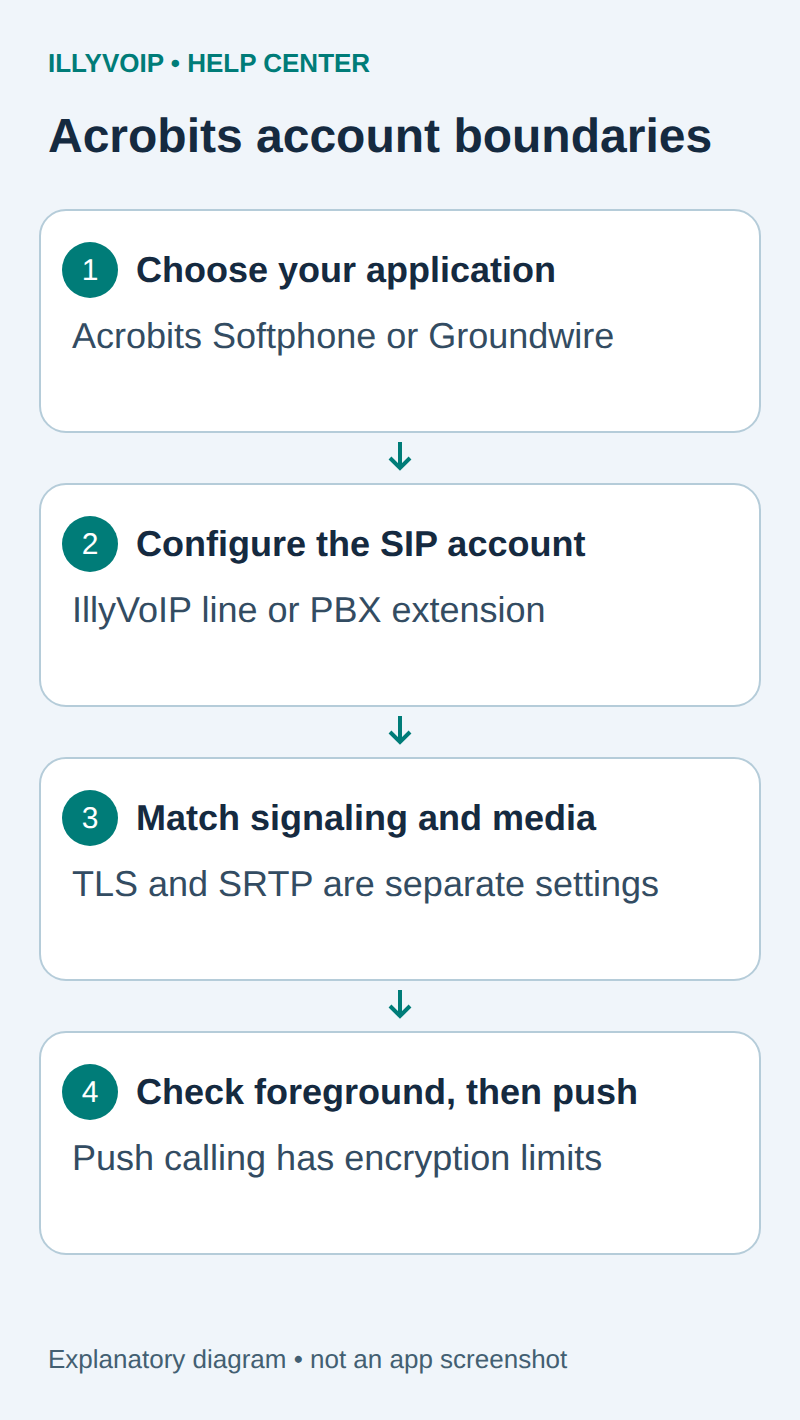
This guide explains how to add an IllyVoIP SIP account to Acrobits Softphone or Groundwire on iPhone or Android, then check calls in the foreground and in the background. The Acrobits application supplies the calling app; your IllyVoIP SIP line supplies the calling service. Buying the app does not create an IllyVoIP account, calling balance or incoming telephone number.
Start with one account and one network. Background calling introduces a separate push service, so confirm ordinary registration and calls before testing it. The menu names below follow Acrobits' current support documentation; some labels differ between iOS, Android and app versions.
Choose the app and keep the same account boundaries
This guide covers the shared SIP-account workflow in Acrobits Softphone and Groundwire on iOS and Android. Acrobits documents the basic account setup and incoming-call settings for both products. Install the application you intend to use from the official listing; do not buy a second app merely to repeat account setup.
The shared workflow does not mean the products have identical feature sets, licenses or menus. Check the exact app, operating system and version before relying on a transfer, conference or other advanced feature. This guide covers registration, ordinary voice calls, incoming routing and the documented encryption/push boundaries. It does not promise that every Groundwire feature is present in Acrobits Softphone.
Account titles are local labels. An IllyVoIP password-authenticated line uses its SIP credentials; a PBX extension uses the PBX credentials. Neither app should be configured with your Portal login password. If moving between the two apps, first test the new installation deliberately and disable the old account when the move is complete, so unexpected duplicate registrations do not confuse incoming-call checks.
1. Prepare your IllyVoIP connection details
- Open Services → SIP Lines in IllyVoIP and select the line you intend to use.
- Confirm that it uses password authentication. Record its SIP username and SIP password securely.
- Expand Technical endpoints and note the regional hostname, destination port and SIP transport.
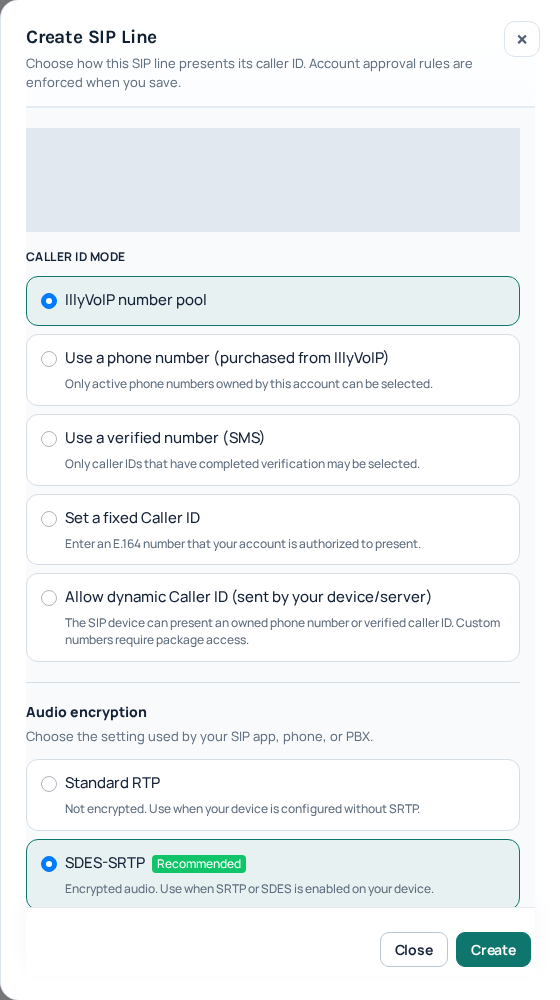
- Check the line's audio-encryption setting and permitted caller ID. Complete any required account verification and confirm your balance or package before making chargeable calls.
If your Acrobits app will connect to your company's PBX, use the PBX extension details instead. The IllyVoIP provider credentials belong on the PBX trunk in that arrangement. Do not enter a Portal email address or Portal login password as SIP credentials.
An IP-authenticated trunk is a different connection method. Do not change an existing production trunk to password authentication merely to try a mobile app. Follow Manage SIP Lines to review the available line settings and any applicable charges.
2. Install your Acrobits app and add a SIP account
Use the official app listing for your operating system, linked by Acrobits' account setup instructions. Check the purchase terms and supported operating-system version before installing. Allow microphone access when prompted; incoming-call notifications need their own permission later.
- On Android, open the main screen's settings menu, then Settings → Accounts. On iOS, open Keypad, select the settings icon and open SIP Accounts or Accounts.
- Tap + to add an account.
- If there is no appropriate IllyVoIP preset, choose Generic SIP Account or New SIP Account.
- Enter the values below, then save with the check mark or Save.
| Account field | What to enter |
|---|---|
| Title | A local account label, such as IllyVoIP. |
| Username | The selected line's SIP username. |
| Password | The line's SIP password, without added spaces. |
| Domain | The current SIP hostname from Technical endpoints. Use the app's supported port setting or server format for the required destination port. |
A telephone number assigned to your account is not automatically the SIP username. A title is only an app label; it does not authorize a caller-ID number. Keep unrelated advanced settings at their existing values until a specific requirement calls for a change.
3. Match transport and audio encryption
Check the account's advanced SIP transport settings against the endpoint you selected in IllyVoIP. Match the hostname, port and transport as a set; do not assume that changing only a port enables TLS. Keep certificate validation enabled when using TLS.
For audio, Acrobits documents Advanced Settings → Secure Calls within the selected account on both platforms. Match the method to the SIP line. An IllyVoIP line using SDES-SRTP needs compatible SDES media encryption. ZRTP and DTLS are different mechanisms and are not substitutes for SDES. TLS protects SIP signaling; it does not, by itself, prove that audio is encrypted.
Check this before enabling push: Acrobits' SRTP documentation states that SDES is disabled for pushed calls. That is a material limitation when a line requires SDES-SRTP. A successful foreground call does not establish that a background incoming call will work with the same media policy. Confirm the behavior of your current app version with Acrobits and IllyVoIP Support before relying on that combination. Do not silently turn off a required security setting to make a test pass.
4. Verify registration and a foreground call
Return to the main screen. Acrobits identifies a solid green SIP-service icon as registered. If registration fails, recheck the selected account, credentials, domain, port and transport before changing your router.
- Keep the selected app open on the screen and select the IllyVoIP account for the call.
- Call a number you control using the required international dialing format. Ordinary charges may apply.
- Confirm that both sides can hear each other and that the expected authorized caller ID appears.
- If using telephone menus, test a harmless menu option to check keypad digits separately.
- End the call normally and record the time and timezone if anything fails.
If the app is registered but an outgoing call is rejected, inspect the selected account, dialed digits, balance, package and caller-ID policy. Re-entering the SIP password is unlikely to fix a call that has already passed registration.
5. Route and test an incoming number
To receive calls from the telephone network, you need an active incoming number with its destination set to the intended SIP line. Check that destination in IllyVoIP before diagnosing the app. A working outgoing account alone does not provide an incoming number.
Call that number from another telephone while the selected app is open. Confirm it rings, answer it and check audio in both directions. If it fails here, resolve routing, registration or media settings before investigating background notifications. Also check Do Not Disturb, forwarding and the account's incoming-call setting.
6. Configure and test background incoming calls
The apps' push mode uses Acrobits' SIPIS service to register on the account's behalf while the app is in the background. Acrobits documents transfer of the account details to that service over HTTPS. This changes which system registers to the SIP service; it is not simply a local notification toggle. Review how Acrobits push works if your organization restricts third-party credential handling or registration sources.
After resolving the encryption limitation above, review the selected account's Incoming Calls setting. Acrobits documents Android under Settings → Accounts → account → Advanced Settings → Incoming Calls; on iOS it is under Keypad settings → Accounts → account → Incoming Calls. The account setting overrides the global choice. See the official Incoming Calls instructions for the current options.
- Choose the intended supported mode and save it. An Off/Do Not Register choice prevents incoming availability.
- Allow the app's notification permissions and check the phone's Focus or Do Not Disturb settings.
- Put the app in the background, lock the screen and make a new incoming test call.
- Repeat after an idle period, then repeat on mobile data if you intend to use it there.
- Record separately whether the notification arrived, the call answered and two-way audio worked.
Do not treat one successful Wi-Fi test as proof of every network or locked-screen condition. If foreground calls work but background calls fail, send the exact test conditions to Support, including the incoming mode and audio-encryption policy. Do not open a private PBX to the entire internet to accommodate push.
7. Troubleshoot the specific failure
| Symptom | Check next |
|---|---|
| Account never turns green | SIP identity, password, domain, matching port/transport and whether registration is enabled. |
| Rings only while open | Incoming mode, account override, notifications, push compatibility and the SDES limitation. |
| Rings but has no audio | Microphone permission, audio output, media policy and the network used for that call. |
| Wi-Fi works; mobile data fails | App mobile-data permission, VPN or network restrictions, and whether the failure is registration, ringing or media. |
| A different device receives the call | Number destination and other devices sharing the SIP identity. Do not assume simultaneous registration is supported. |
For help, provide the app and OS versions, account label, error text, timestamp/timezone, connection type and whether the app was open or locked. Share credentials with neither screenshots nor public forums. Supply any requested diagnostic logs only through the secure support channel after removing unrelated personal information.
Frequently asked questions
Does Groundwire replace my IllyVoIP subscription?
No. The app and the telephone service are separate. Your IllyVoIP line, number, package and call charges remain managed in IllyVoIP.
Can I use my Portal password in Groundwire?
No. Use the SIP credentials of the selected line. Your Portal login is for managing your account.
Does registration guarantee calls when the phone is locked?
No. Locked-screen ringing requires a compatible incoming-call mode, permissions and a working push/media arrangement. Test that state explicitly.
Coverage expanded and official shared-app instructions rechecked October 11, 2026. The retained Portal screenshot illustrates IllyVoIP settings, not either Acrobits app. No current physical iOS/Android or paid-call acceptance is claimed.