
A Yealink CP925 or CP965 can give a meeting room a dedicated IllyVoIP calling identity. The important first check is the edition: this guide covers the CP965 running SIP firmware. A CP965 configured for Microsoft Teams follows a different account workflow; entering SIP credentials into its Teams sign-in screen will not configure this connection.
You need local administrator access, appropriate power and network connectivity, and a password-authenticated IllyVoIP SIP line. This is a single-account voice setup based on Yealink's documented SIP registration interface. It does not convert firmware editions or configure a meeting platform.
CP925: locate the interface and use its SIP account
The Yealink CP925 can use the same IllyVoIP SIP-line workflow described here for the CP965. Its touchscreen layout and firmware differ; do not follow a CP965 Teams sign-in procedure or install another model's firmware.
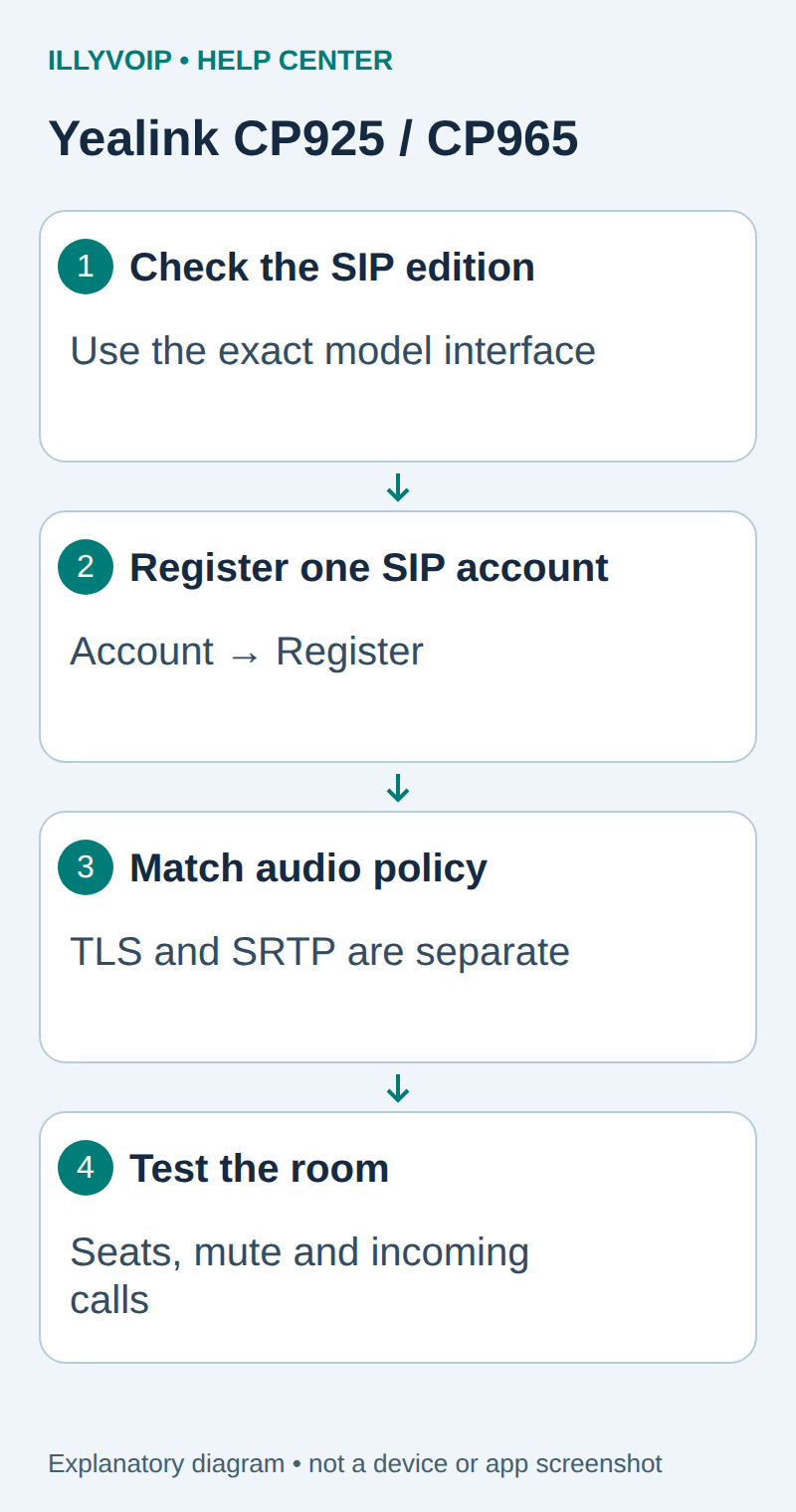
- Identify the CP925 and record its firmware. Connect it using the power and network arrangement documented for that unit.
- Read the local IP address in its status information or the administrator's DHCP lease list. On CP925, advanced network controls are under More → Advanced → Network; use the device administrator credentials if access is required.
- From the management network, open its web interface. Go to Account → Register.
- Enable the line and enter the same Register Name, User Name, Password, Server Host, destination port and transport mapping shown below.
- Save/confirm and inspect this account's registration state. Yealink documents one SIP account for CP925, as for the SIP CP965.
- Use the built-in microphone and speaker for the first test. Add compatible accessories only after ordinary two-way calling works.
Match the line's audio-encryption policy separately from TLS signaling. The CP925's supported local conference functions do not create a hosted IllyVoIP conference room, dial-in bridge or additional account allowance. Each additional external call leg still depends on the account and route.
Complete the room-seat, mute, incoming-number and telephone-menu checks below on the CP925 itself. If nearby speech works but distant participants are quiet, investigate placement and microphone coverage rather than repeatedly re-entering SIP credentials.
References: Yealink shared registration reference, including CP925 and CP965 and CP925 model reference. Expansion reviewed October 11, 2026.
1. Connect the room phone and find its address
Confirm the exact model and software version in the phone's status information. Connect it to the intended office network using the supported power/network arrangement. For an installed conference room, ask its administrator before changing VLAN, Wi-Fi or provisioning settings.
Read the phone's actual IP address from its status screen or the network administrator's DHCP lease list. Open that local address on a computer allowed to manage the phone, then sign in with the device administrator account. The phone's administrator password is separate from your Portal and SIP passwords. Do not expose the web interface publicly to make setup easier.
2. Gather the IllyVoIP account details
- Open Services → SIP Lines in the Portal.
- Select the line intended for this conference room.
- Confirm password authentication and obtain that line's SIP username and SIP password securely.
- Expand Technical endpoints for the regional hostname and matching transport/port.
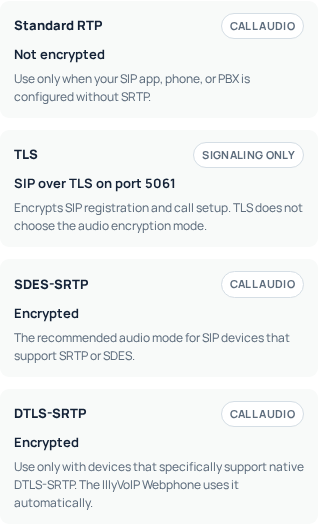
- Check the line's media mode and approved caller ID.
If the room needs a separate identity, create it through the normal SIP-line workflow after reviewing any displayed charge. Do not switch an existing IP-authenticated trunk to password authentication just to configure a room phone.
3. Register the SIP account
In the CP965 SIP web interface, open Account → Register. Yealink documents one SIP account for this model. Enable the line and fill the registration fields with values from the same IllyVoIP identity.
| Yealink field | IllyVoIP value |
|---|---|
| Label / Display Name | A useful room label, such as Meeting Room. This does not set caller-ID permission. |
| Register Name | The SIP authentication identity supplied for the line. |
| User Name | The line's SIP username. |
| Password | The SIP password. |
| Server Host | The current IllyVoIP SIP hostname. |
| Port / Transport | The matching destination port and transport from your connection details. |
Save with the page's confirmation control and check the registration status. Do not substitute the incoming telephone number for the SIP username unless the supplied username actually is that value. Leave optional proxy or backup-server fields alone unless your service arrangement specifies them.
4. Check audio settings before testing the room
Use a media configuration supported by both the CP965 and the selected IllyVoIP line. Enabling TLS for registration does not enable encrypted audio by itself. Match the relevant SRTP settings separately and keep certificate checks enabled.
Start with the phone's built-in microphone and speaker so the initial test has fewer moving parts. Set a comfortable speaker volume, confirm the microphone is not muted, and check that the expected audio mode is active. If external microphones or another connected device are part of the installation, add them only after the basic voice path works and follow their own compatibility instructions.
Place the unit where people can speak normally toward it. A successful call while standing beside the phone does not prove that everyone around a large table will be heard clearly.
5. Connect your incoming number to the room
Registration prepares the phone to use the SIP account; it does not assign an incoming number. In the Portal, inspect the active number's saved destination and route it to this line or the intended menu/queue path. Follow the incoming-number destination guide if that route is unclear.
If callers first pass through a menu, test that actual route. Calling a different direct destination bypasses the workflow your customers use.
6. Verify a normal meeting-room call
- Call an authorized destination in international format after checking the applicable rate.
- Ask the other person to confirm the outgoing caller ID and listen while people speak from their usual seats.
- Listen to the other person through the room speaker. Check for echo without immediately changing codecs.
- Mute the CP965, confirm the remote party no longer hears the room, then unmute.
- End the call and make one incoming test through the intended IllyVoIP number.
- If you use telephone menus, test a harmless keypad selection separately from speech.
Normal call charges may apply. This test verifies a basic call path, not a promise about every conference feature, accessory or simultaneous-call arrangement.
Troubleshooting
The screen asks for a Teams account: stop and confirm the edition with the administrator. The SIP account is unregistered: check the supplied identity, server and transport before altering network settings. Incoming callers never reach the room: check the number destination and any intervening menu or queue. Audio is missing or one-way: compare the line's media setting and the network path. Only distant speakers sound poor: review room placement and microphone coverage separately from SIP registration.
For help, provide the CP965 firmware/edition, registration state, the route tested, time/timezone and public call reference. Keep SIP passwords and local configuration exports private.
Related guides and references
Reviewed 9 October 2026 against current IllyVoIP source and the linked documentation. Use the settings available to your account and installed version. These instructions are not a claim of a completed physical-device or live-service test.