
If you hear your own words coming back during an IllyVoIP call, first establish who hears the echo and which equipment is in use at the other end. Echo can come from acoustic coupling, an analog audio path or other call-path behavior. It is different from choppy speech, one-way audio and normal local sidetone.
This guide is for the person using the phone and an administrator who can compare the affected setup. Begin with simple audio-device checks; a packet capture is not the first requirement. Use a participant who agrees to the test and remember that ordinary calls can incur charges.
1. Describe the sound and direction
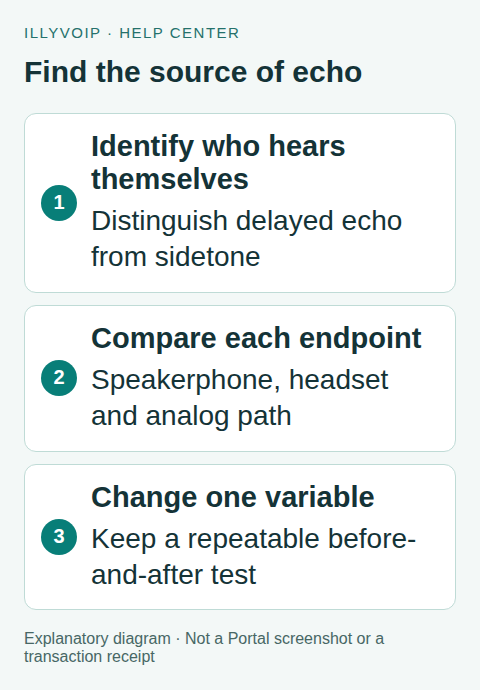
Record whether you hear your own voice, the other person hears theirs, or both people hear a problem. Ask whether the repeated speech is immediate or noticeably delayed. Keep the call time, timezone, direction and IllyVoIP public reference.
Local sidetone is the small amount of your own microphone audio intentionally fed to your earpiece. A delayed return of spoken words is a different symptom. Robotic or fragmented remote speech can instead point toward the audio-quality guide. Do not call every unpleasant sound “echo”.
2. Compare the acoustic setup at both ends
- Ask both participants which microphone and speaker are selected.
- Compare speakerphone with a handset or a known-working wired headset.
- Reduce an unnecessarily loud speaker level without making the conversation inaudible.
- Move the microphone away from a separate loudspeaker and avoid having two nearby devices joined to the same conversation.
- Disable an unintended second application/device participating in the audio test, while keeping the intended call active.
If one person hears their own voice return, the other end’s speaker-to-microphone path is a useful place to investigate. That is a diagnostic lead, not proof of who is at fault. Change one endpoint condition at a time and record whether the result follows it.
3. Check browser and computer audio choices
For a browser or desktop softphone, verify that the selected microphone and speaker are the devices you intend to use. A webcam microphone combined with loud desk speakers can behave differently from a headset. Check whether operating-system audio enhancements or another application are adding monitoring or duplicated playback.
Use a local recording to investigate a suspicious microphone or clipping, but do not interpret that as a full call-path test. An echo generated at the far endpoint may not appear in a local microphone recording. Keep browser permissions and the normal application audio settings consistent during comparisons.
4. Separate analog and IP paths
If an analog telephone is connected through an ATA, compare the handset and cable with another known-working set when available. Note the exact adapter model, port and firmware. An analog interface can introduce a different echo path from a pure-IP headset call.
Do not change impedance, gain, regional electrical settings or echo-canceller parameters by trial and error across every port. Those options depend on the hardware and connected equipment. Use the manufacturer’s guidance and a reversible, one-setting comparison when the evidence points to that interface.
A call passing through an external analog gateway may have echo characteristics you cannot diagnose solely from your own phone. Keep a clear working-versus-failing comparison for Support rather than assuming the issue is in the IllyVoIP Portal.
5. Compare destinations and call routes
Use the same device and connection to call a second authorized destination. Then, if practical, compare the affected destination using a second authorized device. Keep the time and public reference for each example.
If the problem follows one headset, investigate that headset/audio configuration. If it follows one remote destination across devices, retain those examples. If it begins only after a transfer, compare the audio path before and after the handoff. Avoid changing the SIP package, network and device simultaneously.
Delay can make a returning signal more noticeable, but increasing a jitter buffer is not a general echo repair. Network packet loss and acoustic echo require different evidence. There is no Portal “fix all echo” switch implied by this guide.
6. Verify the correction
- Repeat the original call with the same participants and setup.
- Apply the single supported change that the comparison justified.
- Have both people speak naturally and confirm the echo result in both directions.
- Check that the change did not introduce low volume, clipping or missing audio.
- Repeat the affected hold/transfer action if relevant.
Restore a trial change that did not help. Keep the working configuration and its reason with the device’s administration notes instead of leaving unexplained gain or network changes behind.
7. Prepare a useful support report
Include the call references, device/headset/ATA model, who heard their own speech, whether speakerphone was involved and the result of the controlled comparisons. A short authorized recording may help if requested, but it reflects the point where it was recorded, not necessarily everything heard at both earpieces.
Share recordings only through the case’s approved private channel and with appropriate participant permission. Never attach credentials or unrelated customer conversations.
Frequently asked questions
Does echo mean I need more bandwidth?
Not necessarily. First locate the returning audio path and compare the endpoint equipment.
Should I disable echo cancellation?
Do not disable it as a generic fix. Inspect the device’s supported settings and test a justified change in a controlled call.
Can a successful connection-quality test rule out echo?
No. Browser reachability and response-time checks do not test acoustic coupling or every analog interface in the call.
Related guides and references
- Fix One-Way or Missing Audio on SIP Phones and PBXs
- Use an analog phone with Grandstream HT801 or HT802 V2
- Official reference: www.cisco.com
Reviewed 8 October 2026 using current IllyVoIP implementation and official references. Check your installed version and account options before applying settings. Examples do not certify a physical device or completed live integration.