
Enable Call recordings and transcripts in account settings to make the recording suite available for future calls. The setting does not recreate past audio, and enabling it is separate from paying to access audio or generate a transcript.
Before changing the setting
Use an account with permission to manage call recording settings. Decide which calls your organization intends to record and follow the notice and consent requirements that apply to your activity. If you only need to read an existing transcript, check the call first rather than changing account settings unnecessarily.
1. Open the recording settings
- Open Account settings.
- Under Voice, select Call recordings and transcripts.
- Read the overall state and the two feature cards. The page distinguishes recording access from transcription and shows the current rates.
- If the suite is disabled or setup is incomplete, read the available enable action. Do not infer full readiness from only one feature showing enabled.
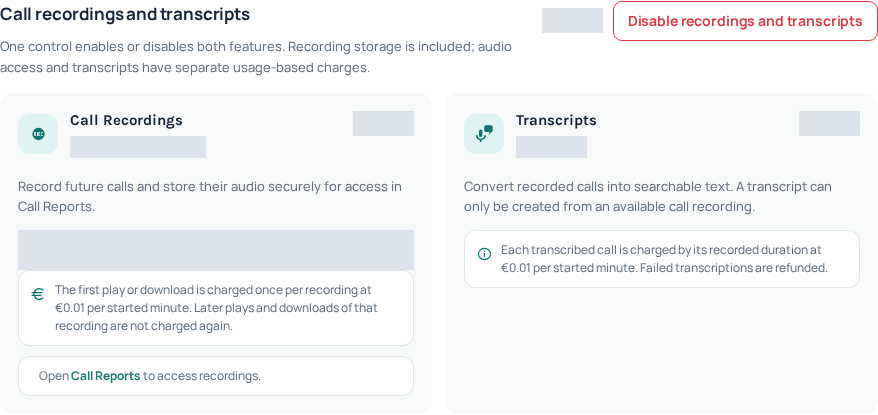
The image shows the genuine settings layout. Account-specific state is concealed; use the current values in your own account.
2. Review what is included and what is charged
Recording storage and audio access are separate. The current settings explain that the first play or download is charged once per recording using started recorded minutes; later plays or downloads of that same recording are not charged again. Read the rate shown in your account before accessing audio.
Transcription has its own usage charge based on the recording’s duration. Enabling the suite does not mean every call has already been transcribed. A summary request can also need a transcript first; inspect its confirmation for the applicable charges. Use the current retention notice to plan any recording export your organization needs.
3. Enable and confirm the saved state
- Choose Enable recordings and transcripts when you are ready.
- Read and complete the confirmation presented by the Portal.
- Wait for the operation to finish, then verify the overall enabled state and both feature indicators.
- Reopen the settings if the result is unclear. Do not rapidly toggle the feature while a request is unresolved.
If the button is unavailable or saving fails, check the displayed permission or account error. Ask the owner or Support to resolve that state. A screenshot of an enabled setting from another account does not establish that your account is enabled.
4. Find an eligible future call
After a subsequent call has finished, open Analytics → Call History and locate it using the correct time range and Agent filter. An available recording provides recording actions. Recent audio can still be processing; allow that state to resolve before assuming the file is missing.
Do not use an old unrecorded call as the acceptance test for a newly enabled setting. A call report establishes that a call was reported, not that audio exists for it. When needed, make one authorized test call with appropriate notice and check the resulting record; ordinary call and recording charges may apply.
If you later disable the suite
Read the disabling confirmation and consider its effect on future calls before proceeding. Disabling a feature is not the same as requesting deletion of previously retained records. For existing recordings, access and retention depend on the current service state and your permissions.
For an unresolved setup problem, provide Support the time you changed the setting, the visible state and a public call reference from an affected later call. Do not send your password or private audio in a public message.
Related guides
Reviewed 12 October 2026 against the current IllyVoIP controls, implementation and applicable references. Available options depend on account permissions and service state.