
Use AI Summary in Call Reports to create a concise overview of an eligible call. IllyVoIP uses the available transcript or generates one first when the workflow permits it. You do not need to export the recording to another summarization tool.
1. Open the call’s summary window
- Open Analytics → Call History and locate the intended call.
- Check the public call reference, time and direction so you do not summarize a nearby call to the same number.
- Choose AI Summary from that call’s recording actions.
- Read the existing summary or the displayed availability message before requesting anything new.
A completed summary can already be available. Opening its window is different from choosing to generate a new result. If the action is unavailable, check the call’s eligibility and account permissions rather than assuming that any report row can be summarized.
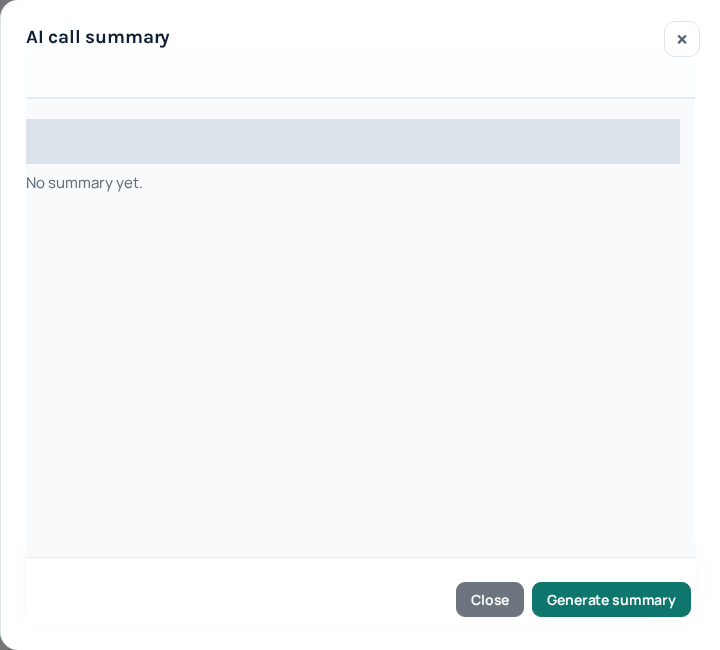
2. Review the complete confirmation
When Generate summary is offered, inspect whether a transcript is needed first. The confirmation can show separate transcript and summary prices. Review both amounts; the summary price alone may not describe all work needed for a call that has no transcript.
A saved Voice Agent conversation can provide existing text, and the Portal may show a different transcription requirement or cost for that source. Follow the actual confirmation for this call. Do not assume all summaries are free or that enabling the recording suite already paid for every transcript.
3. Generate once and follow the state
- Choose Generate summary and confirm only when you accept the displayed work and charges.
- If the state is waiting for a transcript, allow that first stage to finish. The summary can then be created automatically.
- If the Portal explicitly says a transcript retry is required and offers Retry now, use that recovery control after reading the current explanation.
- For queued or running work, wait for the window to refresh. A message that automatic recovery continues does not call for repeated new requests.
- When complete, read the overview and key points shown in the window.
4. Verify the result before acting on it
A summary compresses the available text. It can omit a qualification, confuse who promised an action or repeat an error from the transcript. Compare consequential details with the transcript and, where necessary and authorized, the recording. Check dates, amounts, names and commitments before using them in a customer response.
If the source conversation was partial, the summary cannot restore the missing portion. A generated key point is also not proof that an action was carried out: for example, a discussion of a callback does not mean a callback was scheduled or placed.
If no summary can be generated
Read whether the obstacle is a missing transcript, an unavailable recording, disabled access or a failed processing stage. These require different remedies. Enabling future recording cannot reconstruct a past unrecorded call, and uploading an unrelated audio file will not repair this call’s summary.
For a persistent failure, retain the public call reference, UTC time and exact visible message. Contact Support through the private account channel. Do not include credentials or a full private transcript unless requested through an appropriate secure route.
Keep the summary with its source
When transferring a conclusion into your own notes, retain the call reference and make clear that it was reviewed from an AI-generated summary. Keep the original call context available to authorized reviewers. This makes later corrections possible without treating a short overview as the complete conversation.
Related guides
Reviewed 12 October 2026 against the current IllyVoIP controls, implementation and applicable references. Available options depend on account permissions and service state.