
This guide explains how to order a DID phone number and route incoming calls to your SIP line, an international phone number or an external SIP system.
What is DID (Direct Inward Dialing)?
A DID is a phone number that routes calls to your VoIP service without requiring a separate physical phone line. You can assign numbers to people or departments and receive calls from traditional telephone networks.
Step 1: Log into your account
Open Services → Phone Numbers and select Order Phone Number. Complete account verification and the service agreement when requested.
Step 2: Choose a DID number
Select a country, number type and available region. Depending on the product, you can choose a number from stock or request one to be allocated. An order request is not the same as an active number.
Review the setup fee, monthly fee, incoming per-minute rate, billing increments and any connection fee per connected call. Required address details and documents vary by destination. Supply the information requested in the wizard and review the total before placing the order.
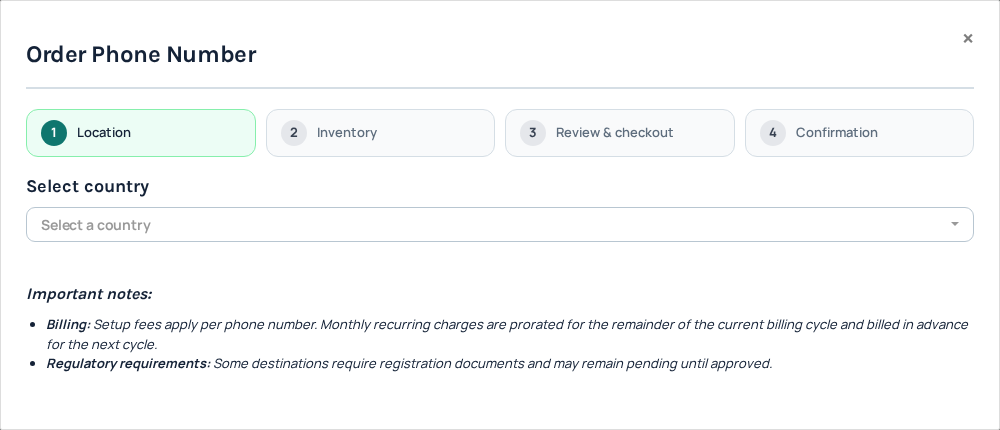
Documents, review and activation
Some orders activate automatically; others require staff or regulatory review. Track the request on Phone Numbers and respond to any document request. Wait for the number to show as active before relying on it for incoming calls.
Configuring your DID number
On the active number, select Configure. Review the destination already assigned to the number, choose the routing option you need and save. Do not assume registration of a softphone alone changes the number's route.
Choosing your call routing option
- SIP extension: select the SIP identity that should receive calls. Configure and register its device using that identity's current SIP settings.
- International number: forward incoming calls to the destination you specify. The outgoing forwarding leg may incur additional charges.
- External SIP server: enter the supported destination details for your PBX and configure that PBX's inbound matching and network access. Use the guidance shown in the current configuration form, not old server IPs from a screenshot.
Other incoming destinations
- Queue: route calls to a prepared team queue. Add the intended SIP lines as members and review waiting and no-answer behavior.
- Voice agent / IVR: choose the published flow and check its business-hours and handoff paths.
- Voice API Control: use this when your application is prepared to handle and control incoming calls through the documented API/event workflow.
- SIP URI: route to the specific SIP URI supported by your destination system. Confirm inbound matching and network access there.
Only select options available for your number and account. Prepare the destination first, save the number’s route, then test the entire incoming path. A number can be active while its destination is unavailable or misconfigured.
Available extra features depend on the number and destination. Review any fee and approval requirement before requesting CNAM, emergency-service registration or other options.
Test your number
Call the active DID from another phone and confirm that the intended destination rings, both parties have audio and the call report is correct. If it fails, contact Support with the number and public call reference. Keep sufficient balance for renewals and any usage charges.
Manage an existing number
Open Phone Numbers, locate the exact number and choose Configure. Check the number shown in the dialog before editing. Review the current destination, choose the intended SIP line, queue or other available route, save, then test from another phone. An active number and a reachable destination are separate requirements.
Renewals and cancellation
Review the number's monthly price, renewal information and account balance. Incoming usage and a connection fee, where shown, are separate from the monthly fee; forwarding can also create an outgoing charge. Keep sufficient funds for the services you retain.
For an active number, the cancellation confirmation schedules cancellation at the end of the current billing cycle; the number remains active until then. Read the confirmation and resulting state. Cancelling a pending order instead closes the request and releases the reservation according to its processing state. Do not assume a cancelled or released number can be recovered. Contact Support if the status is unclear rather than placing duplicate orders.
Optional number services
- CNAM: where available, request the outgoing caller name and review the update fee before confirming. This is not caller-ID number verification and does not guarantee that every receiving network displays the name. A submitted request is not the same as an applied update.
- Fax: use the fax option only where offered and follow its configuration. Check how it affects the incoming destination before replacing a voice route.
- Emergency registration: supply the requested address and contact information where supported and follow the review status. An address submission or approval must not be treated as proof that emergency calling is operational. Confirm service availability with Support; never place an emergency call as a routine test.
If a number is still pending
Open its request and review whether documents, address information or activation are outstanding. Reply to any information request and wait for the active state. Do not reorder because activation takes time. If progress stops, give Support the number or request reference and the status shown, without exposing identity documents in public messages.
Compare prices without mixing different charges
Compare the same country, number type and region. Setup is an initial order charge; monthly rental keeps the number. The incoming-minute price and billing increments apply to usage, and a connection fee, where shown, is a separate charge per eligible connected call—not another setup fee or a monthly fee. Review the final order quote rather than multiplying a headline price by an assumed duration.
A number offered on request is allocated after submission; it is not an immediately selectable stock number. Missing stock does not necessarily mean a technical fault. Country requirements may include manual document review, and an accepted order is not activation. An existing working number also does not prove that your account has completed all requirements for buying new numbers.
Auto-renewal and document corrections
Check auto-renewal on each number. Turning it off schedules the number to end at the billing-cycle expiry shown in the confirmation, and the number may be lost permanently. Turning it on is not a substitute for having enough balance. After any change, check the resulting state and renewal information; ask Support if the action is unavailable or unclear.
If address or document details need correction, open the existing order’s requested action, provide the required information and submit it there. Do not create a replacement order just to upload corrected documents. Keep identity documents within the secure submission process.
For step-by-step optional services, see caller name, emergency address and fax. Eligible promotions have a separate free-number claim workflow.
Forward an active number to a colleague's mobile
- Open Services → Phone Numbers and find the active IllyVoIP number that receives the calls.
- Select Configure and note its existing destination so you can restore it if needed.
- Choose International number when that destination type is available.
- Enter the colleague's reachable number in the international format required by the field, including the country code. Check the field's example and the complete saved value.
- Review the destination and any relevant calling restrictions and charges, then save.
- Reopen Configure and confirm the saved routing. When ready, make an authorized test from another phone to the IllyVoIP incoming number and verify that the colleague's mobile rings.
The incoming IllyVoIP number and the forwarding destination have different roles. Give callers the IllyVoIP number; configure the colleague's mobile as its destination. Do not forward back to the same incoming number or another route that sends the call into a loop.
Check costs and restore the previous destination
Forwarding can involve an incoming call leg and an outgoing leg to the destination. Review the number's incoming charges and the applicable outbound rate separately. A monthly number fee does not imply that every forwarded minute is included, and a saved destination does not guarantee that the receiving carrier will answer.
To stop forwarding, reopen Configure and deliberately restore the previous SIP extension or other supported destination. Save, reopen and check the resulting route. Changing where calls go is different from canceling the number or disabling renewal.
If the mobile does not ring, check the saved number, incoming-number state, destination restrictions and call result before changing unrelated SIP settings. A mobile's own call settings or availability can also affect receipt. Use checking an incoming number's destination to investigate the route systematically. Carrier-specific star codes are not the Portal configuration method described here.
Browse the number price list before ordering
- Open Pricing → Phone numbers.
- Use Search country, type, or region to narrow the list.
- Expand the intended country, then choose its number type to see regional prices.
- Compare setup, monthly and usage charges for the same product and region. Use the displayed billing increments and connection fee where present.
- Use the country page-size and page controls to find additional results. Clear the search if it hides a destination you expected.
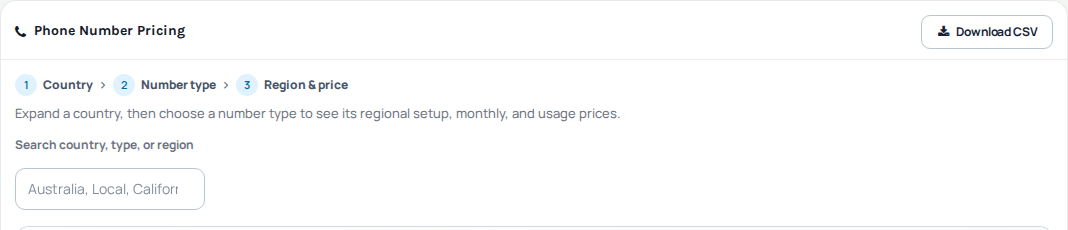
This pricing browser is separate from the number-order wizard. A regional price does not guarantee selectable stock, document approval or immediate activation. Continue to Phone Numbers when you are ready to review an actual order.
Download prices as a reference
Select Download CSV, then check the file’s headings, destinations and charges before using it. Inspect the downloaded scope instead of assuming it contains only the visible page or current search. Keep the download date with your working copy and return to current pricing before committing to an order.
For example, two local numbers can have similar monthly rent but different setup or incoming usage costs. Compare those separately for your expected use; do not turn a monthly headline price into an assumed all-inclusive call allowance. The final order quote and its stated requirements remain the decision point.
If the price browser fails to load, note the country/type/region and message. Do not place repeated orders to discover whether pricing is available.
Reviewed 10 October 2026 against the current IllyVoIP Portal and implementation. Available controls depend on account permissions and service state.