
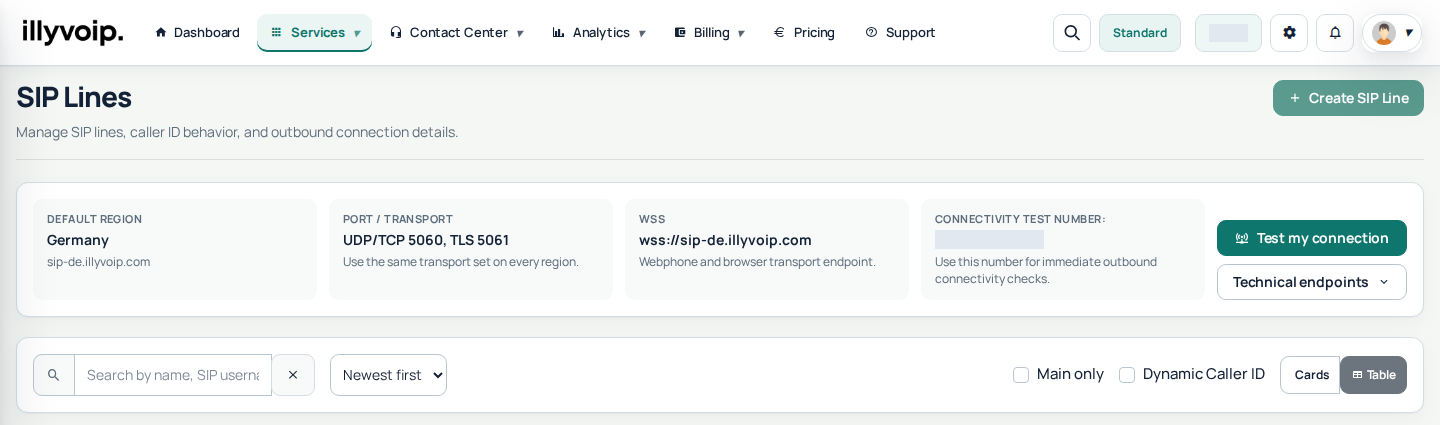
Current Portal: open Services → SIP Lines for the selected identity's SIP details. Match its authentication, signaling transport and call-audio settings on your device; old screenshots show an earlier software version. Use your own credentials and current regional server. Private values in illustrations are hidden.
MicroSIP is a simple and lightweight SIP softphone for Windows that lets you make VoIP calls easily. This guide will show you how to set up MicroSIP with your ILLYVOIP account step by step.
Step 1: Download and Install MicroSIP
Download MicroSIP
- Go to the official MicroSIP website: MicroSIP.
- Download the latest stable version that matches your system.

Install MicroSIP
- Open the downloaded file.
- Follow the on-screen instructions to complete the installation.
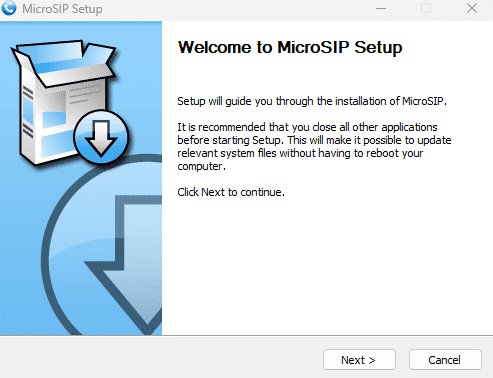
Step 2: Configure Your ILLYVOIP Account in MicroSIP
Open MicroSIP
- Launch the MicroSIP app on your computer.
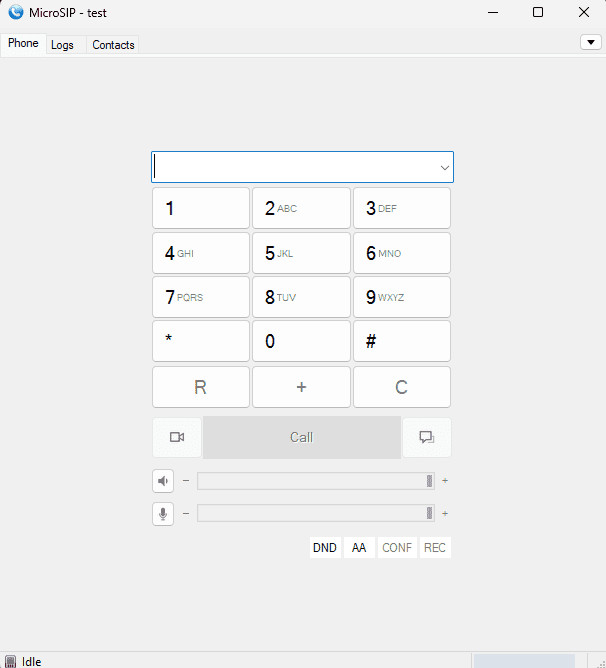
Get Your SIP Credentials
- If you already have an ILLYVOIP account, log in to your account.
- Go to the SIP Lines section.
- Copy your SIP Username and SIP Password (you will need these in the next steps).
Add a New Account
- Click the small arrow in the top-right corner of the MicroSIP window.
- Select "Add Account" from the dropdown menu.
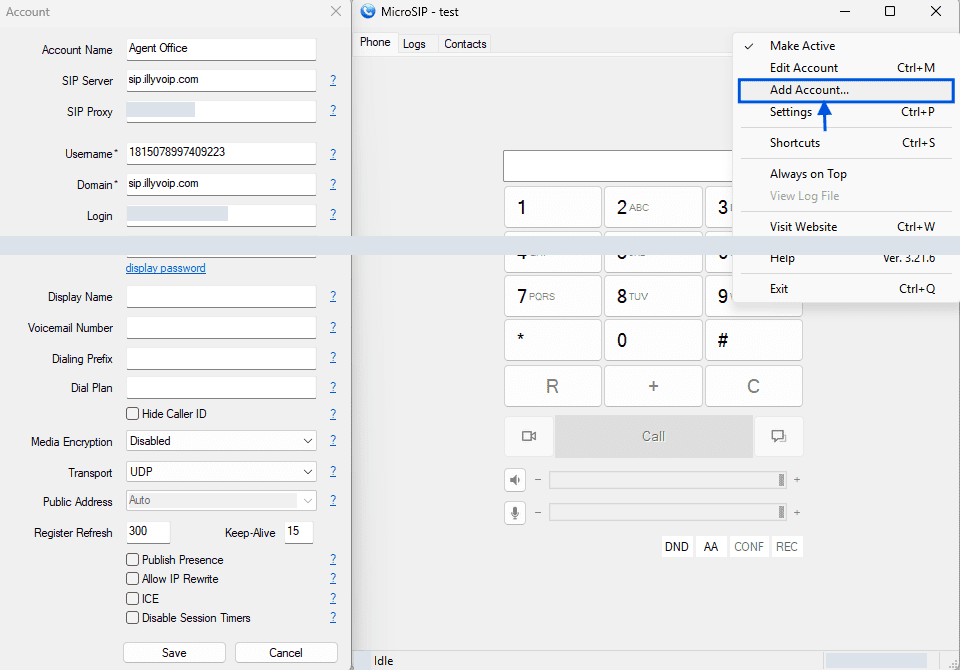
Enter Your SIP Details
Fill in the following fields:
- Account Name: Any name you want (e.g., "ILLYVOIP").
- SIP Server: Enter the SIP server address provided by ILLYVOIP.
- Username: Your ILLYVOIP SIP Username.
- Domain: Same as the SIP server address.
- Login: Your ILLYVOIP SIP Username
- Password: Your ILLYVOIP SIP Password.
- Transport: Select "UDP" unless ILLYVOIP instructs otherwise.
Click "Save" to apply your settings.
Step 3: Test Your SIP Account
Now that MicroSIP is set up, let's test if it's working:
- Dial a number from MicroSIP.
- Press the green call button to make a test call.
- If your account is set up correctly, the call will go through.
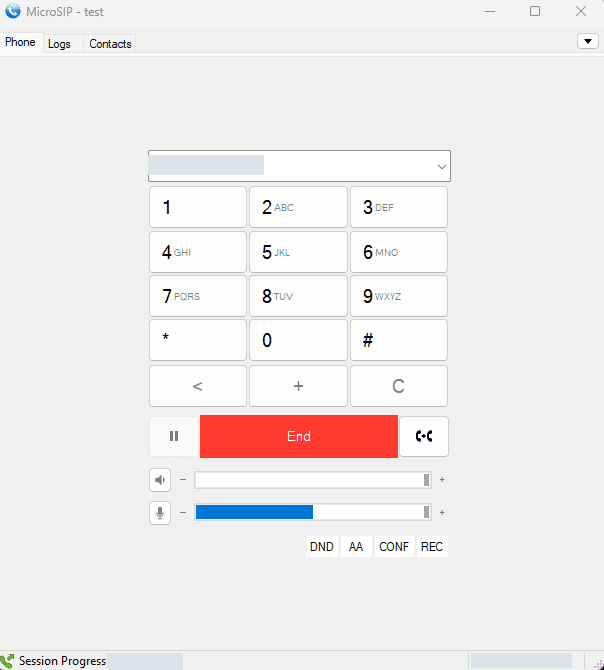
You can now use MicroSIP to make VoIP calls with ILLYVOIP. If you need any assistance, feel free to contact our support.
For more about SIP trunking or softphone configuring, check this article.
If a screenshot shows UDP, use it only with a compatible configured line. Registration and working two-way audio are separate checks. Caller ID is controlled by the selected identity and account/package permissions in IllyVoIP.