
To transcribe a recording from iPhone Voice Memos, first export an ordinary audio file you can inspect. Convert that file locally to a format accepted by IllyVoIP, then submit the reviewed audio to Speech-to-Text. The IllyVoIP API does not receive the editable Voice Memos project.
1. Select the exact recording
Open Voice Memos and listen briefly to the recording you intend to process. Confirm its duration and contents; similar names can identify different takes. Only export material you are authorized to transcribe, and choose a private transfer destination.
Keep the original recording until the transcript has been reviewed. A transcription is a useful working document, but names, numbers and overlapping speech can be wrong. Avoid treating it as a replacement for the source when accuracy matters.
2. Share rendered audio
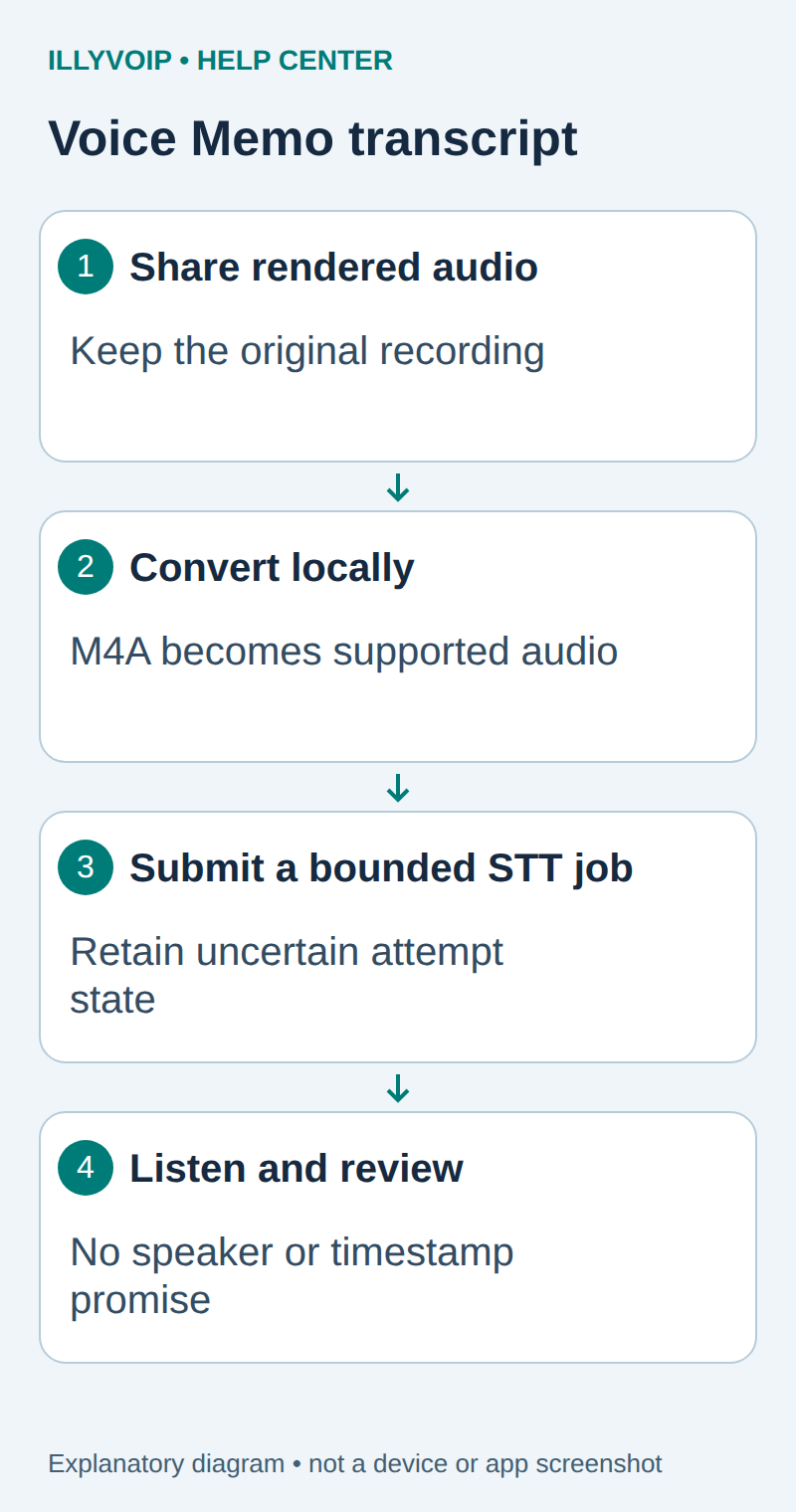
Select the recording and open its sharing options. In the current Apple workflow, Share → Options → Rendered produces a single .m4a file with effects and layers mixed in; Editable is for further editing on compatible software. Labels can differ on earlier iOS releases. Choose the ordinary playable audio export offered by your installed version.
Transfer it to your private computer folder using your authorized file-sharing method. Confirm that the transferred file plays and has the expected duration. A cloud sharing link, project package or shortcut is not itself the audio upload.
3. Inspect and convert the audio
Install a current FFmpeg build from its official distribution guidance. The examples use a private shell directory and leave the original unchanged. First inspect the file:
ffprobe -v error -show_streams -show_format memo.m4aConfirm it contains the intended audio stream. The following example converts its first audio stream to a mono 16 kHz PCM WAV for speech. It is an example output choice, not the only supported sample rate:
ffmpeg -n -i memo.m4a -map 0:a:0 -vn -ac 1 -ar 16000 -c:a pcm_s16le memo-speech.wavThe -n option avoids overwriting an existing file. Listen to the converted output, especially if the source contains several channels or layers. Downmixing combines channels; it does not separate speakers, remove background noise or guarantee better recognition.
Inspect output duration and byte size. PCM WAV can be much larger than M4A. If it exceeds the current upload limit, use the ordered long-audio workflow linked below rather than truncating the recording silently.
4. Submit the supported file once
You need an IllyVoIP account permitted to use the relevant API, sufficient balance for paid operations and an API key. In the Portal, open Account settings → Developer tools and follow its verification prompts. Keep the key in your server’s secret configuration as ILLYVOIP_API_KEY, outside source control and shared documents. Read-only catalog and reporting requests are different from paid speech generation or SMS submission.
Use the complete Python STT client or the cURL guide below. Send POST /api/v1/stt/transcribe with X-Api-Key authentication, multipart field file containing the actual MP3/WAV and the standalone context=speech_api. Let the HTTP client construct the multipart boundary.
Read the current language catalog before selecting a hint. The language of the phone interface does not necessarily match the spoken recording. Save the original file reference, converted-file hash, selected options and operation state privately.
Preserve the exact input, local job identity and response before moving to the next step. A timeout or lost response is an uncertain outcome, not permission to submit the same paid operation again under a new name. Recover from a saved successful response when possible; otherwise reconcile the original attempt. API duplicate-charge protection does not replace your application’s operation history.
After a successful API response, retain the returned text, language and duration_ms. The public response does not promise speaker labels or word timestamps. Uploading one person’s memo also does not enable ongoing microphone access or live dictation.
5. Review and retain the result
- Compare the opening and ending with the original recording.
- Check names, dates, amounts, telephone numbers and negative statements.
- Mark unclear sections for listening instead of guessing.
- Keep your corrections separate from the raw API response when an audit trail matters.
- Apply your retention policy to the iPhone export, converted file and transcript.
If the transcript misses a section, inspect whether the original export or conversion already omitted it. Repeatedly uploading the same bad conversion will not recover audio it never contained.
Common problems
| Item | Meaning or action |
|---|---|
| The export is not playable audio | Choose rendered/ordinary audio rather than an editable package or link. |
| Upload is rejected | Check actual MP3/WAV format, MIME and current size limit; renaming M4A is not conversion. |
| Several voices are mixed together | Review against the source; no diarization is promised. |
| Response was lost | Reconcile the existing attempt before repeating a paid request. |
Related guides and reference
Apple Voice Memos sharing; FFmpeg. IllyVoIP API reference. Reviewed October 12, 2026. Examples are instructional: local checks do not establish a completed paid request, live third-party integration or production PBX acceptance.