
To use MizuDroid with IllyVoIP, add a password-authenticated SIP line to the Android app using that line’s SIP server, username and password. Then test outgoing calls and, if you have an incoming number, its destination separately. Your Portal login and an assigned telephone number are not substitutes for SIP credentials.
This walkthrough follows Mizutech’s Android softphone guide and product documentation, checked October 11, 2026. Menu placement can differ by app version. Use the settings labels described below rather than assuming an old screenshot matches your installation. Mizutech distinguishes personal/non-commercial use from commercial licensing; check its current terms for your intended use.
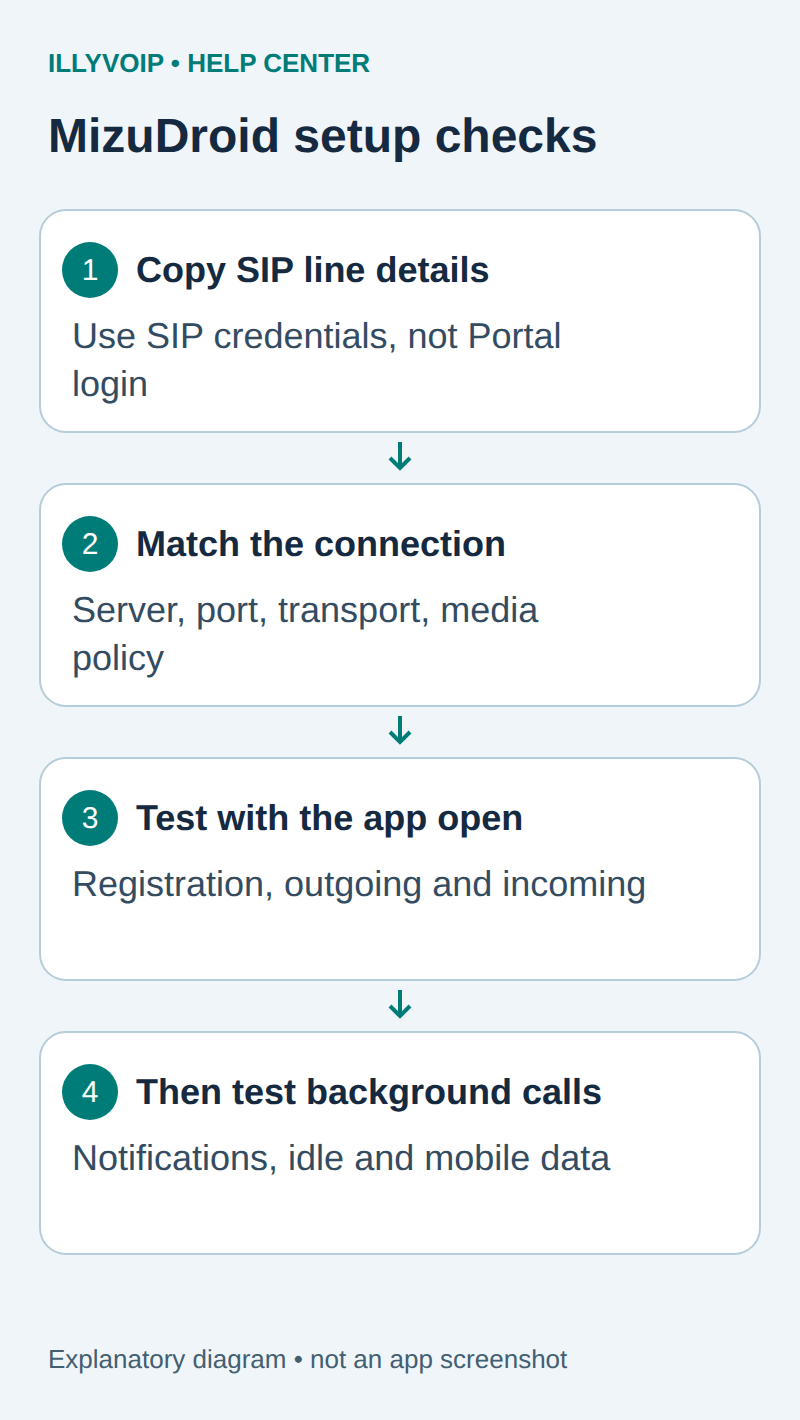
1. Prepare the IllyVoIP SIP line
- Open Services → SIP Lines in IllyVoIP and select the line intended for this phone.
- Confirm that the line uses password authentication. Do not convert a production IP-authenticated trunk just to experiment with a mobile app.
- Obtain the SIP username and SIP password securely. Expand Technical endpoints and record the required hostname, destination port and transport.
- Check the line’s audio-encryption mode and permitted caller ID. Confirm account readiness and balance before a chargeable call.
- If incoming calls are needed, identify the active IllyVoIP number and verify that its destination is the intended SIP line.
If MizuDroid will be an extension of your own PBX, enter that PBX’s extension details instead. The IllyVoIP credentials belong on the PBX trunk in that arrangement. Avoid registering the same account on several devices during initial diagnosis; overlapping registrations can make incoming behavior harder to understand.
2. Install the intended application and add the account
Use the official distribution links on the MizuDroid product page. Check the publisher and supported Android version. Grant microphone access for calls; review notification and other permissions according to the functions you intend to use.
On the login/account screen, enter these values:
- Server address: the current SIP hostname from the selected IllyVoIP endpoint. The vendor documents hostname or hostname:port syntax; include the destination port when required by your endpoint. Do not enter an HTTPS Portal URL.
- Username: the SIP authentication username for the line.
- Password: the SIP password, entered without accidental leading or trailing spaces.
Save the account. If the version separates an authentication username from a user identity, use the values actually supplied for your service. Do not invent a separate identity from your incoming telephone number. Keep unrelated proxy, number-rewrite, forwarding and automatic-answer settings unchanged.
3. Match the transport and audio policy
Open Settings and locate Transport protocol. The vendor’s documented default is UDP, but the correct choice is the one associated with your IllyVoIP endpoint. Set the hostname, destination port and transport consistently. A TLS port alone does not turn a UDP account into a TLS connection.
Only populate Proxy address when the current service details require an outbound proxy. Do not copy a proxy from another provider’s tutorial. Do not enable a vendor tunnel merely because ordinary registration fails.
Signaling encryption and audio encryption are separate. TLS protects signaling; the line’s media mode determines whether ordinary RTP or a compatible SRTP method is needed. Do not treat proprietary end-to-end encryption, tunneling or every setting labelled “secure” as equivalent. Keep certificate validation enabled. If the current app build cannot clearly match the required media method, confirm compatibility with Support before using it, rather than silently weakening the line’s policy.
4. Verify registration and one outgoing call
Wait for the app to indicate that the account is registered. If it stays offline or reports registration failure, inspect the message and recheck the SIP identity, server, port, transport and network. Changing the Portal password will not repair an incorrectly entered SIP password.
- Keep MizuDroid open in the foreground and choose the IllyVoIP account.
- Call one number you control in the international format required for your service. Check its rate first; normal charges apply.
- Confirm that the recipient sees the expected permitted caller ID, and that both sides hear speech.
- If keypad menus matter, test a harmless menu selection separately.
- End the call and retain its time and reference if you need assistance.
Do not enable automatic number rewriting until you have confirmed the digits being sent. A call rejection after successful registration can involve destination formatting, permissions, balance or caller ID rather than authentication.
5. Test the incoming number while the app is open
Call the active IllyVoIP number from another telephone. It should reach the configured SIP line and ring the registered app. Answer it and check audio in both directions. If it does not ring, check the number’s saved destination before changing Android background settings.
Also inspect app or phone Do Not Disturb, incoming-call settings and any previously configured forwarding or automatic handling. Do not assume that an app feature such as SMS, video, presence or call forwarding is included in your IllyVoIP service simply because MizuDroid displays it.
6. Check background behavior separately
The vendor documents an Incoming calls option that can use push notifications or background operation. This is a second test after foreground calls work. Check which mode your installed version actually uses and the vendor’s current privacy and credential-handling information before enabling a third-party registration or push service.
- Enable the intended incoming-call mode and allow the relevant Android notifications.
- Review the app’s battery/background restrictions for your Android version. Change only settings needed for the documented mode; do not disable device protections indiscriminately.
- Move the app to the background, lock the screen and make a new incoming test call.
- Repeat after an idle interval and on mobile data if that network is part of normal use.
- Record ringing/notification, successful answer and two-way speech separately.
One successful Wi-Fi call does not guarantee every locked-screen or mobile-network case. If foreground calls work but background calls do not, provide the Android/app versions, selected incoming mode, network, idle duration and media policy to Support. Do not keep resaving otherwise working SIP credentials.
7. Troubleshoot and finish
- Never registers: compare every account field with the selected SIP line and use registration troubleshooting.
- Registered, but outgoing calls fail: inspect the actual dialed digits, selected account and rejection reason.
- Calls connect without speech: check microphone permission and audio routing, then follow the SIP audio guide.
- Incoming calls fail everywhere: check the number destination and foreground registration first.
- Only background calls fail: investigate the chosen background/push mode and Android restrictions.
If you stop using this test account, disable or remove it in the app rather than leaving an unwanted background registration. Keep account exports, logs and screenshots private. A support report should contain the versions, exact symptom, timestamp and call reference, not a SIP password.
Official references: MizuDroid Android softphone guide and the product page above. The diagram illustrates configuration boundaries, not the app interface. This guide does not claim a physical Android or paid-call acceptance test.