
A Power Automate cloud flow can send an IllyVoIP SMS using an HTTP action. Map one approved business notification to the SMS request, keep a stable operation identity, and record the returned message reference. This is a custom HTTP integration, not a native IllyVoIP connector.
You need permission to manage the flow, an environment that permits the required HTTP action, the appropriate Microsoft licensing, and an IllyVoIP account with SMS/API access. Check current tenant licensing and data-loss-prevention policies; a Microsoft 365 subscription does not automatically cover every premium HTTP feature.
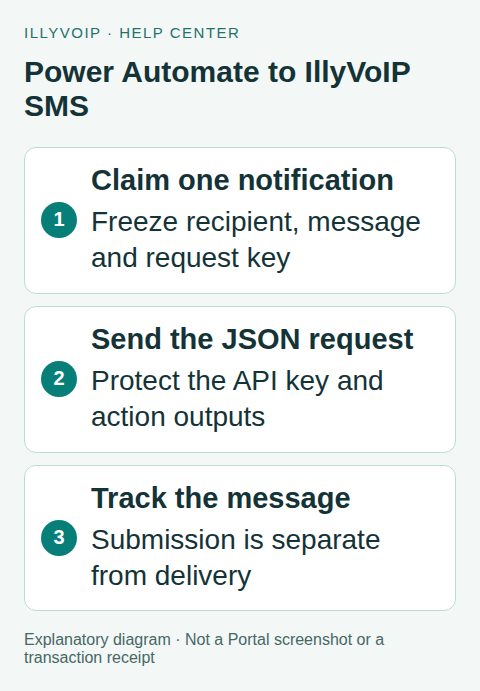
1. Start with a durable notification record
Use a reviewed event from your application, such as a requested status update. Before the flow can submit it, store the recipient, approved sender, final text, business-event reference and a unique request key. Keep phone numbers as text in complete international form.
The record needs a state such as ready, claimed, submitted, uncertain or rejected. A source database or service must atomically claim the notification so two flow runs cannot send it independently. Setting flow concurrency to one can help within that flow, but it is not a substitute for ownership across other flows, workers or manual replays.
2. Add the HTTP action
- Create the cloud flow with the intended narrow trigger.
- Add the ordinary HTTP action permitted in your environment.
- Set the method to POST.
- Use the Production URL below only when ready for a real submission.
- Add the headers and body described in the next step.
https://api.illyvoip.com/api/v1/sms/messagesDo not choose “HTTP with Microsoft Entra ID” as though IllyVoIP uses your tenant’s Entra authentication. This request uses the IllyVoIP API key. For contract testing, keep Sandbox URL and credentials separate; never fall back to Production automatically after a test failure.
3. Map the headers and JSON
Set Content-Type to application/json, X-Api-Key to the securely supplied environment key, and Idempotency-Key to the saved notification key. Current SMS keys accept 8–128 characters from letters, digits, colon, period, underscore and hyphen.
The resolved JSON body must have this shape:
{
  "from": "YOUR_APPROVED_SENDER",
  "to": ["YOUR_AUTHORIZED_RECIPIENT"],
  "message": "Your requested update is ready."
}
Use the designer’s supported structured mapping or a JSON serializer for dynamic text. Do not concatenate unescaped quotes, backslashes or newlines into a JSON string. The to field remains an array for one recipient. Inspect synthetic test data to confirm the final shape before using a real number.
4. Protect secrets and run-history content
Supply the key from an approved secret-management mechanism available in your environment. Restrict flow owners and connection access. Enable the applicable Secure inputs and Secure outputs settings on actions that carry the key or private message content, and check downstream actions for accidental disclosure.
Those settings do not replace access control or guarantee that every user with administrative permissions is unable to access a secret. Never put the key in trigger data, a public parameter, exported examples or an email notification about a failed flow.
5. Control retries before turning on the trigger
Review the HTTP action’s retry policy. Begin with automatic retries disabled until the workflow’s recovery logic has been tested. A lost response can mean the SMS was accepted even though the flow reports a timeout.
If bounded retries are enabled later, reuse the same key and unchanged payload within the API’s documented idempotency behavior. A resubmitted flow must not generate a new UUID for an old uncertain notification. Persist the original payload and reconcile the existing message before sending again, especially after a long delay.
Configure failure branches deliberately using the flow’s run-after controls. Authentication or validation failures need correction; an uncertain transport outcome needs review. Neither should be converted automatically into a new paid request.
6. Store acceptance and follow delivery
Require an HTTP success and a valid API success response containing the expected queued_message_ids. For this one-recipient example, confirm the intended message was accepted and retain its reference. Review invalid_numbers and the actual result rather than assuming a green action means every destination was accepted.
Write the message ID and submission outcome back to the original notification record. Track delivery through the documented SMS status API or a verified webhook receiver. Accepted, sent, delivered and read are different claims; the API does not turn a flow’s successful HTTP step into proof a person read the text.
7. Test the failure paths
Use fixtures for valid acceptance, invalid recipient, an API rejection, a timeout after submission, duplicate triggers and quoted/newline-containing text. Restart or resubmit the flow and confirm that its durable record prevents a second business notification. Check that secrets remain hidden in the intended run-history views.
Only then run one authorized Production test if you choose to incur the charge. Review sender rules, destination availability, encoding/segments and cost first. Enable the normal trigger gradually and keep an easy way to pause dispatch.
Frequently asked questions
Can I send directly from a browser-held key?
No. Keep the account key in the controlled integration environment.
Can a successful flow prove delivery?
It can prove the flow reached its own success branch. Store and inspect the IllyVoIP delivery outcome separately.
Related guides and references
- Send SMS from n8n with the IllyVoIP API
- Send an SMS with the IllyVoIP API and track delivery
- Official reference: learn.microsoft.com
- Official reference: learn.microsoft.com
- Official reference: api.illyvoip.com
Reviewed 8 October 2026 using current IllyVoIP implementation and official references. Check your installed version and account options before applying settings. Examples do not certify a physical device or completed live integration.