
Open Billing → Referrals to copy your personal invitation link and follow its results. The workspace separates invitations, earned amounts, service-credit availability and cash-payout availability. A signup is not automatically an earning, and a saved payout request is not a completed payment.
This guide covers the English web Portal checked October 9, 2026. Use the terms, eligibility, amounts and dates currently displayed for your account. The referral-program page gives a public overview; your live request and agreement show the applicable details.
1. Copy the link provided for your account
- Open Billing → Referrals → Overview.
- Find Your referral link and select Copy link.
- Check the copied destination before sharing it. Preserve the complete link; do not replace its identifier with another customer’s.
- Read the qualifying top-up amount and reward shown beside the link before describing the offer to anyone.
If the page says new referrals are not enabled for your account, do not create an invitation URL by guessing its format. Your existing earnings and history can still be available. Ask Support about the displayed account state if needed.
Share the link in appropriate communications with people who may want the service. Describe what IllyVoIP provides accurately and make your referral relationship clear where appropriate. There is no guaranteed earning or guaranteed qualification from a link click.

2. Follow an invitation through qualification
Open Invitations to review the listed customer label, invitation time and status. Use More invitations when shown. An invited customer must meet the current qualifying conditions; do not count every signup as a completed reward.
For example, someone may register through your link but not yet make the qualifying top-up. That invitation and a credited earning are different events. Review the current record before telling the invitee that a reward has been earned. If you believe a qualifying action is missing, contact Support with the relevant invitation details privately.
3. Read the balances without counting them twice
Overview shows separate measures, including Total earned, Available for service credit, Available to cash out, Reserved, Paid out and Converted to service credit.
- Total earned is a history measure, not the amount you can necessarily withdraw now.
- Available for service credit is eligible for the offered conversion workflow.
- Available to cash out is part of your earnings, not an extra balance to add to credit availability.
- Reserved identifies earnings committed to an outstanding operation.
- Paid out and Converted to service credit describe completed uses of earnings.
Open Earnings for each earning’s amount, remaining availability, cash-availability date and state. Dates in this table are labelled UTC. Read the policy shown in the workspace and the dates on existing earnings; do not assume every earning matures on the day you open the page.
Referral earnings, noncash account credit and Rewards points are separate. Do not transfer a rule or a balance from one program to another.
4. Review a service-credit conversion
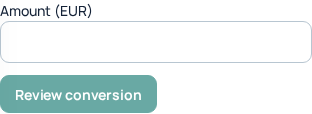
- In Overview, find Use as service credit.
- Enter an amount in EUR within the available eligible earnings.
- Select Review conversion and read the amount and result shown.
- Complete the identity confirmation requested by the Portal, then confirm only if you want the conversion.
- Check Payouts and the account balance for the completed result.
Conversion permanently changes the selected referral earnings to noncash IllyVoIP service credit. That converted credit cannot later be cashed out through the referral payout flow. The screenshot shows the empty form; it is not proof that a conversion was made.
5. Request a cash payout when eligible
- Check Available to cash out, the minimum amount, maturity information and any review notice.
- Under Request a payout, choose an enabled payment method and complete the destination fields offered.
- Use the review action to inspect the amount, fee, net payment and Referral Marketing Agreement.
- Check the destination carefully, read the agreement and complete the required identity/security confirmation.
- Confirm once and follow the saved request in Payouts and conversions.
The current form supports PayPal and bank-transfer choices when enabled and eligible; available methods and supported countries can differ. Verified identity is required for cash payouts. The button can remain unavailable because of the minimum, cash maturity, account policy or a funding review. Read the displayed reason instead of repeatedly submitting.
6. Track a request or respond to review
On Payouts, select View beside the operation. Read the status, public note, fee/net amounts and conversation. Download the agreement when available; payment confirmation is offered for applicable completed payment states.
If the request asks for information, use Reply to the review when shown. If the destination is wrong, the workspace requires cancelling an eligible outstanding request and accepting a new agreement rather than editing the destination on the existing request. Read the cancellation confirmation: returned reservations remain subject to their original availability and any funding review.
If a confirmation times out or the result is unclear, refresh the history and inspect the saved request before starting another. Submission, review, processing and payment are different stages; do not treat “request saved” as proof that money has reached the destination.
Common questions
Why can I use earnings as credit but not withdraw them yet?
Cash eligibility includes the applicable maturity and payout requirements. Check the earning’s cash-availability date, the displayed minimum and your verification state.
Can I convert earnings and withdraw the same amount?
No. These are alternative uses of eligible earnings, not two independent balances. A conversion reduces the earnings available for other uses.
Why is my referral or payout missing?
Refresh and check the appropriate Invitations, Earnings or Payouts tab. Provide Support the relevant reference and dates privately; do not send login passwords, verification codes or full bank details in public messages.