
Diagnose an IllyVoIP connection through OPNsense by finding the rule and translation that actually handle its traffic. Do not begin by adding broad port forwards or assuming that every phone requires static-port NAT.
This guide is for the network administrator. Record the installed OPNsense release, the phone or PBX address, interface layout and current NAT mode. Current documentation uses Source NAT terminology; older interfaces may present the relevant rules under Outbound NAT. Follow the labels in your installed release and keep a private configuration backup.
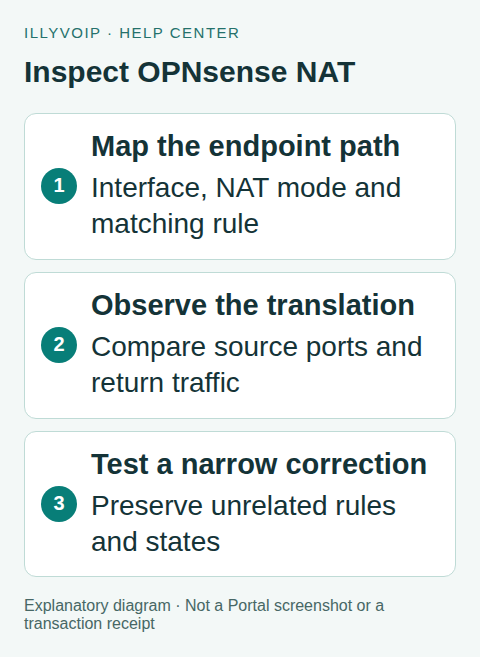
1. Map the affected path
Decide whether the endpoint is a phone registering directly to IllyVoIP, a local PBX serving several phones, or a PBX reached through a VPN. Those topologies do not need identical rules. Note every router and NAT layer between the endpoint and the Internet.
From Services → SIP Lines, confirm the assigned hostname, transport, destination port and audio mode. Keep account credentials private. For IP authentication, also verify that the actual public source address matches the approved line configuration; do not change the identity’s address merely to fit a troubleshooting guess.
Record one symptom and its time: registration timeout, rejected call, missing audio in a particular direction or disconnection. Use the same authorized test destination for comparisons.
2. Inspect rules before adding any
Open Firewall → NAT and inspect the source/outbound translation rules and their mode. Identify the entry matching the endpoint’s source network, selected egress interface, protocol and destination. Then inspect the corresponding firewall rule and routing decision.
Record automatic rules as well as manual overrides. Replacing an automatic NAT mode with manual mode without carrying over necessary mappings can affect unrelated systems. A narrow exception in the supported mode is easier to evaluate than a wholesale replacement.
Look for a rule that matches more broadly than its description suggests. An alias containing an entire office network is not a one-phone exception. A multi-WAN or VPN policy may select a different egress path from the default route.
3. Observe the translation and return traffic
Use the release’s packet-capture and state diagnostics around one short test. Compare the endpoint-side source address/port with the translated connection on the external interface. Check whether replies return and are associated with the intended state.
For audio, distinguish the negotiated media path from the signaling connection. Registration traffic can work while RTP is blocked or directed to an unreachable address. A trace location matters: absence from one interface capture does not establish absence everywhere.
Capture only traffic you are authorized to inspect and protect the files. SIP can disclose numbers, internal network information and authentication material. Encrypted signaling needs an appropriate endpoint diagnostic rather than disabling encryption for convenience.
4. Decide whether a static-port exception is justified
The documented Static-port option prevents source-port changes for matching TCP/UDP traffic. It does not fix every NAT problem, authorize an incoming destination or automatically make an SDP address reachable.
If the evidence and endpoint requirements justify preserving a particular source port, plan a rule that matches only the intended endpoint, egress interface and traffic. Keep the existing automatic behavior for other devices. Consider conflicts when multiple endpoints expect to use the same translated port.
If the real problem is a blocked permitted flow or the wrong egress route, fix that specific cause. Do not add a static-port rule merely because a different provider’s example includes one.
5. Apply and compare one change
- Save the previous mode and exact rule values.
- Record the hypothesis and which test would demonstrate an improvement.
- Add or adjust only the reviewed rule using the installed interface.
- Apply the change during an appropriate maintenance window.
- Renew only the affected test session using the administrator’s supported method.
Existing states can retain prior translation behavior. Avoid clearing the complete state table to force a new call; it can interrupt unrelated users. Do not forward all UDP ports, expose a phone’s web interface or use a guessed universal RTP range.
6. Verify the result and retain a useful record
Check fresh registration, an outgoing call, an incoming call where applicable, audio in both directions and normal termination. Repeat hold or transfer only if that was the failing action. Compare the same device and destination before and after.
Restore the previous setting if the change does not address the observed fault. Keep the rule identifier, time and sanitized test result so the next administrator can understand why it was retained or removed.
For Support, provide the OPNsense version, topology, call direction, public reference and the point where traffic stops or changes unexpectedly. Keep configuration backups and unrelated packet captures out of ordinary messages. If incoming routing points to another SIP line, correct that separately in the number configuration.
Frequently asked questions
Can I copy pfSense screenshots? Use OPNsense’s matching release documentation; related concepts do not guarantee identical controls.
Does static-port NAT replace firewall rules? No. Translation and traffic permission are separate decisions.
Related guides and references
Reviewed 9 October 2026 using current IllyVoIP implementation and official references. Check your installed version and account options before applying settings. Examples do not certify a physical device or completed live integration.