
When an IllyVoIP phone behaves differently behind a SonicWall, inspect the actual policy and SIP handling before changing the firewall. Registration, call setup and audio use different parts of the connection; one working stage does not establish that the others work.
This guide is for an authorized SonicWall administrator. Record the installed SonicOS release first. The official instructions distinguish SonicOS 7 and 6.5, whose navigation differs. You need a configuration backup, a known working comparison where practical and permission to interrupt the affected test connection.
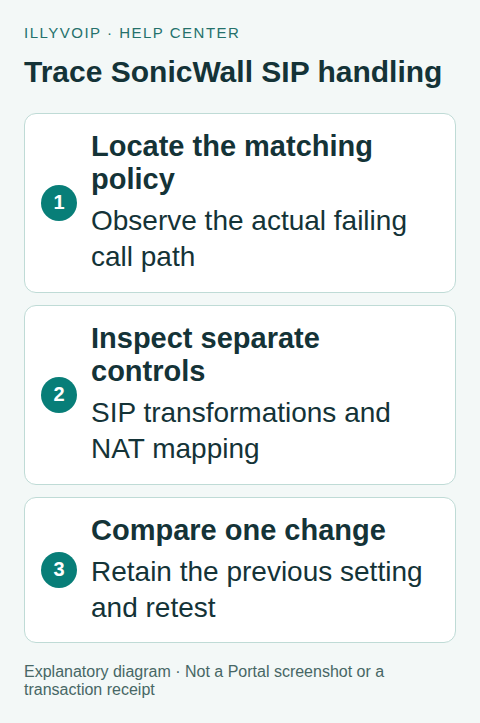
1. Describe one reproducible failure
Record whether the phone cannot register, a call is rejected, one party cannot hear, or a connected call drops. Include direction, time and timezone, endpoint model, transport and the public IllyVoIP call reference when available.
Get the assigned connection details from Services → SIP Lines. Keep the SIP server, authentication identity and chosen audio mode together. Do not replace the server with a guessed address or weaken encryption merely to simplify a capture.
Compare the same endpoint and authorized destination over a known working path if feasible. If both paths fail identically, investigate the line or endpoint before attributing the fault to SonicWall. Ordinary tests can incur call charges.
2. Find the matching traffic and policy
Use the installed release’s traffic/session diagnostics or Packet Monitor to identify the connection. Check the ingress interface, source device, destination, transport, matching access rule and NAT policy. Include any upstream router, VPN or second NAT layer in the diagram of the path.
A policy named “VoIP” is not proof that it handled the call. Match actual packet addresses and ports. Keep a short, sanitized capture around one attempt instead of collecting unrelated office traffic. Signaling captures can contain telephone numbers and authentication information.
3. Inspect SIP transformations and Consistent NAT separately
In SonicOS 7, the vendor procedure locates the relevant controls under Network → VoIP → Settings. For SonicOS 6.5, use Manage → VoIP. Confirm the labels against your installed release before applying an instruction.
Record the current Enable SIP Transformations setting and the relevant NAT configuration. Also record whether Enable Consistent NAT is selected. These are different controls: SIP transformations affect protocol handling, while NAT mapping affects the translated connection.
Do not apply “disable ALG and enable Consistent NAT” as a universal recipe. A deployment can depend on its existing translation/inspection behavior, and a router-wide change can affect other phones. The purpose of the inspection is to find evidence for a specific correction.
4. Compare the failing stage
For registration timeouts, look for the request leaving and the response returning on the expected route. For a rejected call, preserve the response code and reason instead of assuming a firewall timeout. For missing audio, inspect the negotiated media addresses and the permitted return path where your diagnostic access allows it.
If an authorized trace shows that SIP content is rewritten into an unreachable address, compare that observation with the transformations setting. If packets are simply blocked by the matching access rule, correct the rule’s specific requirements. Those are different findings.
Encrypted signaling will not reveal readable SIP in an ordinary network capture. Use an appropriate endpoint log or administrator diagnostic. Keep TLS and media security aligned with the line’s supported settings.
5. Test one justified correction
- Save the exact previous setting and matching rules, including the affected scope.
- Write down the observed fault and the one setting or rule proposed to address it.
- Choose a maintenance window appropriate to the setting’s impact.
- Apply the matching SonicOS procedure and save the change.
- Create a fresh test session and compare the same call path.
Existing connection state can outlive a policy change. Use a targeted, administrator-approved method to renew the test connection; do not clear every firewall connection to obtain a clean test. Do not open phone administration, forward every UDP port or remove unrelated inspection controls.
6. Check the complete calling workflow
Verify registration, an outgoing call, an incoming call when the number is routed to this line, two-way audio and normal call termination. If transfer or hold was the original failure, include that exact action. Keep test conditions stable so the before-and-after comparison means something.
If the change has no useful effect, restore the previous value and record the outcome. A failed hypothesis is useful evidence; leaving several speculative changes enabled makes the next investigation harder.
Prepare evidence for Support
Include SonicOS version, endpoint/PBX version, the affected direction and action, timestamp, public call reference and the specific comparison that succeeded or failed. Provide only the relevant sanitized policy/capture detail. Never include the full firewall backup, SIP password, account API key or unrelated customer traffic in an ordinary support message.
If the phone registers and outgoing calls work but incoming calls do not ring, also verify the number’s saved destination and the selected SIP identity in IllyVoIP. A firewall adjustment cannot repair a number pointing to another destination.
Frequently asked questions
Should SIP transformations always be disabled? No. Inspect the deployment and follow evidence for the failing path.
Does Consistent NAT guarantee working audio? No. Routing, permitted media traffic, endpoint addresses and audio settings still matter.
Related guides and references
Reviewed 9 October 2026 using current IllyVoIP implementation and official references. Check your installed version and account options before applying settings. Examples do not certify a physical device or completed live integration.