
A firmware update should leave your GRP2615 ready to use the same IllyVoIP line. Before downloading anything, identify the phone's hardware revision. Grandstream publishes different firmware branches for legacy and newer GRP261x hardware; a file carrying the right family name is not enough.
This guide is for the administrator of a GRP2615 SIP desk phone. You need local administrator access, the current SIP configuration and a quiet maintenance period. If GDMS, a PBX or another provisioning system manages the phone, arrange the update there with its administrator so a local change is not overwritten.
1. Identify the exact phone and supported upgrade path
- Record the model, hardware revision and installed software version from the phone's status information and product label.
- Open Grandstream's official firmware page and find the row matching that hardware, not merely the first GRP2615 mention.
- Read the release notes for the destination version and any required intermediate version.
- Keep a record of the approved source version, destination version and upgrade method before starting.
At this review, Grandstream explicitly excludes legacy GRP261x revision 1.x from the 1.0.15.x branch. Its page also describes an intermediate transition image for certain newer-hardware upgrade paths. Follow the current instructions for your unit; do not skip directly to a numerically higher version or assume that downgrading later will be supported.
2. Protect the configuration and plan the interruption
Open the phone's web interface from a trusted local network. Under Maintenance → Upgrade and Provisioning, use the documented configuration download controls. Store the export privately with the model and source firmware version in its filename.
A normal device-configuration export is not a complete credential backup. Grandstream documents that these TXT/XML exports exclude passwords and CA/custom certificates. Confirm that the authorized administrator can restore the SIP credentials and any required certificates through their existing secure process. An available backup-package option can contain personal data and needs private storage too.
Note the active SIP account, server, transport, audio mode, caller-ID choice, programmed keys and provisioning source. Finish active calls first. Tell anyone using the phone when it will be unavailable, and keep power and network connectivity stable throughout the update.
3. Check the IllyVoIP settings you will verify afterward
In the Portal, open Services → SIP Lines and identify the line used by this phone. Check its authentication mode and expand Technical endpoints for the connection information. Keep the selected regional hostname, transport and audio policy together; do not change them just because you are updating firmware.
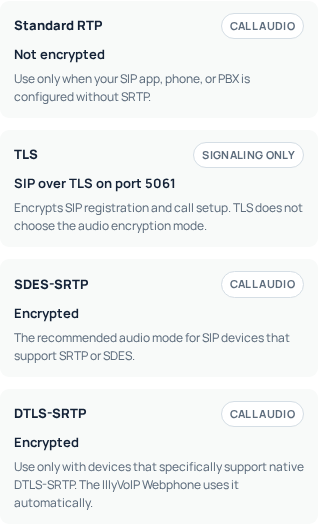
The genuine Portal image illustrates the difference between signaling and audio encryption. TLS protects SIP signaling; the line's RTP/SRTP choice is a separate setting. Use the mode that matches your account and device configuration.
4. Apply the approved firmware
- Download the matching firmware and release notes from Grandstream's official site.
- Return to Maintenance → Upgrade and Provisioning. Use the local firmware upload control if it is available for your installed version, or the documented firmware-server method chosen by your administrator.
- Select the correct file or server path. Distinguish the firmware source from the configuration-provisioning source; changing the latter can replace account settings.
- Save/apply and confirm the upgrade only after checking the displayed target and the maintenance window.
- Leave the phone powered while it installs and restarts. Do not repeatedly reboot it because the screen temporarily disappears.
For a server-based update, preserve the administrator's intended automatic-check policy. Do not enable a beta channel or a permanent update schedule as an incidental part of this one upgrade. If the phone refuses the file, stop and compare hardware, file and required transition steps rather than trying unrelated images.
5. Verify the result before returning the phone to service
After the phone returns, reopen its status page and confirm the expected firmware version. Check the intended account's registration, then inspect the saved server, account identity and media settings. A working screen or dial tone alone does not prove registration.
- Outgoing: call an authorized destination in international format. Check the applicable rate first; normal call charges may apply.
- Incoming: call the IllyVoIP number routed to this SIP line and confirm this phone rings.
- Audio: confirm both parties can hear each other and that mute/unmute behaves normally.
- Call details: check the expected outgoing caller ID and any keypad digits your normal workflow requires.
- Everyday controls: confirm the programmed keys and account selection still match the recorded configuration.
If something changed after the update
The old version remains: check the upgrade status, file selection and provisioning policy. The phone registers with different settings: review the provisioning source before changing passwords. Registration works but audio fails: compare media mode and network behavior with the recorded baseline. The phone cannot boot normally: use Grandstream's recovery guidance for that exact hardware and ask its administrator or support team for help.
Do not factory-reset or downgrade as a first response. For a support request, include model, hardware revision, previous/current firmware, the upgrade method, exact symptom and a test time with timezone. Keep exports, passwords and certificates out of public attachments.
Common questions
Will an update fix every call failure? No. Check the release notes for a relevant fix. Routing, account eligibility and network problems need their own diagnosis.
Can I restore everything from the XML export? Do not assume so. The documented exclusions include credentials and certificates; prepare recovery through the administrator before starting.
Related guides and references
- documentation.grandstream.com — official reference
- documentation.grandstream.com — official reference
- www.grandstream.com — official reference
- documentation.grandstream.com — official reference
Reviewed 9 October 2026 against current IllyVoIP source and the linked documentation. Use the settings available to your account and installed version. These instructions are not a claim of a completed physical-device or live-service test.