
Use this walkthrough for Grandstream GRP models covered by the GRP261x/262x/263x administration guide. Your phone’s exact account count and menu layout depend on its model and firmware. You need access to the phone’s local administration page, not just its keypad.
1. Get your IllyVoIP line details
Open SIP Lines and select the line you will use. You need its SIP username, SIP password and server address. Your Portal login password is not necessarily your SIP password. This walkthrough uses password authentication; do not switch an IP-authenticated line without checking which existing devices depend on it.
If you need another line, follow Create a SIP line and review any subscription charge before confirming. Buying a phone number is not required just to register the phone.
2. Configure the phone
- Read the phone’s local IP address from its network/status information and open it on a computer in the same trusted network.
- Sign in as the device administrator. Under Accounts, select the account you intend to use and open General Settings.
- Enable Account Active, enter the fields below and use Account Name for a recognizable label.
- Save and apply the settings, then check registration in the account/status view.
| Phone field | What to enter |
|---|---|
| SIP Server | SIP server hostname |
| SIP User ID | SIP username |
| Authenticate ID | SIP username / authentication ID |
| Authenticate Password | SIP password |
Check the selected account before dialing
A phone with several accounts may place a call through a different line from the one you just configured. Select the IllyVoIP line deliberately. If changes disappear later, check whether the phone is managed through a provisioning service. Coordinate the configuration there instead of repeatedly changing the local page.
3. Match connection and audio settings
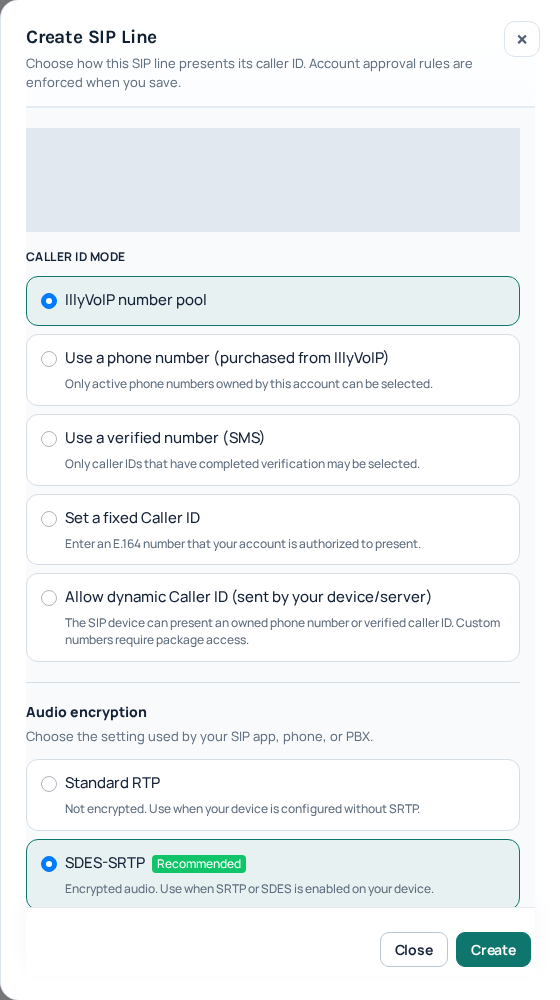
Use the server, destination port and transport shown in your account’s SIP connection details. Do not put the phone’s local IP into the server field. SIP signaling and audio encryption are separate settings: the Portal line’s audio mode must match what the phone supports and uses. Standard RTP is unencrypted; SDES-SRTP and DTLS-SRTP are different modes. Do not select DTLS simply because a browser uses it.
If unsure, ask Support about your exact model before changing an existing working line. Do not disable your firewall or expose the phone administration page to the Internet.
4. Test outgoing and incoming calls
- Once registered, select the configured line and call a number you control using its country code. Check your balance and destination rate first; this can be a paid call.
- Check two-way audio and the outgoing caller ID.
- For incoming calls, route an active IllyVoIP number to this SIP line. Follow phone-number configuration. Registering a handset alone does not change a number’s routing.
If it does not work
No registration: check the server, username, password and authentication mode. Registered but unable to call: check the dialed number, package, balance and caller ID. Connected but no audio: check the network and matching audio settings.
Send Support the model, firmware version, time/timezone, visible error and public call reference if available. Never include passwords or private account screenshots. The SIP code reference helps describe the failure.
Device documentation
Open the official documentation. Based on manufacturer documentation and the current IllyVoIP Portal; not a certification of every model or a claim of physical-device testing.
Prepare the phone without disturbing existing lines
Check the model and firmware in the phone’s status information. A GRP desk phone, a DP cordless base and an HT adapter do not share identical menus. Open the GRP’s own local IP address from a trusted computer. If the login page does not open, solve local network access first; changing the IllyVoIP password will not make that page reachable.
Work through General Settings deliberately
Choose an unused account under Accounts, then open General Settings. Account Active enables that account; Account Name is only a recognizable label. SIP Server must come from your IllyVoIP line details. SIP User ID and Authenticate ID belong to that same line, while Authenticate Password is its SIP password. Do not insert your Portal email or the number you want to display into the authentication fields.
Copy credentials carefully without leading or trailing spaces. A masked password does not let you verify the value visually, so avoid unnecessary re-entry after registration is already successful. Optional proxy fields should follow your connection details; do not copy an unrelated provider’s proxy.
Save, apply, then verify the chosen account
After applying, return to account/status information and confirm registration. A line label can appear even while authentication is failing. If several accounts are present, deliberately choose the IllyVoIP account for the test call and note which line key you pressed. This avoids diagnosing the wrong account when another service is still the default.
When one function works but another does not
- Registered, no outgoing call: check international number format, available credit, selected package and caller-ID permissions before changing network settings.
- Outgoing succeeds, no incoming ringing: check where the number routes in IllyVoIP, then Do Not Disturb and forwarding on the phone.
- Call connects but no two-way audio: compare media settings on the line and device and describe which direction is silent to Support.
- Changes disappear after reboot: ask whether a provisioning service manages the phone. The lasting change must be coordinated there.
Finish with one incoming and one outgoing test and record the public call references privately. Do not share raw account exports in a public forum. A successful registration is only the first checkpoint; the call tests establish that your intended line and number behave correctly.