
Update an already configured Yealink SIP-T54W by checking its exact firmware path, preserving its configuration and testing the same IllyVoIP call functions afterward. A firmware file that belongs to another phone or requires an intermediate release is not a safe shortcut.
This guide is for the administrator of an existing T54W running SIP firmware. It does not convert Teams firmware or replace the procedures used by a managed provisioning service. You need local administrative access, the current vendor release notes, a private backup location and a maintenance window. The phone will be unavailable while restarting.
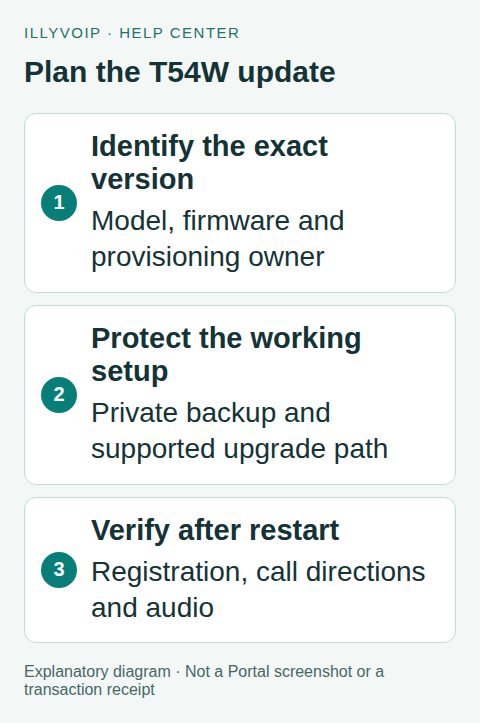
1. Record the working setup
Open the phone’s status information and record its model, hardware information and complete firmware version. In its trusted local web interface, inspect the active SIP account and note its label, server, transport and audio-security choices. Keep passwords out of the maintenance record.
In IllyVoIP, open Services → SIP Lines and confirm which line belongs to this phone. Record the permitted outgoing identity and the incoming number’s destination. These references help distinguish a phone problem after an upgrade from a pre-existing account or routing problem.
Establish a small before-update check: registration, an authorized outgoing call, an incoming call if the line has a routed number, two-way audio and any transfer/headset function the user relies on. Record the result and time. Calls can incur charges; repeated test calls are not necessary when a failure is already clear.
2. Check who provisions the phone
Ask whether a PBX, reseller or device-management service controls this phone. Inspect the existing provisioning configuration without changing it. An automatic provisioning job can overwrite a local account change or return the phone to another approved firmware.
If another administrator owns provisioning, arrange the upgrade there. Do not remove its server URL, disable provisioning or reset the device just to make a manual upgrade stick. A working configuration may depend on directory, security and account settings that are not obvious from the registration page.
3. Choose a supported upgrade path
Use the official Yealink support page for the exact model and read the release notes for both the destination version and any required intermediate version. Record the intended sequence before downloading. Use official or administrator-approved firmware, not a file attached to an unrelated forum answer.
The vendor’s current guidance identifies stepped upgrades for older T5XW releases and firmware-validation transitions. It also documents restrictions on downgrading from V87. Treat these as gates to check, not as a reason to copy a universal sequence from another phone. Ask Yealink or the provisioning owner for the correct intermediate files when required.
A configuration backup cannot override a firmware downgrade restriction. Plan recovery around supported vendor procedures and continued access to another working endpoint, rather than promising that you can always flash the old version back.
4. Save a private backup
- Use the configuration export/backup function documented for the installed firmware.
- Save the resulting file in restricted storage with the model, date and current firmware version.
- Confirm that the file is readable and that you understand the matching restore procedure.
- Keep a separate record of any local settings that your provisioning owner says the export does not preserve.
Configuration exports can contain SIP credentials, provisioning secrets and contact information. Do not attach an unreviewed export to a public ticket or include it in an article screenshot. Do not assume a backup from another handset is interchangeable with this phone’s configuration.
5. Apply the approved firmware
For an administrator-approved local web upgrade, open Settings → Upgrade in the matching phone interface and use its firmware-file selection/upload control. Choose the exact file for the next approved step, check the displayed target and confirm the upgrade. If the installed release or managed setup requires another method, use that method instead.
Keep the phone powered and the network stable throughout transfer, installation and restart. Allow the documented process to finish; a temporary loss of the web interface during reboot is expected. Do not remove power because a progress display pauses.
After the phone returns, reopen its status page and compare the complete firmware version with the intended result. If an intermediate step was required, verify that step before proceeding. Do not repeatedly upload a rejected image with a different filename.
6. Verify IllyVoIP service after restart
Confirm that the intended account remains enabled and registered. Compare its server, transport, identity and audio mode with the pre-change record. If settings have changed, determine whether provisioning reapplied them before entering new values.
Repeat the same acceptance checks: selected outgoing line, correct permitted caller ID, incoming routing, microphone/speaker audio and the user’s transfer/headset functions. A changed version number proves the update was applied; it does not prove the complete calling workflow still works.
7. Resolve a failed update or changed behavior
- Image rejected: record the exact message and check model, hardware, customization and required intermediate release.
- Version returns to the old value: consult the provisioning owner before removing management settings.
- Registration fails: compare the saved account settings and use the registration troubleshooting guide.
- Phone does not boot: follow the model-specific vendor recovery instructions with the required files; do not improvise a factory reset or recovery image.
Give Support the model, previous and intended versions, error text, update method and sanitized call references. Retain the private backup until the maintenance has been accepted.
Frequently asked questions
Does this select the latest firmware for every T54W? No. The appropriate version depends on hardware, the supported transition and the provisioning owner.
Will a backup guarantee a downgrade? No. Firmware restrictions and configuration restoration are separate.
Related guides and references
Reviewed 9 October 2026 using current IllyVoIP implementation and official references. Check your installed version and account options before applying settings. Examples do not certify a physical device or completed live integration.