
Prepare the sound track of a video locally, then send only the resulting supported audio file to IllyVoIP Speech-to-Text. This is useful for a recording you own or are authorized to transcribe. The API does not accept a video URL or MP4 upload in place of its audio file.
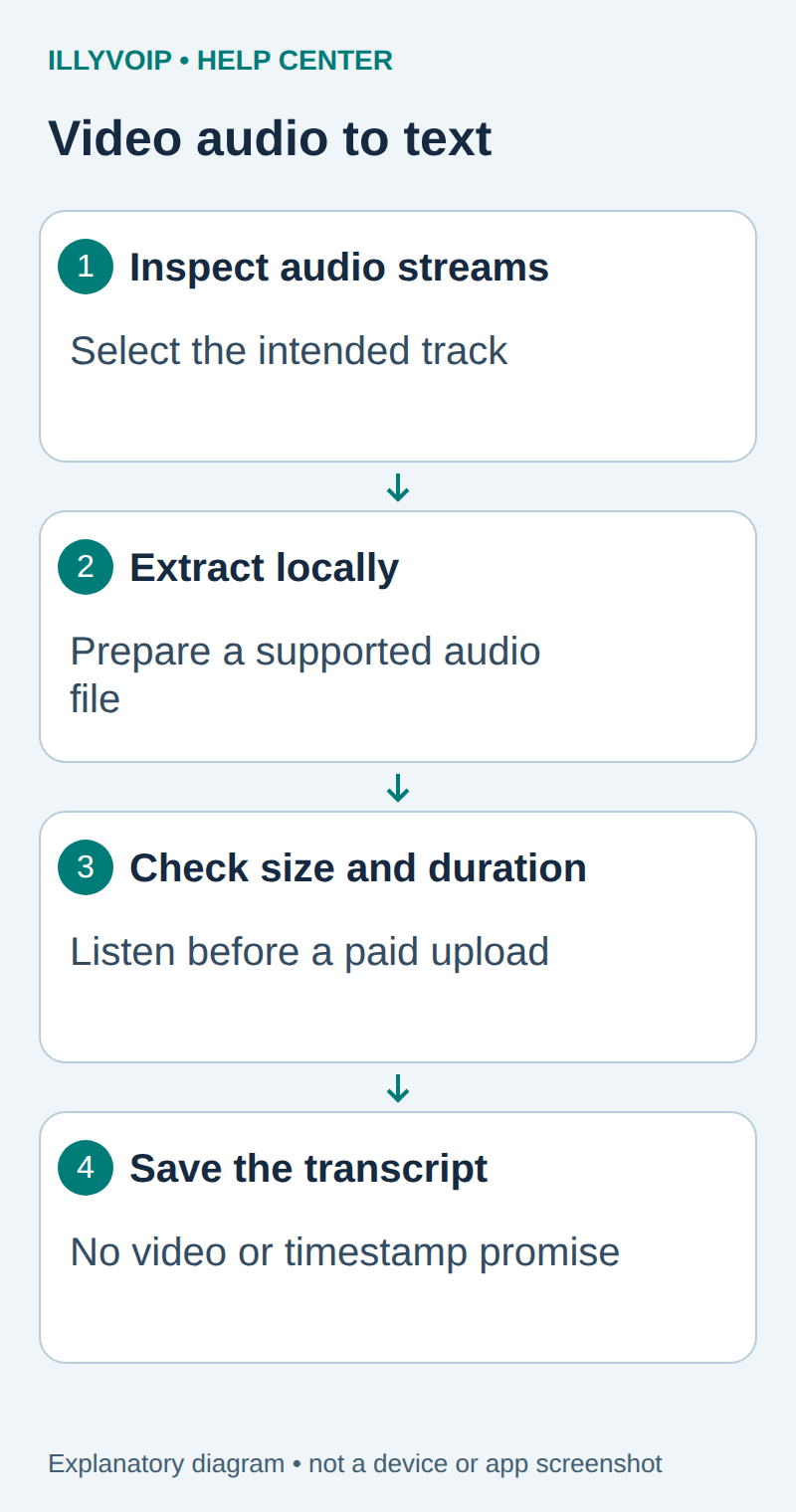
1. Inspect the input before converting
You need an IllyVoIP account permitted to use the relevant API, sufficient balance for paid operations and an API key. In the Portal, open Account settings → Developer tools and follow its verification prompts. Keep the key in your server’s secret configuration as ILLYVOIP_API_KEY, outside source control and shared documents. Read-only catalog and reporting requests are different from paid speech generation or SMS submission.
Install a current FFmpeg build appropriate to your operating system and open a private working directory. Keep the original video unchanged. The commands below use local filenames; do not accept arbitrary URLs or shell fragments from an untrusted web form.
ffprobe -v error -show_streams -show_format recording.mp4Identify each audio stream, its language tag if present, channels and duration. A video can contain commentary, another language or no sound track at all. Inspect and listen before selecting a stream; metadata can be missing or wrong.
2. Extract the intended audio track
For the first audio stream, this example decodes and writes a mono 16 kHz PCM WAV file. It refuses to overwrite an existing output. This is a useful speech-processing choice, not a claim that every input must use this rate.
ffmpeg -n -i recording.mp4 -map 0:a:0 -vn \
  -ac 1 -ar 16000 -c:a pcm_s16le speech.wav
Change the stream selector only after inspection. A command that finds no matching stream should fail; do not turn that into a successful empty transcript. If the source has different speakers isolated on separate channels, automatic mono downmixing can lose useful separation or cause cancellation. Compare the result with the original and choose the intended channel treatment explicitly.
3. Verify the output and its size
ffprobe -v error -show_streams -show_format speech.wavListen near the start, middle and end. Confirm that the output contains the intended speech, has the expected duration and fits the current upload limit. PCM WAV can be much larger than the compressed source; converting a small MP4 does not guarantee a small upload.
If the audio is too large, use the long-recording guide below to prepare a bounded ordered manifest. Do not shorten the recording silently. Preserve the original start offset if you intentionally extract only a selected section.
4. Transcribe the audio with IllyVoIP
Use the standalone speech_api context. Read the current language catalog, and for synthesis select an exact voice from the corresponding voice catalog. Do not assume that the Voice Agent’s available languages or another provider’s voice names apply to the standalone API.
Use the STT guide to submit speech.wav as the multipart file to /api/v1/stt/transcribe. Keep the API key server-side. Review the duration-based charge before submission and keep a private job identity tied to the extracted file hash.
Preserve the exact input, local job identity and response before moving to the next step. A timeout or lost response is an uncertain outcome, not permission to submit the same paid operation again under a new name. Recover from a saved successful response when possible; otherwise reconcile the original attempt. API duplicate-charge protection does not replace your application’s operation history.
On success, save the text and returned language/duration separately from the source video. Uploading audio does not process on-screen text, slides, captions or other visual content.
5. Review what the transcript represents
Compare important passages with the selected video sound track. Note any deliberate start offset or excluded section in your local record. The transcript covers submitted audio, not necessarily the entire original video.
This endpoint does not return word-level timestamps, subtitles, speaker labels or a translation. A source-file offset is useful provenance but does not let you assign precise timestamps to every recognized word. Create captions only through a separately validated timing workflow.
If something fails
- No matching stream: inspect the stream list and select an actual audio stream.
- Wrong language or commentary: correct track selection before uploading again.
- Silence after downmix: inspect channels and compare individual tracks.
- Upload too large: measure the generated file, not the MP4.
- Uncertain API result: retain the original job and reconcile it instead of restarting conversion and submission automatically.
Related guides and reference
FFmpeg stream selection. IllyVoIP API reference. Reviewed October 11, 2026. Examples are instructional: local checks do not establish a completed paid request, live third-party integration or production PBX acceptance.