
Check availability and the active tab
Open the webphone, then its Settings tab. Review Availability and the selected identity under SIP line → Act as.
When Availability is turned off, the webphone signs out in every tab and stays offline until it is turned on again. Confirm that being available for calls is appropriate before changing it.
The Session area identifies whether this tab controls the webphone. Use Take over in this tab only when you intend to move control, and avoid reconnecting or changing sessions during a call.
Check microphone and speaker
- In webphone Settings, review the selected microphone and speaker. Use Refresh if you have connected a different device.
- Check the physical headset mute switch, system volume and the webphone’s call volume.
- Review microphone permission for app.illyvoip.com in the browser and operating system.
- When ready to test locally, use the microphone Start test to check activity and Play test sound to check output.
Microphone and desktop-notification permissions are separate. Allowing alerts does not grant microphone access.
On a managed computer
Your administrator may control microphone permissions. Ask them to review the policy if the setting cannot be changed.
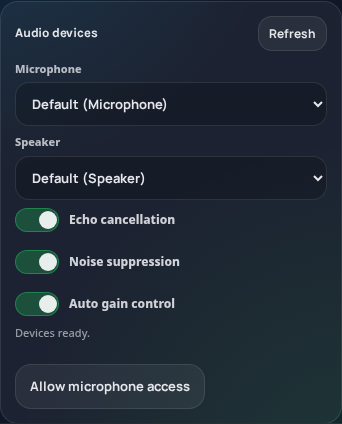
Webphone Settings separates microphone and speaker selection from audio processing controls. The device names shown are browser defaults; microphone permission is needed to discover your devices. No microphone test, session takeover or call was performed. Open the image for a larger view.
If incoming calls do not ring
- Confirm the incoming number is active and its saved destination points to the expected SIP identity or team workflow.
- Check the webphone identity and availability.
- Review ringtone volume and the browser’s notification settings.
- Test in the actual browser and tab setup you intend to use. An alert setting is not proof that the number is routed correctly.
If outgoing calls fail
Confirm the dialed number, selected outgoing identity, account balance and applicable route. Review Fraud Control if a destination or rate restriction could apply.
Use Connection quality to check reachability from the current browser. Its result does not measure real call audio, jitter or packet loss.
Collect a useful example
Environment
Browser and operating-system versions, microphone/headset and whether the issue occurs on another network.
Symptom
Offline, no ringing, failed outgoing call, missing microphone audio or missing speaker audio. State whether one or both parties are affected.
Reference
Call ID if present, date and timezone, error text and the checks already completed.
Keep passwords, API keys and unrelated customer records out of screenshots or logs.
Move the browser-phone session to the intended tab
If the browser phone says it is active in another tab or another device, first identify where you were using it. This message concerns which browser-phone session can control calling; it is not proof of a microphone fault or a changed incoming-number destination.
- Finish any active conversation in the existing phone session. Do not use a takeover as a way to move a live conversation between tabs.
- In the tab you want to use, open the browser phone settings and check Availability and SIP line → Act as. Confirm the intended identity.
- Under Session, use Take over in this tab when that control is offered.
- Wait for the connection status to settle before dialing or expecting this tab to handle the phone. Confirm that the old tab no longer presents itself as the active calling session.
A local tab conflict and a session on another device are distinct states. Follow the status shown rather than opening more tabs or assuming that every takeover has succeeded. If another device is still intentionally in use, coordinate with that user before transferring control. Do not repeatedly take control back and forth.
Check the result without changing unrelated settings
Reopen the settings in the intended tab and confirm the line, availability and connection status. Keep the tab open while using the browser phone. If takeover fails or the connection remains unavailable, record the displayed message, browser version, time and whether another device is open. Retry only after checking the original session. Changing a SIP password or an incoming-number route is not a routine response to a tab-ownership message.
Turning Availability off signs the browser phone out across tabs; it is not a way to leave a second tab receiving calls. For a break, choose that state deliberately. When you return, restore the intended availability and verify that this tab has the session before relying on it for calls. Receiving a call still depends on the number’s saved destination and the receiving identity being available.
Reviewed 12 October 2026 against the current IllyVoIP controls, implementation and applicable references. Available options depend on account permissions and service state.