
A speed-dial key is useful when you repeatedly call the same reception desk, colleague or external number. On a Yealink T54W, the key stores a destination and a calling account. It does not create an IllyVoIP extension, change the incoming route or grant permission to use a caller ID.
Start with a T54W that already registers and places ordinary calls through IllyVoIP. You need permission to change its programmable keys. Managed provisioning or a Favorites policy can control those keys; check with the phone administrator if local changes are unavailable or disappear.
1. Choose the account and destination first
Check which T54W account contains the intended IllyVoIP SIP identity. If the phone has several accounts, a familiar display label is not enough: compare it with the configured account and your Portal line.
Choose a full destination in the dialing format accepted by your existing setup. For an external number, use its international form rather than inventing a short extension. Confirm that the number is correct and that you are authorized to call it. The key will place a normal call, so the usual rates and account restrictions still apply.
Make one ordinary call to that destination first if it has not been checked. A speed-dial key should simplify a known working call, not conceal an unresolved dial-plan problem.
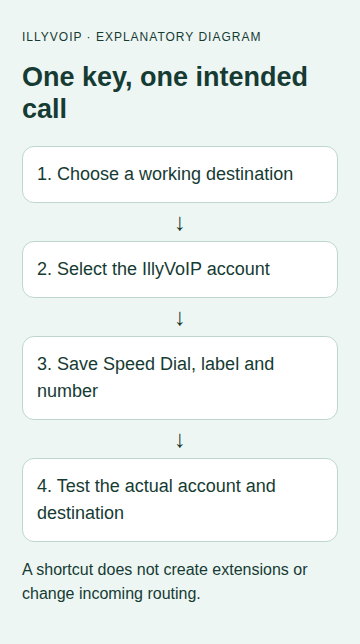
2. Open an unused key
- With the phone idle, press and hold the unused line key you want to configure.
- Alternatively, use Menu → Features → Dsskey where that path is available on your firmware, then select the intended key.
- Check the key's current function before replacing it. Keep a note of the original setting if it serves an existing workflow.
Do not overwrite the only visible account key or a shared reception function without checking its purpose. If the key is locked or the phone uses centrally managed Favorites, ask the administrator to make the change through that authority.
3. Fill the speed-dial fields
| Field | Choice |
|---|---|
| Type | Speed Dial / SpeedDial, as displayed. |
| Account ID | The line/account configured for the intended IllyVoIP SIP identity. |
| Label | A short recognizable name, such as Reception. |
| Value | The complete destination number you already checked. |
Save the key and return to the idle screen. Check that the label identifies the right person or service. Avoid putting confidential information into a label visible to everyone who uses the phone.
For the first setup, enter only the telephone number. Do not append pauses, account codes or menu digits from an unrelated example. Sending post-answer DTMF is a separate task and can trigger actions in the system you call.
4. Test the saved key
- Make sure the phone is idle and the intended account is registered.
- Press the new speed-dial key once.
- Check the displayed destination and account while the call starts.
- Confirm that the right destination rings, the expected caller ID appears and audio works in both directions.
- End the call normally and check that the key remains available on the idle screen.
Yealink documents account-selection behavior that can also depend on a line selected before pressing the key. Test the exact sequence your users will use, particularly on a multi-account phone, instead of assuming that a label alone fixes the outgoing identity.
5. Keep speed dial separate from other key types
BLF monitors a supported line state and needs a compatible service arrangement. A speed-dial key does not prove BLF support. Transfer acts on a call, while this guide configures a new call from the idle phone. Call park, pickup and feature codes also need their own documented configuration.
Do not select another key type because its icon looks similar or copy a PBX-specific star code into an IllyVoIP direct-line setup. Use the existing transfer guide when you want to move an active call.
If the key does not behave as expected
- Wrong destination: reopen the exact key and compare Value with the number that works when dialed manually.
- Wrong outgoing identity: check Account ID and the line selected before pressing the key.
- Nothing happens or the line is unavailable: inspect registration and the key's actual Type.
- Calls fail both manually and from the key: investigate the call rejection, account allowance, dialed format or caller-ID permission; the shortcut is probably not the cause.
- The setting returns to its old value: review provisioning with the administrator.
To remove the shortcut, change only that key back to its recorded original function or the appropriate unused setting. Do not reset the phone or delete its SIP account.
Common questions
Does this make calls free? No. It dials the saved destination through the selected account under the usual pricing.
Will callers reach me differently? No. Incoming-number routing is managed separately in IllyVoIP.
Related guides and references
Reviewed 9 October 2026 against current IllyVoIP source and the linked documentation. Use the settings available to your account and installed version. These instructions are not a claim of a completed physical-device or live-service test.