
This guide explains how to add funds to your IllyVoIP account, review payment methods and find your invoices.
Payment information
Open Billing → Top Up. Choose the amount, select a payment method and review the total before continuing.
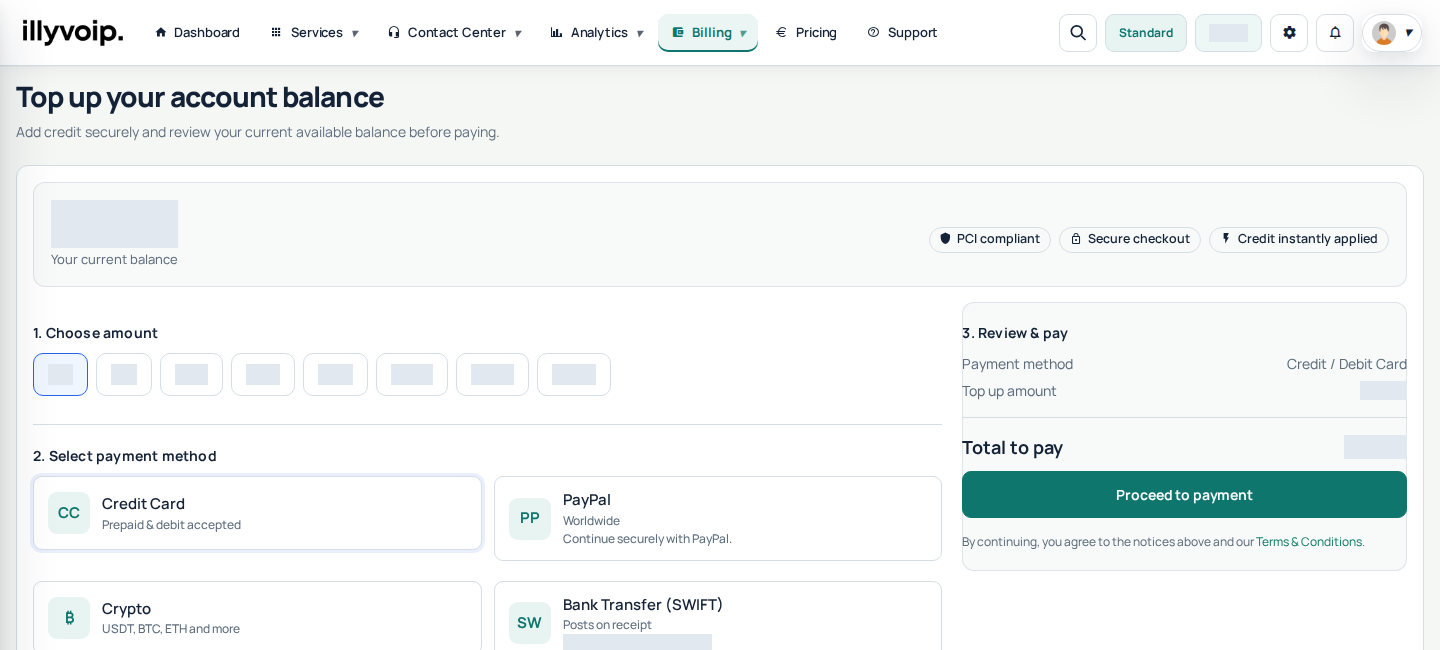
What payment methods are available?
The checkout shows the payment methods available to you, including card, PayPal, cryptocurrency and bank transfer where offered. Availability, minimum amounts and any fees are shown in the current checkout; do not rely on historical fee percentages.
Minimum top-up and processing time
Use the amounts and method-specific minimum displayed on the page. Card, PayPal and cryptocurrency credit is applied after the payment has been confirmed. Bank-transfer credit is applied after funds are received and matched. A pending payment is not proof that your account has been credited.
Invoices for payments
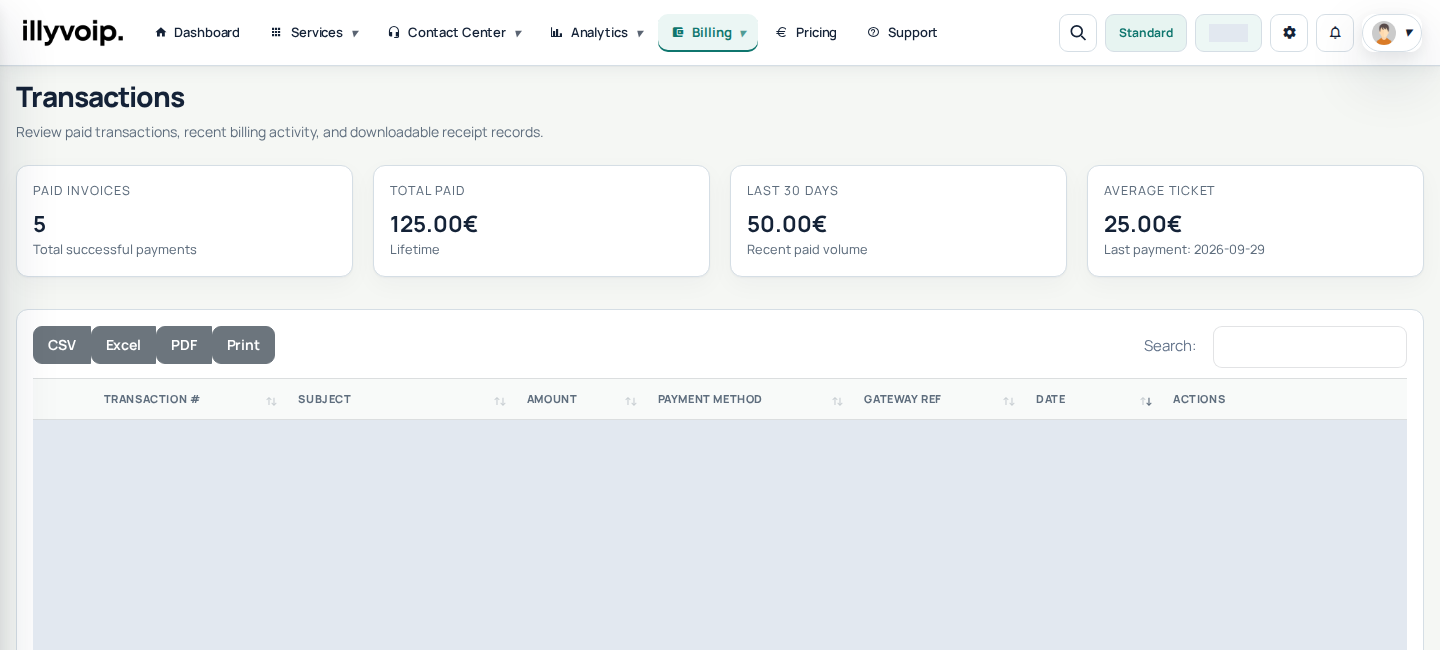
Completed payments appear in Billing → Invoices. Open the invoice for its payment details and available download options. Use Ledger to review account-balance transactions.
Main currency used on IllyVoIP
Your Portal balance and service prices are shown in EUR. If a payment method presents a conversion or a separate fee, review its final payment screen before approving.
Recharging with cryptocurrency
- Select Crypto on the top-up page.
- Review the amount and continue to the payment page.
- Choose the supported currency and network displayed there.
- Send the exact payment using the supplied address, network and expiry instructions. Never reuse an address or QR code from an old screenshot.
- Wait for confirmation and check your Portal balance.
Recharging with card or PayPal
Select the method, review the total and complete the secure payment steps. If you use a saved card, verify which card is selected. Do not submit another payment merely because a confirmation is slow; first check its status and your balance.
Bank transfer and support
Use the bank details and reference supplied by the current payment instructions. If credit does not arrive as expected, contact Support with the payment reference, amount and time—never your full card details. Review the current Refund Policy and Billing Terms before paying.
Manage saved payment methods
On Top Up, select card payment to see saved-card options where available. Add a card through the secure setup flow, check its masked details and choose the intended card for your payment. Remove a card you no longer want saved using the available Remove control. Adding or selecting a saved method does not itself prove a top-up was paid and does not enable an automatic recurring top-up.
For PayPal, follow the authorization steps shown for your account. If required, verify the exact payer email, upload the requested authorization and wait for approval. Email verification alone is not document approval. A “needs update” result requires a corrected authorization; a pending review is not ready to pay. Where secure PayPal connection is offered, complete that flow instead. Use the approved account selected at checkout.
You can remove an approved PayPal account where the Remove action is available. Removing a saved method or authorization is not a refund, does not reverse earlier payments and does not cancel your phone-number or other service subscriptions. Never send passwords, card security codes or full card details to Support.
Continue an interrupted checkout safely
If the page offers to continue a top-up, read whether it is resuming a payment or prefilling details for a fresh attempt. Review the amount and selected method again. A return to the Portal, a closed checkout window or a success-looking bank screen does not replace confirmed payment status and the credited balance.
If the payment is pending, wait and check the status before paying again. If it is rejected, read the reason and correct it before starting another attempt. If your bank shows a debit but your balance is not updated, contact Support with the payment reference, amount, method and time; do not make a duplicate payment to resolve uncertainty.
Where to check the result
Use Ledger for balance movements and Invoices for paid billing records. Invoice preparation may finish after payment confirmation. Read transactions and invoices for reconciliation and exports.