
As a Bria Teams administrator, you can add IllyVoIP as a custom voice service and assign an individual SIP account to each team member. Users then select that account for external calls. Signing into Bria and registering with IllyVoIP are separate steps.
This guide is for CounterPath/Alianza Bria Teams, not Microsoft Teams or Bria Enterprise's separate management platform. You need an active Bria Teams arrangement with permission to administer voice services, plus the IllyVoIP lines you intend to assign.
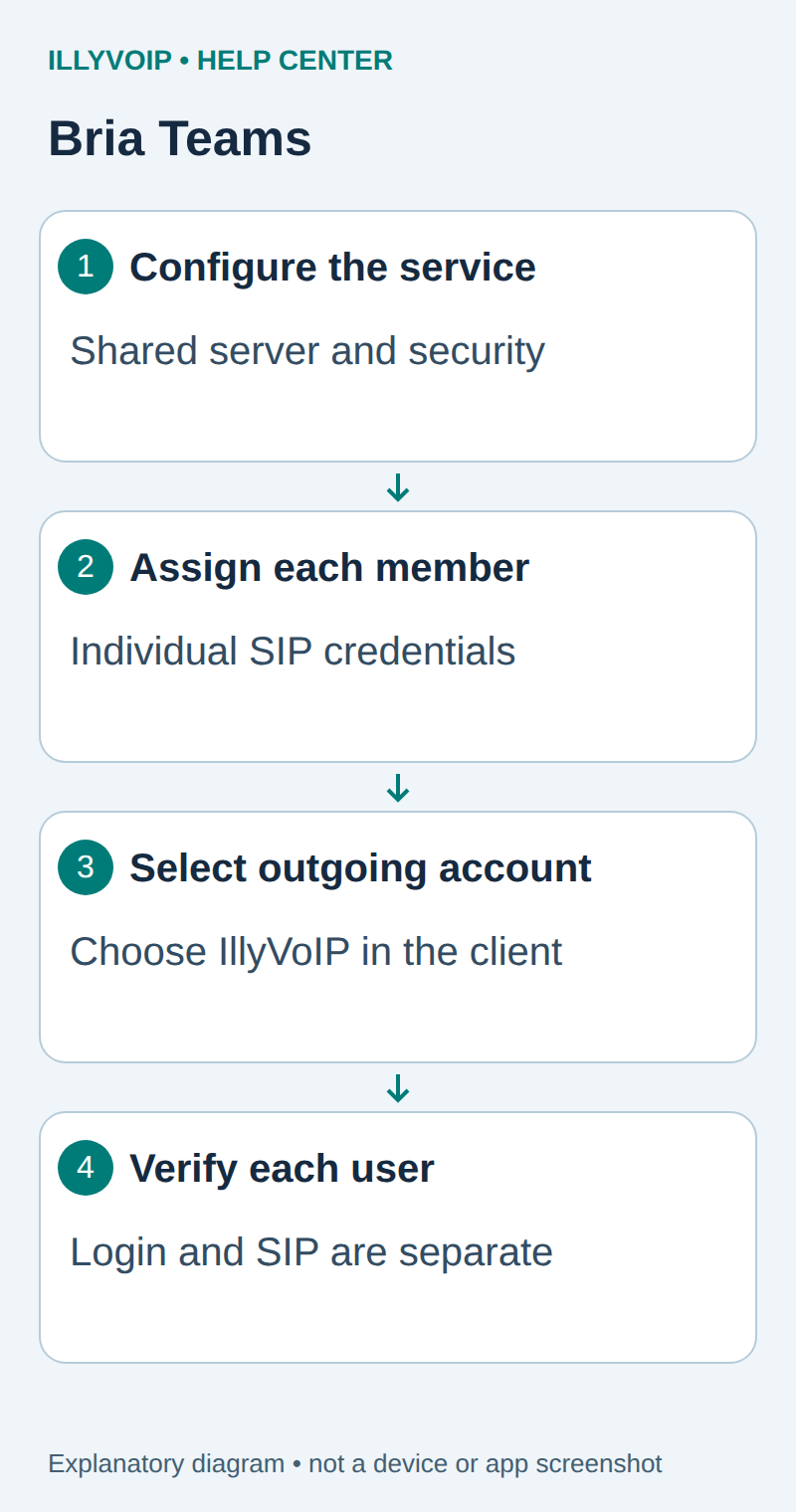
1. Prepare one user before rolling out the team
- Choose one consenting test user and device. Preserve that user's current voice configuration.
- In IllyVoIP, open Services → SIP Lines and select the intended password-authenticated line.
- Obtain its SIP username and password securely. Record the hostname, destination port and transport from Technical endpoints.
- Check call-audio encryption, permitted caller ID and the incoming number destination.
- Record which Bria team member will own that line. Start with a one-to-one assignment so results are easy to trace.
Do not use the employee's Portal login as the SIP login. Avoid distributing a single shared SIP password to the whole team; simultaneous registration and incoming ringing behavior require a separate design.
2. Add the custom voice service
Sign into the Bria administration portal. Open Voice and Video → Add Voice Configuration → Configure SIP Settings. Enter the shared connection information:
| Bria setting | IllyVoIP mapping |
|---|---|
| Service label | A recognizable name, such as IllyVoIP business calls. |
| Domain | The supplied SIP server/domain for the connection. |
| Port | The corresponding destination port. Do not assume Auto selects a custom port. |
| Register with domain and receive calls | Enable for this registered SIP-line workflow. |
| Transport | The transport matching the selected endpoint. |
| SIP proxy | Only a proxy explicitly required for this connection. |
If the authentication identity must be entered separately, enable the service option This voice service requires an authorization username for each voice account. Keep the distinction between the SIP user identity and authentication name when assigning users.
3. Match audio security
Bria exposes SRTP alongside its transport configuration. Match it to the IllyVoIP line's audio policy; TLS signaling alone does not prove media encryption. The documented portal makes this SRTP control available with TLS. If the required combination is not supported by the client/portal version, resolve compatibility rather than silently relaxing the line policy.
Keep certificate verification enabled for the supplied TLS hostname. Do not turn on self-signed-certificate acceptance for an ordinary public service connection. Do not populate optional STUN/TURN, custom DNS or provider-specific voicemail codes with values from another installation.
4. Assign the individual voice account
- If the user has not joined the team, invite them through the normal Bria membership workflow and complete their membership setup.
- Choose Assign Voice Accounts for the custom voice service.
- For the intended member, select Add Voice Configuration.
- Enter SIP Username/Call extension, SIP/Voice Password and the appropriate call-display label. Enter the separate authorization name if your service configuration exposes it.
- Save and close. Check the member, service and line identity together before assigning anyone else.
A call-display label does not authorize an outgoing telephone number. IllyVoIP's caller-ID policy remains the authority for the number presented to the recipient.
5. Have the user select IllyVoIP in the client
The user signs into Bria with their Bria membership credentials. Ask them to sign out and back in if the new service does not appear after provisioning. They may see both the built-in Team Voice account and the new custom service.
On desktop, choose the IllyVoIP service in Outgoing Account. On mobile, open Bria → Settings → Accounts and select the intended custom account. Confirm that this account is connected, rather than relying on the Team Voice account's status.
6. Verify before assigning more users
- Check the applicable rate and place one authorized external audio call using the custom account.
- Confirm permitted caller ID, two-way speech and normal hangup.
- Call the active incoming number that routes to the assigned IllyVoIP line. Verify the intended user's client rings and answers.
- On mobile, repeat after the normal idle/background period used by the team. Background calling behavior needs its own acceptance.
- Repeat the account assignment and checks for each additional user. Do not treat one user's result as proof that every account is correct.
Troubleshooting and later changes
Bria login works but the custom account fails: check the member's assigned SIP credentials and the shared server settings. All members fail: inspect shared service configuration before changing individual passwords. Only one user fails: inspect their assignment and client state. Calls use Team Voice: check Outgoing Account.
Editing a shared server configuration affects the team members using it. Removing the entire voice service also removes the associated voice accounts; remove only an individual assignment when that is the intended change. Coordinate sign-out/re-login requirements and preserve a working path during migration.
Keep version, member assignment, timestamp and failure state for Support, without passwords or unnecessary employee information. Reference: Bria Teams custom voice service setup. Reviewed October 11, 2026. Documentation-based workflow; no live Bria tenant or mobile push acceptance is claimed.