
If an active IllyVoIP number does not ring where you expect, first check its saved destination under Services → Phone Numbers → Configure. An active number, a registered phone and a correctly selected destination are separate facts. This guide helps you identify which part of the incoming path needs attention; it does not assume every missed call has the same cause.
Use it when you manage the number and can inspect the intended receiving phone, PBX, queue or application. Record one recent example: the called number, calling number, time and timezone, and what the caller heard. Share those details privately with Support if needed.
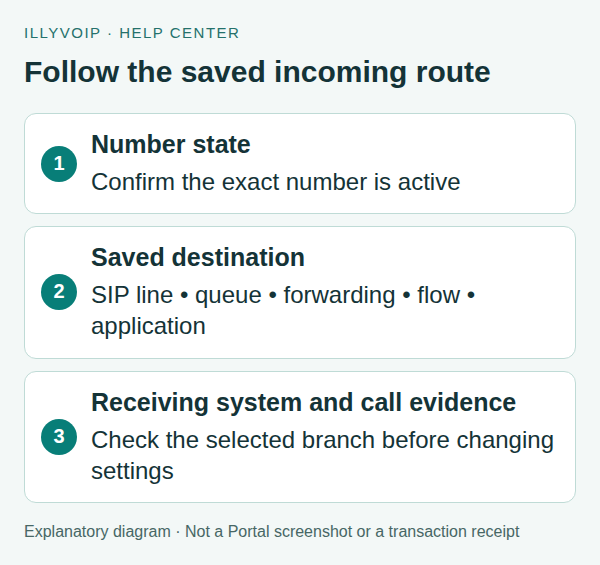
1. Confirm the exact number and its state
- Open Services → Phone Numbers in the correct account.
- Locate the exact number, including its country code.
- Check its current state. A pending order or a number awaiting required information is not an active incoming service.
- If the number is restricted, expired or otherwise unavailable, follow the displayed account or number notice before diagnosing the receiving phone.
- For an active number, select Configure and check the number shown in the dialog.
Do not reorder the same number, cancel it or alter renewal settings as a troubleshooting experiment. Those actions do not establish why an incoming destination is not ringing.
2. Read the saved destination before changing it
Where the number offers Services, also inspect its incoming-service state and Fax to email setting. The Portal explicitly warns that enabling fax uses the number exclusively for fax and incoming voice calls will not work. If fax is enabled, establish whether the number is intended for fax or voice before changing it; do not disable a working fax service as an experiment.
Look at Route inbound calls to and the selected target. Identify where the call is supposed to go now. If the form was opened only for inspection, close it without saving.
Registration of a desk phone or softphone does not automatically assign every incoming number to it. Equally, a number routed to a queue or application is not expected to ring an unrelated SIP identity directly. Choose the relevant branch below.
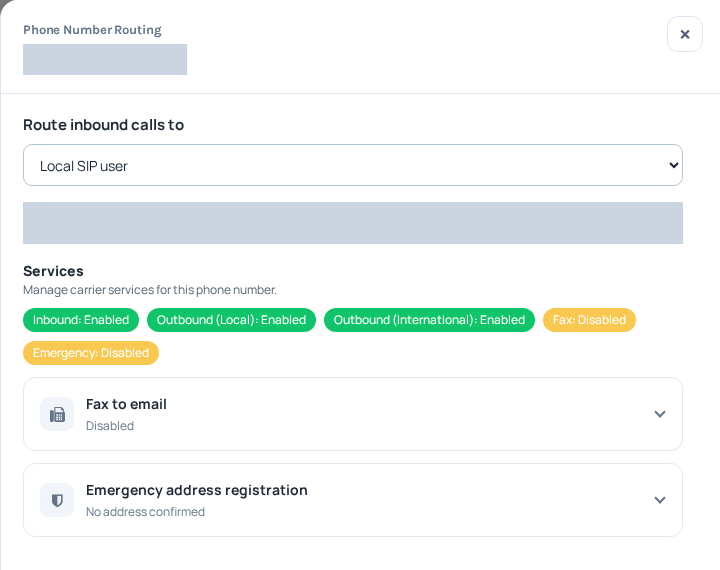
Check Route inbound calls to and the separate Services indicators. The number and selected SIP identity are hidden. These are the captured number’s states, not defaults or a recommendation to change your own settings. Open the image for a larger view.
3. If the destination is a SIP extension
- Compare the selected SIP identity with the one actually configured on the receiving device.
- For a password-authenticated device, check its current registration and whether it is using the intended line. Do not substitute the Portal login password for the SIP password.
- Check whether the device is able to ring: its Do Not Disturb setting, local ringer and availability matter after routing reaches it.
- If more than one device uses that identity, review the actual setup rather than assuming which device will receive the call.
A successful outgoing call helps establish part of the connection, but it does not prove the incoming number is assigned to that line. Mobile background ringing also depends on the app’s supported incoming-call behavior; use the relevant app guide if it rings in the foreground but not when closed.
4. If the destination is a queue or Voice Agent / IVR
For a queue, inspect the intended queue, its configured SIP-line members and waiting/no-answer behavior. Determine whether the call entered the queue and whether an intended member was available. Do not replace the route with a direct extension just because the queue is not immediately ringing a particular phone.
For a Voice Agent or IVR, confirm the selected published flow. Follow its entry, business-hours and handoff paths. A flow that answers with a greeting before transferring is behaving differently from a direct ring-through destination; the absence of immediate desk-phone ringing does not by itself indicate a fault.
5. If the destination leaves the Portal
| Saved destination | Check with the receiving system |
|---|---|
| International number | The complete intended destination and the result of its forwarding leg. Forwarding can incur outgoing charges. |
| External SIP servers | The saved destination, selected Execution Region where shown, PBX inbound matching and the current network guidance in the form. |
| SIP URI | The exact URI, receiving-system matching and network access required by that system. |
Use the current Portal’s regional gateway information if your administrator needs it. Do not copy old IP addresses from a screenshot or allow all Internet traffic to the PBX. A PBX moved to a new network may need its external destination corrected independently of its outgoing authentication.
6. If the destination is Voice API Control
This route expects an application to handle the documented incoming-call-control workflow. It does not automatically ring a desk phone or answer merely because a webhook URL exists.
The application should inspect its incoming event or active-call result, check whether the call can be answered through the API, and issue Answer while it is still ringing. Use the application’s event and request records to establish what happened. If no prepared application was intended, have the number administrator review the chosen destination; do not make an unplanned route change during active use.
7. Compare the test with call evidence
- After correcting a confirmed mismatch, save once and reopen the configuration to confirm the intended destination.
- Make one authorized test from another phone and note its exact time and timezone.
- Check the receiving system and the relevant call reports or application events for that attempt.
- If the call rings but has no audio after answer, investigate the audio problem separately from ringing.
A matching report or event can help locate the failure. The absence of a matching report is not enough to conclude that a particular carrier dropped the call: filters, reporting timing and which part of the call was recorded must also be considered.
8. Give Support a useful case
Provide the called number, one calling number, time and timezone, expected destination type, what actually happened, the exact error if any, and a public call reference when available. Mention whether this affects all callers or one example, and whether it began after a route or network change.
Use the secure support channel. Do not post identity documents, SIP passwords, API keys or complete customer call logs publicly. A precise example is more useful than a long list of speculative firewall changes.
Frequently asked questions
My phone is registered. Why does the number still not ring it?
Registration does not select the number’s destination. Compare the saved route with the device’s SIP identity before drawing a conclusion.
Should I disable SIP ALG or reset my router?
Not as the first step. Establish the saved destination and observable failure first. Network changes should follow relevant evidence and your device-specific guidance.
Does an active number guarantee its destination is reachable?
No. Number activation and the readiness of a phone, queue, PBX or application are separate requirements.
Related guides
Instructions reviewed on 8 October 2026. Available controls and service options depend on your account. Use the current values shown in your Portal.