
sngrep lets you inspect SIP dialogs from a terminal. It is useful on a Linux PBX when you need to see a registration attempt, identify a response to an outgoing call or follow a disconnect without copying a large capture to a desktop first.
This walkthrough uses the sngrep 1.8 command-line options, checked against version 1.8.0. You need authorized access to the capture point and a known test destination. If you prefer a desktop packet viewer, use the related Wireshark guide.
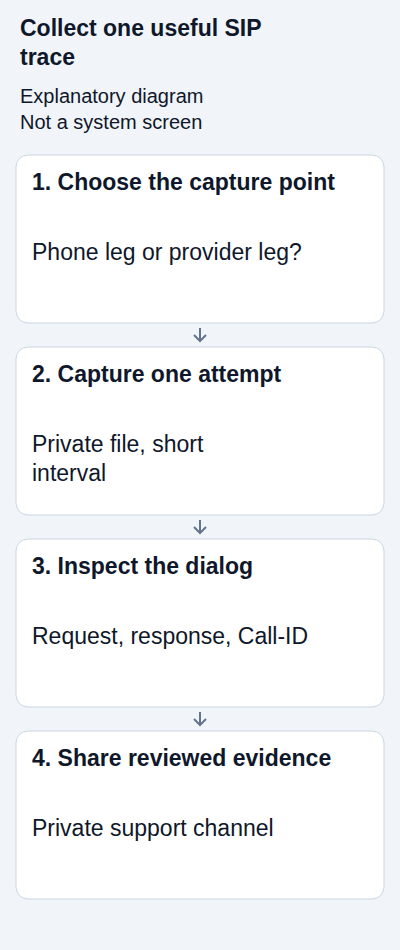
1. Choose the capture point and question
Decide whether you are investigating the phone-to-PBX leg or the PBX-to-IllyVoIP leg. A capture on your laptop will not normally show a separate PBX's traffic. On a multihomed server, VPN or container host, choose the interface that actually carries the intended connection.
Write down the test time and timezone, authentication mode, transport and current regional endpoint from the IllyVoIP SIP line. If you filter by a resolved address, confirm that the connection really uses it: a hostname can resolve to several addresses or change over time.
Packet captures can contain phone numbers, authorization material and message bodies. Use private storage and plan a short capture. Do not capture other customers or unrelated calls merely because the interface can see them.
2. Check the installed options
sngrep -V
sngrep -h
These report the installed version and help without starting a live capture. Use your operating system's approved package process if the program is absent. Do not compile or upgrade diagnostic software on a busy PBX without its administrator's change procedure.
The examples below use -d to select an interface, -O to write a PCAP and -I to read an existing PCAP. The -c option limits displayed dialogs to those beginning with INVITE; leave it off when diagnosing registration. Do not add -r unless you deliberately need RTP payload collection and have permission to record it.
3. Capture one controlled attempt
Create a private working directory. In the capture command, replace eth0 with the real interface and 192.0.2.10 with the verified remote address. That address is reserved for documentation and will not capture your actual provider traffic.
mkdir -m 700 sip-case
cd sip-case
sudo sh -c 'umask 077; exec sngrep -d eth0 -O case.pcap host 192.0.2.10'
This writes the captured traffic to case.pcap with a restrictive file-creation mask. The directory is owned by the account that created it; the capture file may be owned by root. Keep ownership and permissions private when preparing it for an authorized recipient.
Start just before the agreed action. Perform one registration attempt or short call to a number you control, then exit sngrep using its displayed quit control. Confirm exit so the capture stops. Normal IllyVoIP call charges can apply. The command has no automatic time limit; do not leave it running unattended.
The host filter selects network traffic, not one SIP dialog. The saved file may include more than the row you inspect. A fixed port filter can miss nonstandard signaling, DNS or media evidence; use it only when those exclusions match your question.
4. Open the saved capture and follow the dialog
sudo sngrep -I case.pcapThis reads the file instead of capturing live traffic. Select the relevant row and open its flow view. Use the on-screen help for the installed version's navigation keys. Match the time, direction and SIP Call-ID before reading the message sequence.
- Registration: follow REGISTER and its responses. A 401 or 407 challenge can be normal when followed by an authorized request and a successful result.
- Call setup: follow INVITE and the response sequence. Ringing or early media does not prove an answered call.
- Disconnect: identify BYE, CANCEL or the final failure, and which observed endpoint sent it. A missing packet at one capture point is not proof it was never sent elsewhere.
On a PBX, the extension leg and provider leg can have different Call-IDs. The SIP Call-ID also differs from the public call reference displayed in IllyVoIP. Keep each identifier with its leg and timestamp rather than assuming they are interchangeable.
5. Recognize what the trace cannot show
If signaling uses TLS, the capture may contain encrypted packets rather than readable SIP. Keep encryption enabled. Do not export server private keys or switch to UDP just to make the picture easier to read. A focused, authorized endpoint log may be the right evidence instead.
A successful SIP exchange does not establish that both parties heard audio. Media diagnosis requires the negotiated addresses and relevant RTP/SRTP evidence, with encryption and capture-point limits understood. Do not infer an audio fault from a signaling-only capture.
If the expected call is absent, check the interface, filter, selected trunk, IP version and actual destination. Do not immediately broaden the capture to every interface and every user. A locally rejected call may never have reached the provider connection you were observing.
6. Prepare a useful private support package
Keep the original capture protected. Send the time and timezone, software version, capture point, symptom and public call reference first. Ask Support whether it needs the PCAP or a smaller reviewed excerpt. A selected row or hidden column does not remove private bytes from the saved file.
If you export a smaller file, reopen that exact export and check its contents before sharing. Preserve the relevant request and responses; a screenshot of only the last error can hide the cause. Send sensitive evidence through the private channel agreed for the case and delete temporary copies under your retention policy.
Common questions
Why is registration missing? Check that you did not use the INVITE-only display option, that REGISTER is expected for the account and that the filter includes its destination. An IP-authenticated trunk can intentionally operate without registration.
Can a PCAP prove IllyVoIP rejected the call? It can show an observed response from an endpoint at that capture point. Establish which system owns that endpoint and correlate the call before assigning responsibility.
Related guides and references
- Capture a SIP call trace for IllyVoIP Support with Wireshark
- Connect an Asterisk PJSIP trunk to IllyVoIP
- Fix SIP Registration Failed on an IllyVoIP Phone or PBX
- How to Read and Understand Your VoIP Call Reports (CDR)
- sngrep project and documentation
- sngrep command reference
Reviewed 10 October 2026 against current IllyVoIP guidance and the official references above. Version-specific commands and menus need to match your installation. This guide does not claim a completed call test on your PBX or network.