
RouterOS includes a SIP connection-tracking helper under /ip firewall service-port. If an IllyVoIP call fails only through a particular MikroTik router, inspect that helper alongside the actual routing, NAT and firewall evidence. Its presence does not by itself prove it caused the fault.
This guide is for the router administrator using RouterOS 7. The current MikroTik manual documents service-port settings including ports, SIP direct media and SIP timeout. Match the instructions to the installed release and keep a private configuration backup before changing anything.
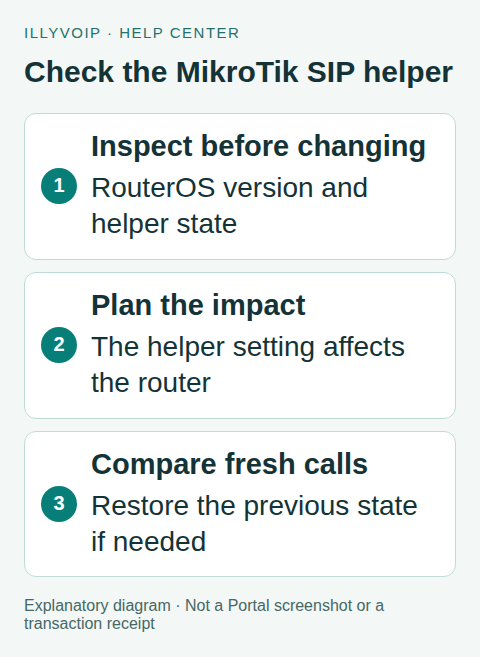
1. Record the working and failing paths
Choose one authorized test call. Record its direction, time/timezone, public call reference, phone/PBX address, configured IllyVoIP hostname and transport. Describe whether registration fails, audio is silent in one direction, a call drops or a transfer changes the behavior.
Compare the same endpoint on a trusted alternate network if practical. Check that the device is actually using the MikroTik path you are investigating; a VPN, separate voice VLAN or upstream router may change the route. Ordinary test calls can incur charges.
2. Inspect the current helper
Open an authorized RouterOS terminal and inspect the installed version and SIP service entry:
/system resource print
/ip firewall service-port print detail where name=sip
Record whether the SIP entry is disabled and which ports and SIP options it shows. Use the name filter rather than copying an entry number from another router. A default port shown in a manual does not prove that your phone uses that port or transport.
In WinBox, the corresponding controls are under IP → Firewall → Service Ports where offered by your version. Review the actual entry before applying a change. Do not confuse this with opening a firewall port or changing the SIP server address in IllyVoIP.
3. Check the rest of the path
Verify the device’s gateway and DNS resolution, the matching firewall/NAT rules and whether return traffic reaches the device. Keep the chosen SIP transport and audio-encryption settings consistent with the IllyVoIP line.
A helper can inspect or affect traffic within its supported scope; it is not a universal repair for encrypted signaling, incorrect credentials or an unreachable destination. TLS and SRTP should not be disabled simply to make a packet trace easier to read.
If the fault concerns audio, compare the SDP/media addresses and observed RTP path with a working call using an authorized diagnostic. If it concerns a disconnect, inspect termination and acknowledgement evidence. Keep the capture point and direction with the result.
4. Test a helper change only when justified
If the evidence and your network policy justify testing with the helper disabled, the following command targets the named SIP helper:
/ip firewall service-port disable [find where name="sip"]This is a router-wide helper change, not a per-phone setting. Arrange its scope and timing with other affected users. Preserve the original state first: if the helper was already disabled, this is not a new experiment and you should not enable it merely to follow the example.
Recreate only the intended test connection using your supported maintenance procedure. Existing tracked sessions can make a comparison misleading. Do not clear the whole connection table or restart the router just to obtain a quick result. Allow the administrator to decide how affected sessions should drain or be recreated.
If the original state was enabled and the trial did not help, restore that state:
/ip firewall service-port enable [find where name="sip"]Restore any separately changed parameters to their recorded values as well. Do not introduce a different SIP timeout, direct-media option and phone codec during the same trial; you would lose the ability to identify which change mattered.
5. Verify beyond registration
- Confirm the intended line registers or establishes its expected IP-authenticated path.
- Make one outgoing call to the agreed destination.
- Call the active IllyVoIP incoming number and confirm its configured destination rings.
- Check two-way audio, hold/transfer where relevant and clean hangup.
- Repeat the original failing condition, including its duration if the call used to drop.
Write down the result with the helper state and session-recreation method. A single different destination or a transient network improvement is weaker evidence than a repeatable comparison.
6. Escalate with useful evidence
Give Support the public call reference, RouterOS version, transport, helper state and a short explanation of the observed difference. Share sanitized configuration excerpts only when needed. Full exports and captures can expose passwords, internal addresses and unrelated customer traffic.
If helper changes have no effect, keep investigating the demonstrated fault: wrong route, media policy, endpoint behavior or remote destination. Avoid leaving undocumented router changes behind.
Frequently asked questions
Will disabling the helper fix every SIP problem?
No. Treat it as one controlled hypothesis. It does not correct an incorrect SIP identity or an inactive incoming number.
Should I follow an old RouterOS screenshot exactly?
Use the installed release’s controls and the current manual. MikroTik’s older documentation site is frozen, and menus can change.
Related guides and references
- Check SIP ALG on TP-Link Deco When Troubleshooting IllyVoIP
- Fix One-Way or Missing Audio on SIP Phones and PBXs
- Official reference: manual.mikrotik.com
Reviewed 8 October 2026 using current IllyVoIP implementation and official references. Check your installed version and account options before applying settings. Examples do not certify a physical device or completed live integration.