
Before sending an SMS, check both the composer’s encoding meter and the destination details on Review SMS. A message that looks short can use more than one billable segment, and the text submitted for one destination may differ from the original if a supported character conversion is used.
This walkthrough uses the English IllyVoIP web Portal, checked October 9, 2026. It is for customers preparing a message, especially text pasted from a document or containing accents, curly punctuation or emoji. Start with the SMS sending guide if you need help choosing a sender or entering recipients.
1. Read the encoding meter before adding recipients
- Open SMS → Messages and select Send SMS.
- Enter your intended text in Message. You can inspect its meter before submitting anything.
- Look below the message for the character count, GSM-7 or UCS-2 label, and segment count.
- Recheck these values after every edit or paste. Replacing straight punctuation with a typographic version can change the whole message’s encoding.
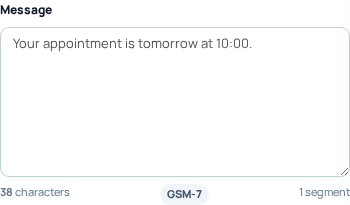
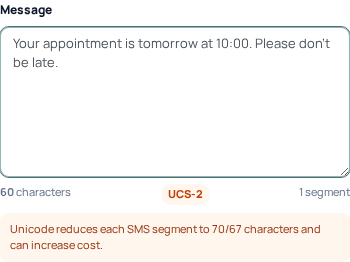
The screenshots show illustrative text entered in the real composer. No recipient was supplied and no SMS was sent. The curly apostrophe in “don’t” makes that example use the Unicode path; the ordinary apostrophe in “don't” is GSM-7-compatible.
2. Understand characters versus billable parts
The displayed character count is useful for editing, but it is not the same as the units used for SMS segmentation. Longer messages reserve space for the information that lets a receiving phone join their parts together.
- GSM-7: up to 160 encoding units in one segment; longer text uses up to 153 units per segment. Extension characters such as
€, braces and square brackets use two units. - Unicode, labelled UCS-2 in the Portal: up to 70 UTF-16 units in one segment; longer text uses up to 67 units per segment. Some emoji consume two units even when they look like one symbol.
- Composer limit: the current Portal rejects messages exceeding ten segments. Shorten the message instead of assuming it will be split into unlimited parts.
For a simple boundary check, 160 ordinary letter A characters fit one GSM-7 segment; 161 require two. Seventy curly apostrophes fit one Unicode segment; 71 require two. Eighty euro signs fit one GSM-7 segment because they use 160 units; 81 require two. These are counting examples, not recommended customer messages.
Not every accent forces Unicode: some accented letters belong to GSM-7. Inspect the meter rather than removing every accent or assuming that a message’s language determines its encoding.
3. Review each destination, not just the headline count
- Select an available Sender ID and add only intended, authorized recipients in international format.
- Select Review SMS. This opens the review stage; the separate sending button is Confirm and send.
- Check the message, sender, recipient count, total billable segments and total quoted cost.
- Read the country/network, parts and cost shown for each destination. A number-format warning is a reason to recheck the number, not proof that delivery will work.
- If a conversion notice appears, compare its displayed text with your original before deciding to send.
Sending to several recipients creates separate deliveries. Do not multiply a single destination’s rate by the visible character count to estimate a mixed-destination send. Use the review quote and recipient details.
4. Check what character conversion would change
Where the destination supports the available conversion policy, the review can display “GSM-7 character conversion may be used for this destination. Accents and punctuation can change.” Read the converted text underneath it. This is conditional behavior, not a global “convert every SMS” switch.
Check names, reference codes, dates, URLs, punctuation and meaning. A typographic apostrophe may become a straight apostrophe; other supported characters can be transliterated. Do not assume arbitrary symbols or all languages can be converted. If faithful spelling or punctuation is essential, stop and confirm a suitable destination/route before sending.
If the review rejects a destination as unsupported_encoding, changing the recipient’s formatting will not fix the text’s encoding. Revise the message if that preserves its meaning, or ask Support about the destination’s capabilities. Do not repeatedly submit the same rejected text expecting a different result.
5. Confirm only after reviewing the final text and price
If the message, destinations and quote are correct, select Confirm and send. If you edit the text or recipients, review the message again. A stale quote is not authorization to send different content.
The review describes the offered sending variants; it is not a delivery receipt. For a new use case, make a deliberate small test to a number you control and check the received text before a larger send. Normal charges and account limits apply.
6. Compare the original and submitted text afterward
- Find the message in SMS → Messages and open its details.
- Read the message text, status, segments, cost and delivery timeline.
- If conversion was actually applied, look for Sent with GSM-7 character conversion and the submitted text displayed below it.
- Keep the message reference when investigating a difference. For API workflows, retain the original request and inspect the corresponding delivery/status fields using the API delivery guide.
A preview saying conversion is possible does not mean every send will use it. The actual submitted variant matters. Likewise, a queued status does not mean the recipient has received the message.
Common questions and checks
Why did one extra character increase the cost?
You may have crossed a segment boundary or introduced a non-GSM-7 character. Check the encoding label first, then review the per-destination parts and quote.
Will deleting emoji always make a message GSM-7?
No. Other characters, including curly quotes or unsupported letters, may still require Unicode. Recheck the meter after editing.
Can I guarantee exact text by ignoring a conversion notice?
No. Read the displayed variant. If it would change information that must remain exact, resolve that before confirming the send.
What should I send Support?
Provide the message reference, destination country, time, encoding and observed difference. Use a private support channel for message content or recipient details; never include your API key.