
Before your first message
Open SMS → Messages in the portal. Make sure your account has permission to send SMS, sufficient balance and any required account verification completed. Check SMS pricing for your destinations. Send only messages you are authorized to send to the intended recipients.
This guide covers the portal composer, including a message sent to several recipients. API integrations have their own API documentation; this walkthrough does not require an API key.
1. Choose or request your Sender ID
Open the message composer and choose a Sender ID. The list contains the default IllyVoIP sender and your approved sender names. A Sender ID is the identity requested for the SMS; it is separate from a voice Caller ID or your login phone number.
- For another sender name, select Request Sender ID.
- Enter 1–11 letters, such as your authorized business name, and select Submit request. The form accepts letters, not spaces or punctuation.
- Wait for approval before sending with that name. Submitting the request is not approval. Reopen the composer after approval and select the approved name.
Sender approval and communication-use-case approval are different. If the service requests more information about your messaging, follow the Communication reviews link rather than repeatedly changing the sender or message to get around the review.
2. Add one recipient or a bulk list
Enter recipients in international E.164 format: a leading +, the country code and the subscriber number. Put one number on each line, or separate numbers with commas. Check country codes carefully; a local number without its country code is not enough.
For a bulk message, paste the intended numbers into the same Recipients field. Review the recipient count and highlighted invalid numbers before continuing. This composer uses pasted numbers, not a CSV-upload wizard. Sending the same text to many recipients still produces separate deliveries and charges for those recipients.
Start with a small test to a number you control before a large authorized send. Respect your account’s sending limits; if you need more capacity, use the available limit-request option. Splitting a list into repeated submissions is not a way to bypass a restriction.
3. Write the message and check its segments
The composer shows the character count, encoding and segment count. A single message visible on a phone can contain several billable SMS segments. Adding one character can push a message into an additional segment.
- GSM-7: a single segment holds up to 160 encoding units. Longer messages use up to 153 units per segment. Some characters, such as the euro sign or braces, use two units.
- Unicode: characters outside GSM-7 can change the entire message’s encoding. A single segment holds up to 70 UTF-16 units; longer messages use up to 67 units per segment. Some symbols and emoji occupy more than one unit.
- Final check: use the displayed segment count and the review quote rather than assuming that the visible character count equals the billing count. The current composer allows at most 10 segments per message.
For example, 161 ordinary GSM-7 letters require two segments, not one. A short message containing non-GSM characters can cost more than a longer GSM-7 message. Keep the wording clear; do not remove essential information solely to shorten it.
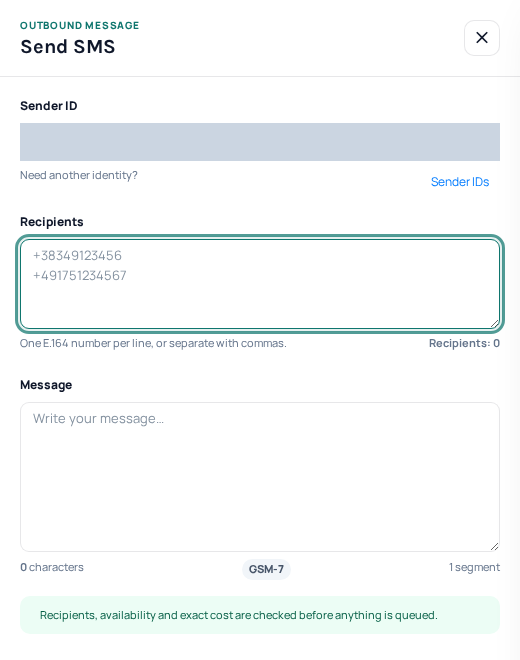
The SMS composer shows recipients, message text, encoding and segment count. Sender details are hidden. This is an empty composer; no message has been reviewed or sent. Open the image for a larger view.
4. Review the recipients and cost
- Select Review SMS. This checks recipients, availability and cost; it does not yet queue the message.
- On Review before sending, check the message, sender, recipient count, encoding, billable segments, each destination and the Estimated total.
- If anything is wrong, select Edit message, correct it and review again. If the quote has expired or the screen asks for another review, obtain a fresh review before sending.
- Only when everything is correct, select Confirm and send. Wait for the result instead of submitting the same message repeatedly.
The total depends on each recipient’s destination and the number of billable segments. For illustration only: three recipients at €0.10 per segment, with two segments each, total €0.60. That is an example, not an IllyVoIP tariff; use your actual review quote.
5. Follow the result in Messages
A queued confirmation means the message has entered the sending process, not that the recipient has read or received it. Open the message’s Delivery activity to review its current status. Use the recipient view when checking a bulk send: different recipients can have different outcomes.
Sending charges may apply once an SMS is accepted for sending, even if it is not delivered. Confirmed nonchargeable failures are refunded. An uncertain submission is not automatically sent again. If a request times out or you are unsure whether it succeeded, check Messages before creating another send; contact Support if the outcome remains unclear.
For delays or failed delivery, follow Check SMS delivery. Keep the message reference, time and timezone, destination and error text for Support. Never include account passwords or API secrets.
If the review cannot continue
- Verification required: complete the requested account verification and agreement, then return to the composer.
- Invalid recipient: correct the highlighted number and review again.
- Insufficient balance: check the total for all recipients and segments before adding credit.
- Sender pending or unavailable: use a sender already approved for your account, or wait for the requested name’s approval.
- Use-case information requested: open Communication reviews, explain the legitimate purpose and respond to any questions. Approval does not send the message for you.