
Choose the number people will see
Caller ID is the number you present on an outgoing voice call. It is different from your SIP username, the destination you dial and an SMS sender name. Open your SIP line's caller-ID settings and select an available mode.
- IllyVoIP number pool: use the pool offered by the service. This does not give you ownership of that number or an incoming route for return calls.
- Owned phone number: select an active number belonging to your account. Buying a number and choosing it as outgoing caller ID are separate from configuring where incoming calls ring.
- Verified caller ID: select an external number after completing its verification. Verification does not transfer the number to IllyVoIP or move its incoming service.
- Custom caller ID: enter an authorized number in international E.164 format when your account and selected routing package permit this.
- Dynamic caller ID: your SIP device supplies the number for each call. It must still be an allowed owned or verified number; arbitrary custom values require custom caller-ID access. Dynamic mode does not bypass policy.
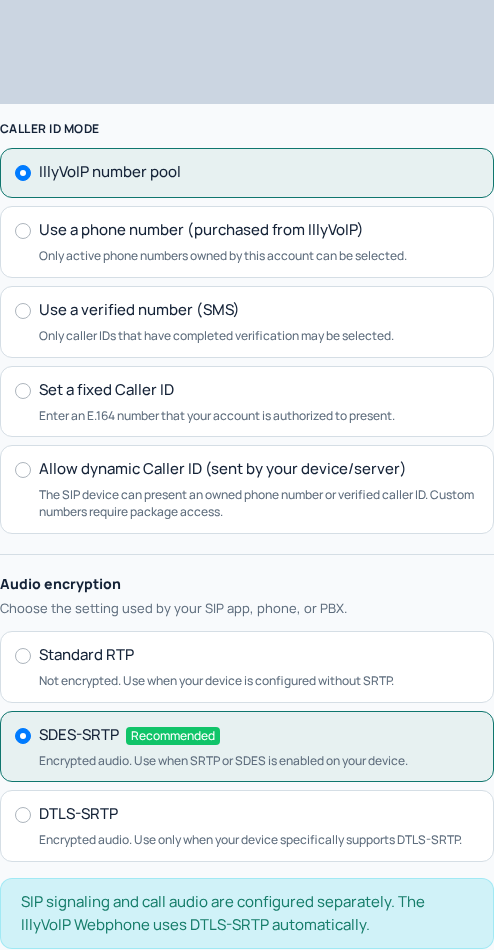
The SIP line form offers separate Caller ID modes. Choose the option that matches your authorized number and account policy. The form was opened for illustration without creating a line. Open the image for a larger view.
Verify an external number
- Open Phone Numbers and find the external caller-ID section.
- Add a number you control and can receive the requested verification on. Follow the verification method and instructions shown on screen.
- Complete verification; adding a number to a pending request is not approval to use it.
- Return to your SIP line, choose Verified caller ID, select the number and save.
Never submit somebody else's number or disclose verification codes. If a number is missing, check its verification state and ask the account owner to check assignment. Team agents follow their owner's access rules.
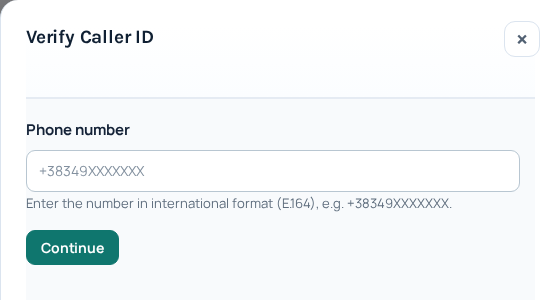
Verify Caller ID begins with an external number you control, in international format. The placeholder is not an entered number; no verification request was submitted. Open the image for a larger view.
Why custom caller ID may be unavailable
Custom caller ID needs account-level access and permission for the selected package. Access on one package does not automatically apply to every other package. The account owner can use Request approval where shown and explain the legitimate calling purpose. Approval is not automatic.
When changing a routing package, read any warning about replacing an incompatible caller ID. Confirm only when the proposed number is appropriate. If a save fails, resolve the displayed reason before relying on the new selection.
Request custom caller ID access and follow its decision
- Sign in as the account owner and open Settings → Voice → Call handling.
- Find Custom caller ID approval. Read the current status before starting a request; loading or unavailable status is not a rejection.
- If the request form is offered, enter a clear Reason: explain the legitimate calling use and why existing owned or verified numbers do not cover it. Do not include passwords, verification codes or customer lists.
- Select Request approval once and check the resulting status.
- Return to this section to review the decision. A pending request does not enable custom caller ID.
If your request is pending and you no longer need it, select Cancel pending request, review the confirmation and check the resulting state. Cancelling a pending request is different from removing an existing verified number or revoking already-approved access.
After approval, return to the intended SIP line and check its offered Caller ID modes. Account approval and the selected routing package must both permit custom values. Approval alone does not configure every line, transfer a number to IllyVoIP or guarantee how another network displays it.
If the request cannot be completed
If the status cannot load, reload before submitting another request. If it is declined, check the status and ask Support for clarification when you do not understand the decision before requesting another review. If the action is missing in an employee account, ask the owner to manage account-level approval. Do not change packages or use dynamic caller ID as a way around a restriction.
Once an eligible caller ID is saved, check an authorized call and its report. Keep that verification separate from your incoming number's destination: caller ID approval is an outgoing presentation setting.
Test without changing your incoming route
Save the setting and make an authorized test call to a phone you control. Check the received number and the call report. The receiving network or device can format or restrict caller-ID display, so saving a number is not a guarantee of identical display everywhere. If troubleshooting is needed, share the public call reference, time and expected caller ID with Support, never your SIP password.
Continue with phone-number routing or call reports.
Keep verified numbers and login access consistent
A verified Caller ID authorizes presentation of that number; it does not transfer the number to IllyVoIP or change where incoming calls arrive. The phone currently used to sign in cannot simply be removed from the verified-number list. If you intend to change your login phone, complete the Security verification workflow first, then review the old number separately.
Agents follow the owner account and applicable package Caller ID policy. Permission to edit a line does not override that policy. Before removing another verified number, check which lines use it and choose an eligible replacement. Follow any warning instead of assuming existing calling settings remain valid.
Reviewed 10 October 2026 against the current IllyVoIP Portal and service implementation. Available controls depend on account access and service state.