
Use baresip as a terminal-based SIP phone with a dedicated IllyVoIP SIP identity. Its account file configures a client registration; it is not an Asterisk trunk or a replacement for your PBX’s routing rules.
This guide follows the current upstream accounts-file format. Linux distributions ship different baresip releases and module selections, so record your installed version and consult its packaged example before copying options. You need a working audio device, permission to install software and access to the intended password-authenticated SIP line.
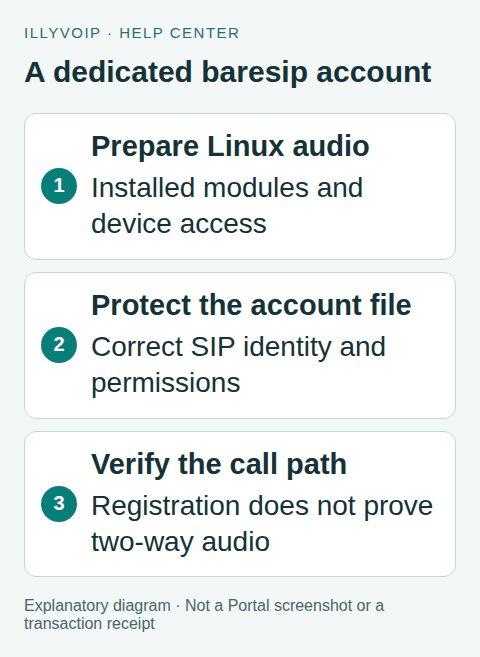
1. Install and identify the local build
Use your distribution’s supported package or the official project’s build instructions. Do not run a downloaded installation script as root merely to obtain a newer release. Launch baresip -h to inspect the installed command options and record its version from the package manager or startup output.
Audio backends and codecs can be separate packages. Check that the build has an audio source/player suitable for your desktop or sound device, the accounts/menu functionality and a codec shared with your IllyVoIP line. A client can register without having a usable microphone.
2. Prepare a private configuration
The normal per-user configuration is under ~/.baresip; confirm the path for your build, especially when a custom configuration-directory option is used. Create or inspect its generated configuration before adding an account. Keep the directory private and the accounts file readable only by the intended user.
mkdir -p "$HOME/.baresip"
chmod 700 "$HOME/.baresip"
# After creating/editing the accounts file:
chmod 600 "$HOME/.baresip/accounts"
Use an editor, not a shell command containing the real password in history. Do not overwrite an existing accounts file without a private backup. Run the client under your ordinary user account with the required audio permissions.
3. Map the IllyVoIP account
In Services → SIP Lines, obtain the intended SIP username, password and current registrar/domain information. Do not use your Portal login password. If another endpoint already relies on this identity, use a separate intended SIP line or review competing-registration behavior first.
The following is a configuration shape, not a ready-to-register credential. Replace every uppercase token privately and keep the line intact:
<sip:SIP_USERNAME@SIP_DOMAIN>;auth_user=SIP_USERNAME;auth_pass=SIP_PASSWORD;regint=300;audio_codecs=pcma/8000/1,pcmu/8000/1The SIP URI identifies the account. The parameters after > belong to the account. If your registrar/proxy differs from the domain, configure the upstream-documented outbound parameter with the exact current proxy. If you explicitly set a transport, URI parameters belong inside the URI brackets; do not confuse that position with account parameters.
The example proposes a registration interval rather than promising the server will accept it unchanged. Follow the interval returned or required by the service. Passwords containing configuration delimiters require the escaping supported by your installed baresip parser; do not paste them into an unreviewed example or invent an encoding.
4. Select compatible transport and audio
Start with the transport offered by the actual IllyVoIP endpoint. For TLS, follow the matching baresip transport/trust documentation and use a hostname whose certificate can be validated. Do not replace server verification with a permissive test setting.
The illustrated codec names are baresip’s G.711 A-law and µ-law forms. Confirm the modules are loaded and the line permits them. Match the configured audio source and player to the devices actually available on your machine.
Media encryption must match the line’s RTP or SDES-SRTP configuration. baresip exposes several media-encryption modes; they are not all interchangeable with IllyVoIP. Verify the exact mode and module for your release before enabling encryption. A TLS registration alone is not evidence of SRTP audio.
5. Register and test the intended identity
Start baresip and inspect the registration result. Use the installed interactive help/menu to identify account selection, dial, answer and hangup commands for that version. Select the intended account before calling; do not assume the first account is always the one you just edited.
Place one authorized call in international format, check audio both ways and end it deliberately. Calling can incur charges. Compare the Portal’s Call Reports record with the result. If keypad tones are needed, test them against an authorized harmless menu and match the DTMF method.
For incoming calls, route an active IllyVoIP number to this SIP identity separately, then verify ringing and answer while baresip remains running. Registration does not purchase or route a number automatically.
6. Diagnose failures in order
- Account not loaded: check file location, syntax and accounts-module availability.
- Registration rejected: check username/authentication identity, password, endpoint and transport.
- Registered but call rejected: inspect the destination, caller-ID/package rules and call result.
- Call answered but silent: check audio devices, modules, shared codec and media mode before changing the firewall.
Keep configuration backups and logs private. If you share an account-line example, replace the password, identity and unrelated addressing first. For Support, provide release, distribution, time/timezone, public call reference and the sanitized error.
Frequently asked questions
Can I run this without a sound device?
Registration may work, but an interactive telephone needs an appropriate audio source and sink. Do not interpret a headless registration test as a successful audio call.
Should I copy a configuration from another provider?
No. Use the current IllyVoIP identity and endpoint values. Another provider’s proxy, authentication or media assumptions can be wrong here.
Related guides and references
- Configure asterisk pjsip trunk
- Configure linphone sip account
- Official reference: github.com
- Official reference: illyvoip.com
Reviewed 8 October 2026 against current IllyVoIP source and official documentation. Configuration examples are not evidence of a completed hardware or live integration test. Use the current options and limits available to your account.