
To configure Linphone with an IllyVoIP SIP account, choose Third-Party SIP Account, enter your line's SIP username, password and domain, and select a supported transport. After registration, test an outgoing call and configure your incoming number's destination separately.
This guide follows Linphone's current desktop and mobile third-party-account documentation, reviewed on 7 October 2026. Linphone Desktop 6.2.3 appears in the official Linux release directory at that date; other platforms can have different release numbers and layouts. Check your installed version rather than assuming every screen is identical.
Before you start: choose the right account type
You are connecting an existing IllyVoIP line, not creating a free sip.linphone.org account. Use the third-party option even if you have never used Linphone before. A separate Linphone account is not required for this workflow.
Linphone's own account services and an IllyVoIP SIP account are different products. The vendor warns that some features, including group chat and conferencing, are unavailable with third-party accounts. Do not interpret the presence of a button as confirmation that IllyVoIP provides that feature through it. This guide is for voice calling.
For mobile incoming calls: Linphone's published FAQ says third-party accounts do not receive its standard mobile push notifications. A foreground registration does not establish that calls will ring with the app closed or the phone asleep. Read the mobile section before relying on this setup for incoming business calls.
1. Prepare your IllyVoIP SIP line
- Sign in to IllyVoIP and open Services → SIP Lines.
- Select the line you intend to use and obtain its SIP username and SIP password.
- Expand Technical endpoints for the current regional hostname and supported connection settings.
- Review the line's caller-ID mode and call-audio setting.
- Check the selected routing package, account permissions and available balance before making a test call.
Your Portal email and password are not the SIP credentials. A display name such as “Sales” is not an authentication identity either. If another person or application uses this line, coordinate the change rather than resetting its password unexpectedly.
This article uses password authentication. If your line uses IP authentication, do not switch modes just to complete the app's login form; first review the existing setup with the account owner. See Create and manage SIP lines.
2. Install Linphone from an official source
Use the official Linphone download page to reach the appropriate desktop download or mobile store listing. Follow the vendor's installation instructions for your platform. Avoid third-party packages that ask you to send your SIP password to a website.
On a work computer or managed phone, confirm that installing and using a third-party calling application is allowed. Prepare a working microphone and speaker or headset. Grant microphone permission when needed for voice calls; notification permission is a separate setting and does not by itself keep a SIP account reachable.
3. Select Third-Party SIP Account
Open Linphone and select Third-Party SIP Account on the welcome screen. Read the feature-availability notice, then enter the IllyVoIP connection details. Select Login when the fields are complete. Linphone documents this flow for both desktop and mobile in its illustrated third-party-account guide.
If you already have an account configured, use the account-management workflow available in your version to add or select the intended identity. Avoid deleting an existing account simply to return to the welcome screen. When several accounts are present, keep track of the one selected for outgoing calls.
4. Map the Linphone fields to IllyVoIP
Use the meaning of each field below alongside the labels in your installed version. Copy the values from the selected SIP line; the table deliberately contains no shared credentials or fixed server address.
| Field or purpose | What to enter or check |
|---|---|
| Username / SIP username | The IllyVoIP SIP line's username, not the Portal email, your name or the destination you will call. |
| Password | That line's SIP password. A saved Portal login password will not substitute for it. |
| Domain / SIP domain | The SIP domain or regional hostname supplied in the current line details. Do not enter app.illyvoip.com or a web address beginning with https://. |
| Transport | A transport supported by both the app and the current IllyVoIP endpoint. Match the associated port rather than changing one independently. |
| Display name | An optional recognizable name where offered. It does not authorize an outgoing caller-ID number. |
| Authentication ID, if separately requested | The line's SIP username or explicitly supplied authentication identity. Keep a separately provided identity distinct from the display name. |
| Proxy or server override, if required | Use only the value required by your current connection instructions. Do not copy another provider's proxy or add a random STUN server as a login fix. |
If the app asks for a full SIP address rather than separate username and domain fields, its form is sip:USERNAME@SIP-DOMAIN. Both capitalized parts are placeholders for your own details, not values to paste literally. Keep a destination number out of the account-login fields.
For TLS, use the supplied hostname instead of replacing it with an IP address. If a certificate error appears, check the hostname, device time and supported software version; do not disable certificate checks as a routine workaround.
5. Match caller ID and call-audio settings
Review the IllyVoIP line's caller-ID mode. Owned numbers, verified external numbers and custom caller IDs have different eligibility requirements. Dynamic caller ID lets a device supply a number for a call, but it still must comply with account and package policy. Your Linphone display name does not bypass these rules.
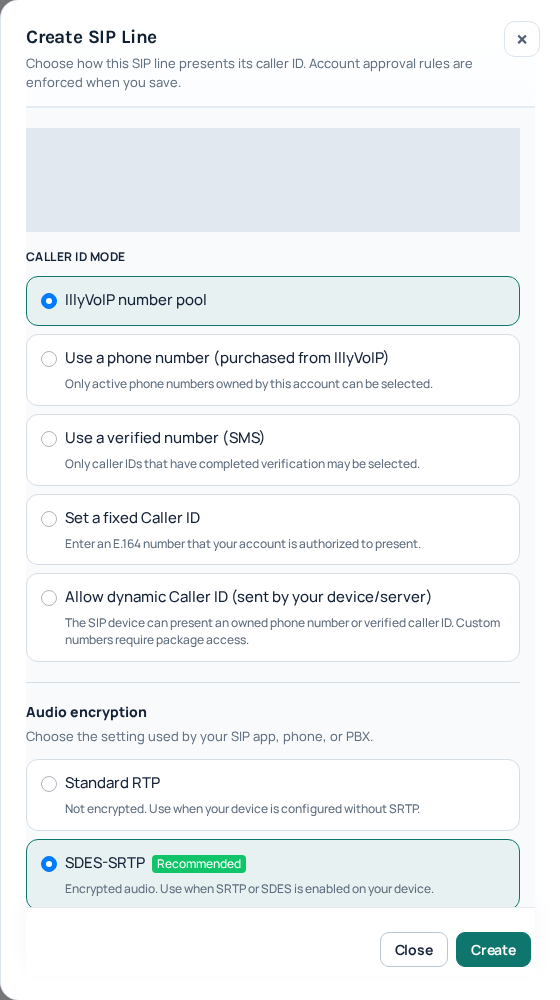
Signaling transport and audio encryption are separate. TLS protects signaling, while RTP/SRTP settings govern the media path. Match the line's audio mode to a mode actually supported and configured in your Linphone version. Do not assume that choosing TLS also selects the right audio encryption.
The Portal's Standard RTP, SDES-SRTP and DTLS-SRTP choices are not interchangeable. If an app uses a different label, confirm the underlying mode before changing the line. This guide does not promise that every platform/version offers every mode. Follow caller-ID guidance for presentation rules.
6. Check registration and make one outgoing test
After login, check the account's connection or registration status and any error message. Do not treat a saved account entry as proof of a successful connection. If registration fails, compare the username, password, domain and transport with the current Portal details before changing unrelated settings.
- Select the intended IllyVoIP account in Linphone.
- Call an ordinary number you control, using the international format required by your setup.
- Confirm that the correct destination rings and check the received caller ID.
- Speak in both directions, checking microphone mute, headset selection and speaker volume.
- End the call and find the matching entry in Analytics → Call Reports.
A connected test may incur normal charges. Do not use an emergency number or repeatedly dial an unknown recipient for testing. If registration succeeds but the call is rejected, check number format, balance, routing-package eligibility, caller ID and destination restrictions. The rates and routing guide and Call Reports guide explain these checks.
7. Configure and test incoming calls
An active IllyVoIP number needs a saved destination that leads to this SIP identity. Open Services → Phone Numbers, select the number and review its configuration. Registration alone does not change where that number rings.
If the number currently points to a queue, PBX, voice agent or another destination, review that workflow before replacing it. Changing a shared number's route can affect other people. The phone-number routing guide covers the available options.
First test with Linphone open and connected. Call the number from another phone, answer, and check audio in both directions. Check the selected account, Do Not Disturb and audio/notification settings if the app does not alert. Then evaluate the actual desktop or mobile conditions in which you intend to use it.
Desktop sleep and mobile background calling
On desktop, include the computer's sleep state, network changes and whether Linphone is running in your acceptance check. A successful call while you are at the keyboard does not prove availability when the computer is asleep.
On mobile, the standard third-party-account limitation is particularly important. Linphone's published FAQ states that its mobile push notifications are enabled for Linphone accounts, not ordinary third-party SIP accounts. Allowing notifications in Android or iOS does not create a missing provider push integration.
The vendor also documents a server-side integration for third-party push. That is a separate deployment capability, not something enabled merely by entering IllyVoIP credentials. This guide does not establish that such an integration is active for your account.
If dependable incoming calls with a locked screen are essential, confirm the supported app and delivery path with Support before relying on this setup. You can also review IllyVoIP's own mobile and Windows apps. Test the actual device, permissions and network conditions; do not assume all SIP apps behave alike.
Troubleshoot Linphone SIP registration and calls
| Symptom | Next check |
|---|---|
| Login or registration fails | Check the selected SIP line's username, password, domain and transport. Confirm you chose Third-Party SIP Account. |
| Authentication keeps failing | Look for stale credentials, accidental spaces or a separate authentication ID. Capture the final error; an initial authentication challenge can be part of normal SIP setup. |
| Registered, but outgoing calls are rejected | Review the selected identity, dialed number, eligible caller ID, balance, package and destination rules. Read the call outcome where available. |
| Incoming calls never reach the open app | Check number activation, saved destination and the account currently connected in Linphone. Review any intermediate PBX or queue. |
| Mobile calls arrive only with the app open | Review the documented third-party push limitation. Do not mistake a foreground test for background-delivery acceptance. |
| The call connects without usable audio | Check microphone permission, mute, selected audio devices and volume, then media-mode and network compatibility. Do not disable the firewall broadly. |
| The caller ID is unexpected | Compare IllyVoIP's caller-ID mode and account/package eligibility with the device-supplied number. Editing a display name is not the same as choosing caller ID. |
| A Linphone chat or conference feature is unavailable | Check the vendor's third-party-account feature limitations. SIP voice registration does not enable every Linphone service. |
The Portal's Connection quality test checks reachability from the browser running it; it does not measure Linphone's actual audio quality or prove mobile background delivery. For Support, provide the app/OS versions, time and timezone, symptom and public call reference if present. Share only a relevant, redacted screenshot or log excerpt. Never include passwords, API keys, verification codes or authentication headers.
Frequently asked questions
Is a free Linphone account required?
No. Choose the third-party account workflow to enter your IllyVoIP SIP details. Creating a separate account on sip.linphone.org does not connect your IllyVoIP line or route your number.
Are calls through Linphone free?
Using a softphone does not remove IllyVoIP usage charges. Calls through your IllyVoIP account follow its routing package, destination pricing and applicable charges. Check the rate before testing.
Can I use the same SIP account on several devices?
Do not assume that reusing credentials guarantees that every device will ring. Registration and incoming-delivery behavior depend on the account and configuration. Agree the intended device arrangement with the account owner or Support before replacing a working setup.
Should I enter a phone number in the Domain field?
No. Use the SIP domain or hostname from the line's connection details. The number you dial and the public number routed to your account have separate roles.
Sources and verification scope
Reviewed on 7 October 2026 against Linphone's official login, installation and feature documentation and the current IllyVoIP account workflow. The desktop release reference comes from the official Linux release directory. It is a version reference, not a requirement to use Linux or a promise of identical mobile screens.
This is a documentation-based setup guide. No live SIP registration, paid call or mobile background-delivery test was performed for this article. The Portal image is a reviewed October 2026 capture. The vendor's illustrated account-setup guide is linked directly; no fabricated or unverified Linphone screen is used.