
A Cisco ATA 191 or ATA 192 running Multiplatform firmware can provide a SIP line to an analog telephone. Configure the intended phone port with its IllyVoIP identity, then verify registration, outbound dialing and incoming-number routing separately.
This guide follows Cisco’s ATA 191/192 Multiplatform administration guide. It does not cover enterprise/CUCM firmware, converting firmware or bypassing provider provisioning. Confirm the exact product and firmware before changing a device you already own; similar hardware names do not guarantee the same administration interface.
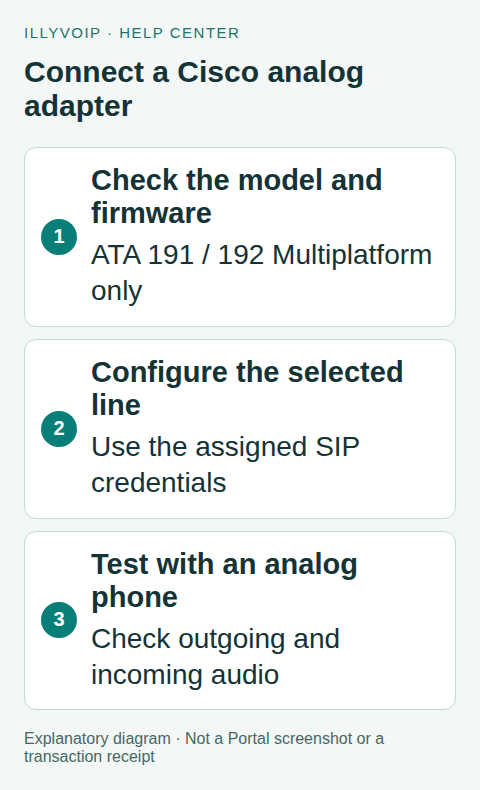
1. Prepare the adapter and line
Connect the analog handset to the intended PHONE port and give the ATA its normal network connection. Use the model’s documented connection layout: ATA 191 and ATA 192 have different networking roles. Do not connect an ATA phone port to a live public telephone line or powered building wiring.
Obtain authorized local administration access and save a private configuration backup. If the device is provisioned by another service, ask its owner to manage that provisioning instead of resetting the adapter or repeatedly overwriting settings that will return.
In Services → SIP Lines, choose a dedicated password-authenticated IllyVoIP identity and obtain its current SIP username, password, server and media settings. Portal login credentials are not SIP credentials. Avoid using an identity already competing with another registered device.
2. Open the correct line settings
In the ATA’s web-based administration utility, use the authorized administrator/advanced view required by the installed firmware and open Voice → Line 1 or Voice → Line 2 for the physical port you intend to configure.
Confirm the port before editing. A handset plugged into PHONE 2 will not automatically use a registration configured only on Line 1. Keep the other port and any existing working service unchanged while testing.
3. Map the IllyVoIP identity
Review the line’s Proxy and Registration and Subscriber Information sections:
- Proxy: use the actual IllyVoIP SIP server/port format supported by the field.
- Register: enable registration for this password-authenticated setup.
- User ID: use the SIP username for the intended identity.
- Password: enter that identity’s SIP password privately.
- Use Auth ID / Auth ID: when a separate authentication identity is enabled, map the actual authentication username correctly; do not use the Portal email.
- Display Name: use a local descriptive label as appropriate. It does not authorize a new outgoing caller ID.
Only set an Outbound Proxy and its corresponding use option when the current connection instructions require it. Do not invent an extra proxy, realm or a second provider’s server from a generic ATA example.
4. Match transport, media and dialing
Select the SIP transport supported by the IllyVoIP line and configured server. TLS signaling and SRTP audio are separate choices. If secure media is required, confirm that the installed firmware supports the matching method and that both sides use it. Do not use automatic unencrypted fallback as proof of a secure configuration.
Use a compatible enabled codec set. The current IllyVoIP SIP profile controls include PCMU/ulaw, PCMA/alaw, G.729 and GSM; use the actual subset supported and allowed on both sides. Advertising a codec does not prove the adapter can transcode an unrelated call leg.
Review the ATA’s dial plan before testing. It can decide when dialing is complete or transform the entered digits. Start with the intended international destination format and verify what the ATA actually sends. Avoid replacing a production dial plan with a permissive wildcard simply to make one number work.
5. Save and verify registration
Use the firmware’s save/apply control, then inspect the line’s registration status in the information/status view. Allow the supported registration process to complete. A normal authentication challenge followed by successful registration is not necessarily an error.
If registration fails, check the chosen line, server spelling, transport, username/authentication ID and password. Confirm that provisioning did not overwrite the change. Do not switch on calling without registration as a shortcut around a failed password-authenticated setup.
6. Test each call direction
- Lift the handset on the configured port and check the expected local behavior.
- Call one authorized destination and confirm the number received, answer, two-way audio and clean hangup.
- For incoming calls, ensure the IllyVoIP number is active and routes to this SIP identity.
- Call that number from another phone and verify the intended ATA port rings.
- Repeat only the required supplementary actions, such as keypad input, if they are part of your use case.
Dial tone is generated locally and is not by itself proof that an outbound call will succeed. Likewise, an active DID does not prove it points to the correct line. Ordinary test calls can incur charges.
7. Troubleshoot without changing everything
If only one port fails, compare its line mapping and handset first. If dialing never completes, inspect the digit sequence and dial plan. If a call connects with poor audio, compare the analog handset/cable and the network path. For keypad failures, use the existing DTMF guide and the negotiated method rather than enabling every option.
Provide Support with model, firmware, port, call time and public reference. Keep passwords and full configuration archives private. Fax and emergency-service behavior require their own supported workflow; a successful voice call does not certify either.
Frequently asked questions
Can both ports share one identity?
Do not assume that is appropriate. Use a deliberate identity and routing plan for each port, avoiding competing registrations.
Should I factory-reset a locked adapter?
No reset is required by this guide. Resolve ownership and provisioning first and preserve a working service.
Related guides and references
- Use an analog phone with Grandstream HT801 or HT802 V2
- Configure Grandstream HT812 and HT814 Phone Ports with IllyVoIP
- Set up a Cisco 8800 MPP phone with IllyVoIP
- Official reference: www.cisco.com
Reviewed 8 October 2026 using current IllyVoIP implementation and official references. Check your installed version and account options before applying settings. Examples do not certify a physical device or completed live integration.