
Predictive campaign settings control how IllyVoIP prepares calls and how much work can wait for your agents. Configure them around a team that is actually ready to answer. Increasing a limit cannot fix an offline device, an unapproved Caller ID, insufficient balance or restricted destinations.
Prepare the campaign before changing pacing
This guide is for people authorized to manage an existing Predictive Dialer campaign. Power Dialer has a different workflow, and the campaign’s dial mode is fixed when it is created. Review your team’s contact permissions, calling hours and applicable calling requirements before operating a campaign.
- Open Auto Dialer → Campaigns and manage the intended campaign.
- Confirm its name and predictive mode. Review current activity before editing settings that affect future dialing.
- Check assigned agents, their actual readiness, callable contacts and Preflight messages.
- Record the current values so you can deliberately restore them if a change is unsuitable.
- Review the predictive settings, then select Show advanced settings for the additional controls.
Choose preparation timing and aggressiveness
Predictive aggressiveness offers Conservative, Balanced and Aggressive profiles. These influence pacing; they are not promises of a particular number of connected calls. Start from the needs of the people answering, not a desired calls-per-minute figure.
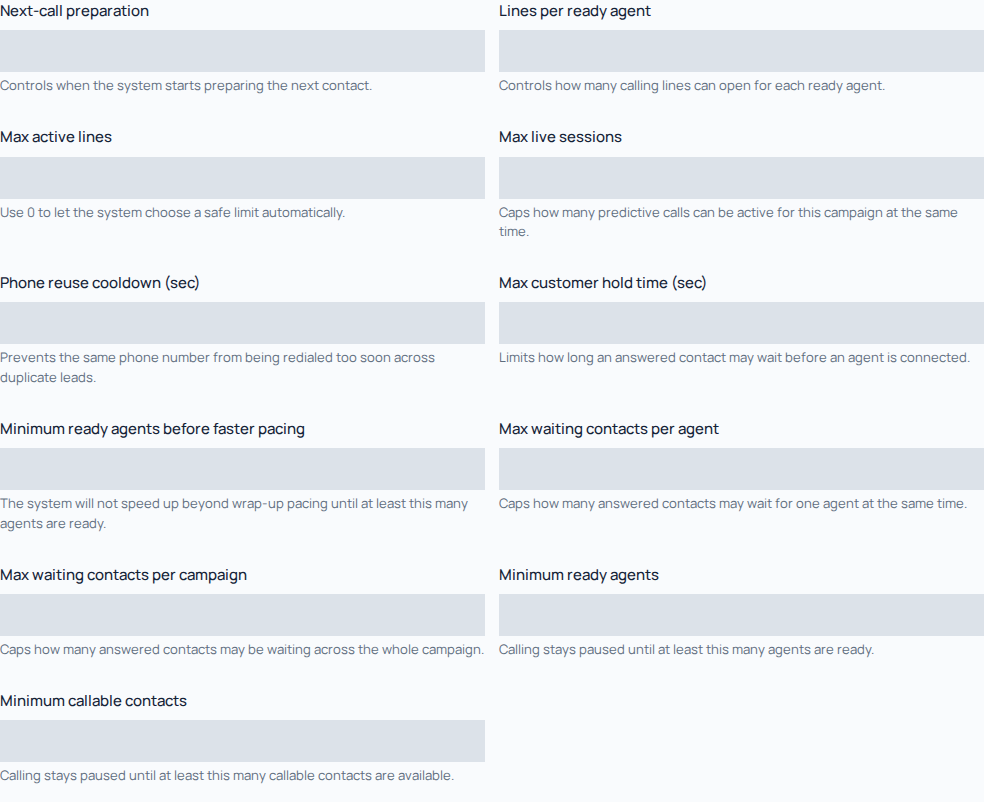
Next-call preparation offers Auto, After wrap-up only and Allow during active calls. The control governs when preparing the next contact may begin. Allowing preparation during an active call does not guarantee that another agent will become available before the next contact answers. Other capacity and waiting safeguards still apply.
Set calling capacity and readiness thresholds
- Lines per ready agent: controls how many calling lines can open for each ready agent. Assigned agents who are not ready do not provide the same capacity.
- Max active lines: caps active calling lines. Here, 0 asks the system to choose a safe limit automatically; it does not mean an unlimited entitlement to account capacity.
- Max live sessions: limits simultaneous predictive calls for this campaign.
- Minimum ready agents: holds calling until the required number of agents is ready.
- Minimum callable contacts: holds calling until enough eligible contacts are available.
- Minimum ready agents before faster pacing: sets a separate readiness threshold for moving beyond wrap-up pacing.
These controls work together with account capacity and operational safeguards. For example, if the campaign requires two ready agents and only one is ready, raising Max active lines does not satisfy the readiness threshold. Investigate the agent’s presence and device first.
Protect the answered caller’s waiting experience
- Max customer hold time (sec): limits how long an answered contact may wait for connection to an agent.
- Max waiting contacts per agent: caps answered contacts waiting for one agent.
- Max waiting contacts per campaign: caps answered contacts waiting across the campaign.
- Customer waiting audio: choose the offered silence or short spoken-message treatment, and review the message when using speech.
- Max abandon %: sets the campaign’s abandonment guard.
Review the waiting limits and audio together. A short spoken message does not create answering capacity. An abandonment setting is an operational safeguard, not a guarantee about actual outcomes or a substitute for checking your organization’s calling requirements. No single set of values suits every team.
Prevent rapid reuse of the same phone number
Phone reuse cooldown (sec) helps prevent the same telephone number being redialed too soon through duplicate leads. Review it alongside contact cleanup and callbacks. It is not a consent or opt-out list, and changing it does not authorize another call.
For example, two different contact records can contain the same reception number. A cooldown can limit rapid repeated dialing, but you still need to decide whether both records belong in the campaign. Do not reduce the cooldown merely to force a waiting contact through.
Save and verify one deliberate change
- Review all edited values and the campaign name.
- Select Save settings and wait for its result. Resolve any field-validation message.
- Reopen the settings and confirm the saved values.
- Before an authorized Start, check Preflight and agent readiness again.
- Watch actual answered calls, waiting contacts and agent workload. Change one relevant control at a time so you can understand its effect.
Keep the decision-after-each-connected-call and wrap-up policy consistent with your agents’ work. An unsaved disposition can hold the workflow intentionally; faster pacing is not the remedy.
If the campaign waits or callers spend too long waiting
Read the current explanation, then check campaign status, ready agents, eligible contacts, schedule, balance and capacity. For caller waiting, review the hold limits, available agents and actual conversation length before increasing aggressiveness. Pause further campaign operation when appropriate, and check active calls separately; do not assume Pause ends an existing conversation.
For Support, provide the campaign reference, time, relevant settings, visible explanation and a representative public call reference. Do not send an entire private contact list or increase every limit as a troubleshooting experiment.
Related guides
Reviewed 10 October 2026 against the current IllyVoIP Portal and implementation. Available controls depend on account permissions and service state.