
Connect an existing Snom M700 or M900 by configuring its SIP account and subscribing the intended DECT handset. These are separate steps: a handset can see its base while the SIP account is offline, and a SIP account can register before the correct handset is associated with it.
This guide follows the official M700/M300 Admin and Installation Guide v1.06 for the M700 workflow. It is scoped to a single-base setup, not a multi-cell deployment or an M400 interface. You need local administrative access, compatible handset/firmware and permission from the provisioning owner.
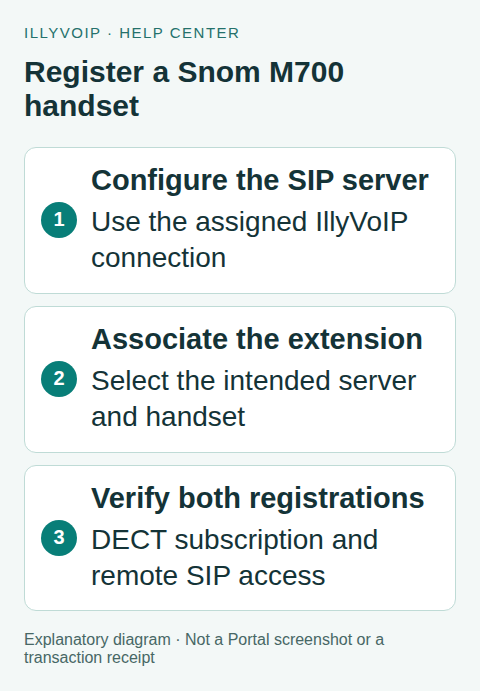
Choose the M700 or M900 workflow
This guide now covers Snom M700 and M900 SIP registration. The M900 uses the same server-to-extension-to-handset relationship, but its firmware, compatible handsets and multicell management must be checked separately. Do not load M700 firmware onto an M900 or assume that a handset supported on one base is supported on the other.
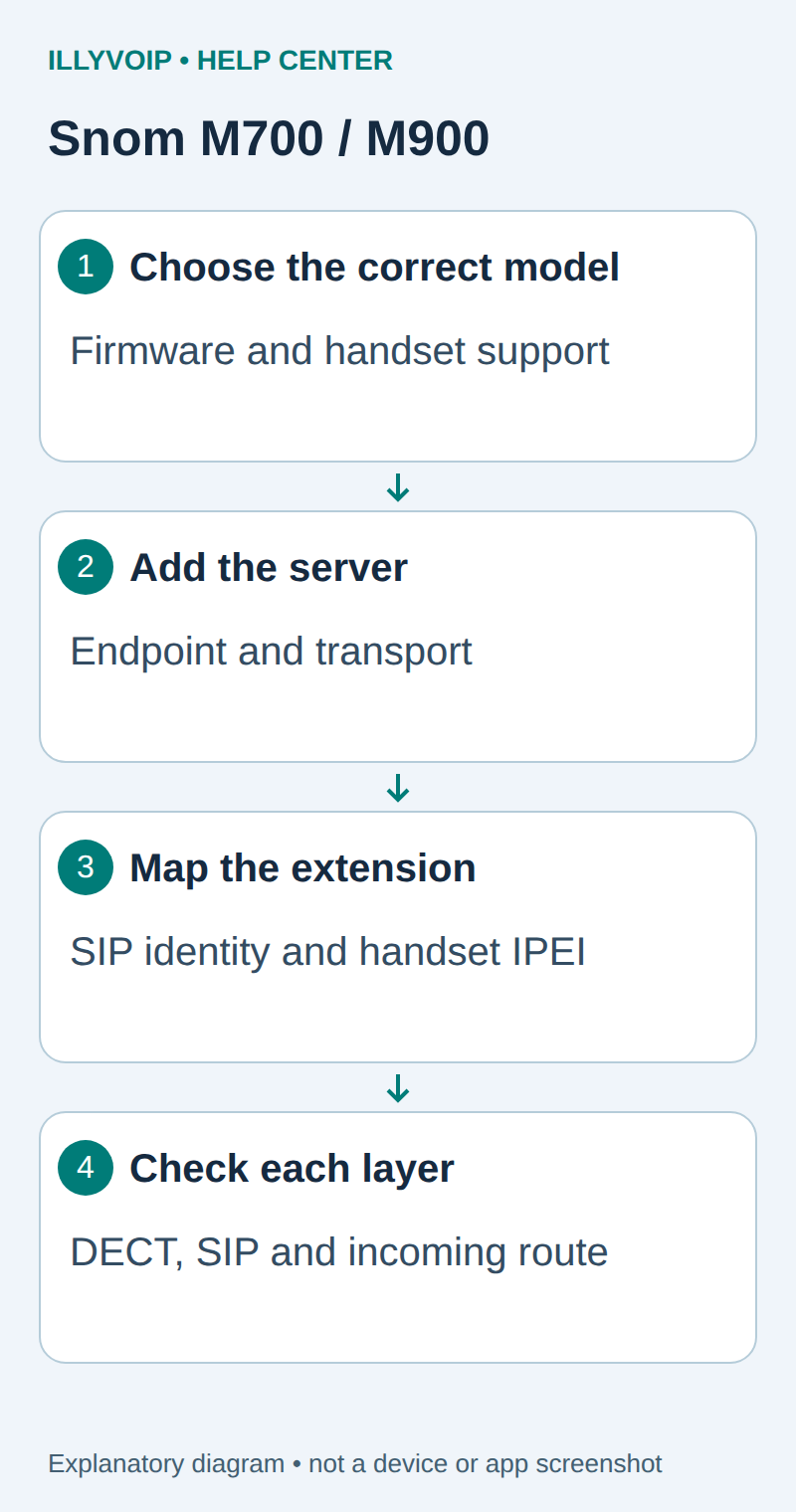
M900: add the server and extension deliberately
- Identify the M900's local management address and sign in as the device administrator. Record the firmware and whether this base is already part of a multicell system.
- Open Servers and choose an available server entry. Set the SIP server/registrar to the endpoint supplied by IllyVoIP and match the destination port and transport.
- Open Extensions and add the intended extension. Enter the line's SIP username in Extension, its authentication identity in Authentication User Name and its SIP secret in Authentication Password.
- Select the server entry you configured. A correct password attached to another server entry will not configure the intended line.
- Associate the correct handset/IPEI, save and use the documented Register Handset(s) action for that entry. Complete subscription on the compatible handset with the configured access code.
- Inspect SIP registration separately; use Start SIP Registration for the intended entry where that action is required by the installed interface.
For a base already in a managed multicell system, make account changes through the existing administrator-controlled system. Do not build a second independent configuration on a member base. Preserve the deployment's synchronization and registration behavior.
The M900 documentation includes options affecting how registrations move between bases. These are PBX-dependent settings, not a generic IllyVoIP fix. Keep the existing supported policy until the deployment administrator has verified it. A successful stationary call must be followed by separate coverage and handover testing if the site relies on roaming.
Use the shared preparation, call verification and troubleshooting steps below for either model. Reference: M900 administration guide 1.5. M900 expansion reviewed October 11, 2026.
1. Prepare the existing equipment
Confirm the base model, firmware, network address and how it is powered. Open its web interface from the trusted local network using administrator credentials. Keep a private backup before changing an existing deployment.
Check whether another PBX or provisioning service manages the base. Do not factory-reset or remove provisioning merely because a local field is unavailable. A multi-cell system or shared base may serve other users; changing its server can affect them.
Identify the handset by its actual model and IPEI where required. Handset identity is not the SIP username. Keep any DECT registration access code separate from the SIP password and voicemail PIN.
2. Obtain the IllyVoIP line details
Open Services → SIP Lines and select the identity intended for this handset. Use its current SIP username/authentication details, password, server, transport and supported audio mode. The Portal login password is not the SIP password.
This walkthrough assumes password registration. Do not convert an existing IP-authenticated connection to password authentication without checking the other devices using it. Buying an incoming number is not required just to register; incoming public calls need a separately active number with the correct destination.
3. Configure the SIP server
In the M700 web interface, open Servers and select an unused server entry. Set a recognizable server alias and the registrar/server address required by the IllyVoIP connection. Use the assigned hostname and port rather than the base’s local address or the Portal website URL.
Match the supported transport and audio-security settings to the line. SIP transport encryption and media encryption are separate decisions. Do not select an optional outbound proxy or backup server unless your actual connection information requires it.
Keep authentication details in the fields documented for your installed firmware and extension. If the server interface or available security modes differ from this manual, use the matching vendor instructions before saving. Do not assume one firmware’s control is present in another.
4. Add the extension and choose the server
Open Extensions → Add extension. The M700 workflow associates a handset selection, an extension and a server. Choose the intended handset entry or the new-handset option, enter the SIP identity in the applicable extension field and select the server configured in the previous step.
Supply Authentication User Name and Authentication Password where the installed interface requests them, using that same IllyVoIP identity. A friendly display name or handset label is not an authentication credential and does not authorize an outgoing caller ID.
Save the entry and inspect the resulting extension row. Keep the server association explicit when more than one server is configured. Do not overwrite another user’s working extension to create a test.
5. Subscribe the handset
Follow the M700 guide’s handset subscription procedure for the intended extension/IPEI. Select only the intended entry and use Register Handset(s), then complete registration on that handset with the correct base access code. The exact handset menu depends on its model.
Confirm that the resulting IPEI and handset association belong to the physical handset you intended. If the documented workflow requires Start SIP Registration, apply it to the correct entry and inspect the registration result separately.
A successful DECT subscription confirms the radio association; it does not prove the remote SIP service authenticated. Conversely, a registered SIP extension associated with another handset will not make the intended handset ring.
6. Test both directions
Place one authorized outgoing call from the selected handset/line. Check the permitted caller ID, microphone and speaker audio and normal hangup. If several accounts are available, select the intended one deliberately.
For incoming calls, verify the active IllyVoIP number routes to this SIP identity. Call it from an authorized external phone and confirm the correct handset rings and both parties can speak. Check DND and local call-routing settings if the base receives a call but the handset does not alert.
Calls can incur charges. A completed test on one base does not certify multi-cell roaming, maximum capacity or every handset model.
Troubleshooting
Handset cannot subscribe: check compatibility, the registration window, selected extension/IPEI and base access code.
DECT works but SIP is unregistered: check server selection, transport, authentication identity and password. Capture the actual status.
Outgoing works but incoming does not: check the number’s destination, extension/handset association and local availability settings.
One-way audio: compare the line’s audio mode and the network media path using the separate audio guide. Avoid changing unrelated server entries.
For Support, retain base/handset versions, the failing stage, time and public call reference. Keep credentials and full backups private.
Frequently asked questions
Is this a multi-cell installation guide? No. Multi-cell planning and roaming require the matching Snom deployment procedure.
Are the DECT access code and SIP password interchangeable? No. They authenticate different parts of the setup.
Related guides and references
- Connect a Snom D785 SIP phone to IllyVoIP
- Set up a Yealink W70B DECT base and handsets
- Connect Grandstream DP752 cordless phones to IllyVoIP
- Official reference: service.snom.com
Reviewed 9 October 2026 using current IllyVoIP implementation and official references. Check your installed version and account options before applying settings. Examples do not certify a physical device or completed live integration.