
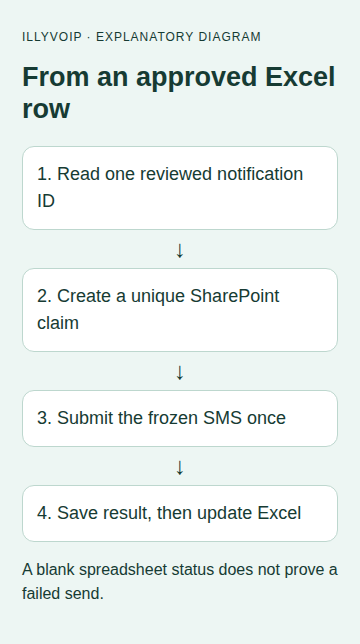
Use an Excel table to prepare and review an SMS notification, then deliberately start a Power Automate flow for that notification’s ID. The flow freezes the approved row in a SharePoint list before sending through IllyVoIP and writes the submission reference back to Excel.
Excel is useful for preparing a small controlled list. It is not a transaction-safe send queue: concurrent editing, delayed connector reads and failed write-back can make a spreadsheet status misleading. The separate unique claim record prevents a second flow run from treating a missing spreadsheet status as permission to send again.
1. Prepare access and one approved recipient
You need an Excel workbook in a location supported by Excel Online (Business), Power Automate access with the connectors and HTTP action licensed for your environment, and a restricted SharePoint list. Confirm tenant policy permits the connection between these services.
For IllyVoIP, enable SMS sending on the account, use a permitted sender and sufficient balance, and obtain an API key from the Portal account settings API tab. Store the key through your approved flow secret-management arrangement, such as a protected Azure Key Vault secret retrieved by the flow. Do not put it in a workbook cell or an Office Script shared with editors. Enable secure inputs and outputs on actions that handle the key or sensitive message data.
2. Create the Excel input table
Create an actual Excel table named Notifications, with the following headers. Format notification_id and sms_to as Text before entering values.
| Column | Purpose |
|---|---|
| notification_id | A unique, saved business-event ID. A UUID generated once during preparation works well. Never regenerate it just because a flow is rerun. |
| sms_to | The approved international number, preserving + and all digits. |
| sms_text | The exact reviewed message. |
| approval | APPROVED only after staff review. |
| send_state | Initially READY; later a display of the durable result. |
| message_id | The returned IllyVoIP submission reference. |
Restrict who can approve or edit the rows. Check for duplicate IDs yourself; an Excel table does not enforce uniqueness. Do not sort only one column or paste numbers through a format that rounds them. Keep approved rows stable while a run is in progress and avoid simultaneous workbook modifications.
3. Create the SharePoint claim list
Create a restricted list named IllyVoIPNotifications. Use these columns:
- Title: single-line text with Enforce unique values enabled. Store the notification_id here.
- Payload: multiple lines of plain text, holding the frozen JSON.
- RequestKey: single-line text, holding
excel:plus notification_id. - State: single-line text, initially ATTEMPTING.
- MessageId: single-line text.
- HttpStatus: number, optional until a response exists.
Use a UUID-shaped notification ID so the request key fits the API’s 8–128-character limit and permitted letters, digits, colon, period, underscore and hyphen. The unique Title constraint must be active before testing. Do not use Excel’s send_state column as the lock, and do not permit routine users to delete claim records.
4. Build the manual flow
- Create an instant cloud flow with a manual trigger and a text input named Notification ID. This guide does not depend on an Excel selected-row trigger.
- Set trigger concurrency to one for this flow. This reduces workbook conflicts, although the SharePoint uniqueness constraint remains necessary.
- Add Excel Online (Business) Get a row. Select the workbook and Notifications table, use notification_id as the key column and the trigger’s value as the key value.
- Add a condition requiring approval to equal APPROVED, send_state to equal READY, and nonempty recipient and message. Stop with an explanatory result if any check fails.
- Build a Compose action named Frozen_payload using a JSON object in the editor. Set from to your permitted sender, to to an array containing the row’s sms_to dynamic value, and message to sms_text. Use dynamic values inside the object rather than concatenating raw JSON strings.
- Create the SharePoint item: Title is the saved row ID, Payload is the serialized Compose output, RequestKey is excel: followed by that ID, and State is ATTEMPTING.
{
  "from": "YOUR_PERMITTED_SENDER",
  "to": ["<sms_to dynamic value from Get a row>"],
  "message": "<sms_text dynamic value from Get a row>"
}
The angle-bracket text illustrates where to select dynamic values; do not send those literals. Use the row values returned by this one read for both the saved record and request. Do not read the workbook again to rebuild the message after claiming it.
5. Send only after a new claim succeeds
Place the HTTP action in a branch configured to run only when Create item succeeds. If Create item fails or times out, stop the send branch. A failure may mean a duplicate ID, a permissions problem or an uncertain create. Look up the Title in the list for review; finding an existing item does not authorize another send.
Configure the HTTP action as follows:
- Setting: Method Value: POST
- Setting: URI Value: https://api.illyvoip.com/api/v1/sms/messages
- Setting: Content-Type Value: application/json
- Setting: X-Api-Key Value: The protected secret value
- Setting: Idempotency-Key Value: RequestKey from the newly created claim
- Setting: Body Value: The Frozen_payload object saved with the claim
- Setting: Retry policy Value: None for this controlled one-attempt example
Set the HTTP action’s supported timeout to a bounded value suitable for your environment, such as PT30S where the action exposes that setting. Do not wrap it in a loop that sends again on failure.
6. Save the authoritative result before updating Excel
On a completed HTTP response, validate a successful HTTP status, body status equal to success, queued_count equal to 1, and exactly one nonempty string in queued_message_ids. You can use Parse JSON with a schema generated from the documented response, followed by a condition for those values. A successful HTTP action alone is insufficient.
{
  "status": "success",
  "queued_count": 1,
  "queued_message_ids": ["EXAMPLE_MESSAGE_REFERENCE"]
}- If validation passes, update the SharePoint item by its returned item ID: State SUBMITTED, MessageId the returned reference, and HttpStatus the response code.
- If a response is available but does not pass, store REVIEW and its HTTP status.
- Add a failure/timeout run-after branch that stores UNCERTAIN. Include JSON parsing and result handling in the protected scope so a malformed response cannot fall through to another send.
- If writing the outcome itself fails, leave the original ATTEMPTING claim for investigation. Do not delete it.
- Only after the list result is saved, use Excel Update a row with notification_id to display the saved state and message reference.
For connector failures where the HTTP status or body is unavailable, preserve uncertainty. If Excel write-back fails, repair the display from the SharePoint item without rerunning the HTTP action. Run history and the durable list should explain this distinction to your operators.
7. Test the exact duplicate and failure scenarios
Before a live send, use a development endpoint or mocked action result to exercise: one accepted response; rerunning the same ID; an edited message under the same ID; duplicate Excel IDs; a failed SharePoint create; HTTP timeout; malformed success JSON; and failed Excel write-back. Confirm that none of the recovery paths automatically sends again.
Then approve one real SMS to your own phone. Keep the returned ID and check the delivery outcome in IllyVoIP separately. A submitted message can still fail delivery. Do not interpret a blank Excel cell as a failed send, and do not turn this small manual workflow into a bulk campaign by removing its review steps.
When the workbook and list disagree
Treat the durable claim as the dispatch record and reconcile it with IllyVoIP records. If the list says SUBMITTED while Excel says READY, update Excel only. If the list says ATTEMPTING or UNCERTAIN, investigate the saved request and run before approving any replacement. If there is no list row and the create action failed, repair the underlying access or data problem before another deliberate run.
Back up and retain claim history while source events remain eligible to run. Restoring an older workbook must not erase the independent knowledge that a notification was already attempted.
Related guides and official references
- Send SMS from Google Sheets with IllyVoIP
- Send a CSV recipient list with Python and IllyVoIP
- Start with the API, Playground and webhooks
Reviewed 9 October 2026 against current IllyVoIP implementation and the linked sources. Use your account’s available options and installed software version. Local example checks do not establish a completed live call, delivered SMS or certified third-party integration.