
You can send an SMS from Google Sheets using a bound Apps Script and the IllyVoIP API. This walkthrough deliberately sends one selected, approved row. It does not send when a formula recalculates or someone edits a cell.
You need a Google account allowed to run Apps Script, edit access to a private spreadsheet, IllyVoIP API access, an allowed sender and balance. Anyone with sufficient script access may read its code and properties: use this pattern only in a trusted, restricted document. For a widely shared sheet, put the sending service and secret on a separate controlled backend.
1. Prepare the SMS sheet
Create a tab named SMS. In row 1, put these seven headers in order: to, message, approval, request_key, submission, message_id, http_result. Format the recipient column as plain text before entering international numbers so Sheets retains the plus sign.
Add one authorized recipient and a short message in row 2. Put APPROVED in column C only after reviewing the recipient, sender, content and expected charge. Leave columns D–G blank. The regular expression below checks the general international-number shape, not ownership or deliverability.
2. Set up the script and secret
Open Extensions → Apps Script from this spreadsheet. In Project Settings, add Script Properties named ILLYVOIP_API_KEY and ILLYVOIP_SMS_FROM. Use your account key and permitted sender. Never put the API key in a spreadsheet cell or share it in an exported example.
Paste the following function into the script editor and save. The document lock prevents simultaneous script executions, but does not stop human edits: keep the sheet restricted and do not edit, sort or move rows while a send is running.
function sendSelectedSms() {
  const lock = LockService.getDocumentLock();
  lock.waitLock(30000);
  try {
    const sheet = SpreadsheetApp.getActiveSheet();
    if (sheet.getName() !== 'SMS') throw new Error('Select the SMS sheet');
    const range = sheet.getActiveRange();
    if (range.getNumRows() !== 1 || range.getRow() < 2)
      throw new Error('Select exactly one data row');
    const row = range.getRow();
    const [to, message, approval, existingKey, state] =
      sheet.getRange(row, 1, 1, 5).getDisplayValues()[0];
    if (approval !== 'APPROVED' || state !== '')
      throw new Error('Row must be approved and unsent');
    if (!/^\+[1-9]\d{6,14}$/.test(to) || !message.trim())
      throw new Error('Check number and message');
    const props = PropertiesService.getScriptProperties();
    const apiKey = props.getProperty('ILLYVOIP_API_KEY');
    const sender = props.getProperty('ILLYVOIP_SMS_FROM');
    if (!apiKey || !sender) throw new Error('Set script properties');
    const key = existingKey || Utilities.getUuid();
    // Persist the key and uncertainty marker BEFORE the network request.
    sheet.getRange(row, 4, 1, 2).setValues([[key, 'SENDING']]);
    SpreadsheetApp.flush();
    try {
      const response = UrlFetchApp.fetch(
        'https://api.illyvoip.com/api/v1/sms/messages', {
          method: 'post', contentType: 'application/json',
          headers: {'X-Api-Key': apiKey, 'Idempotency-Key': key},
          payload: JSON.stringify({from: sender, to: [to], message}),
          muteHttpExceptions: true, followRedirects: false
        });
      const http = response.getResponseCode();
      const body = JSON.parse(response.getContentText());
      const ids = body.queued_message_ids || [];
      const accepted = http >= 200 && http < 300 &&
        body.status === 'success' && body.queued_count === 1 &&
        ids.length === 1;
      sheet.getRange(row, 5, 1, 3).setValues([[
        accepted ? 'SUBMITTED' : 'REVIEW',
        accepted ? String(ids[0]) : '', 'HTTP ' + http
      ]]);
    } catch (error) {
      sheet.getRange(row, 5).setValue('UNCERTAIN');
      throw new Error('Reconcile this row before any resend');
    }
  } finally {
    lock.releaseLock();
  }
}
3. Run one deliberate submission
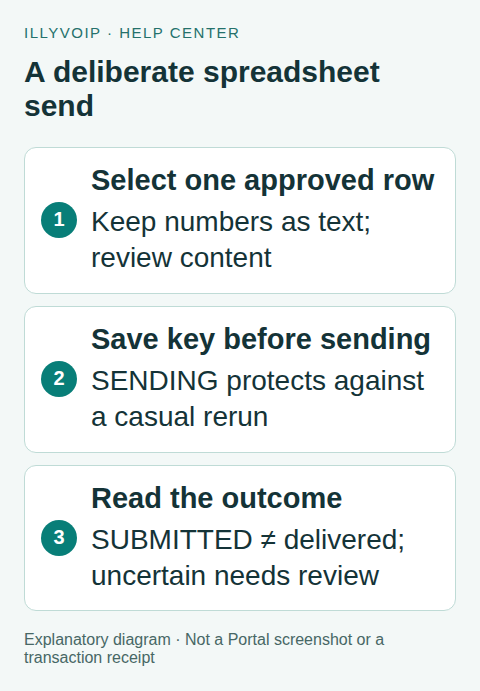
Select one data row in the SMS tab, then run sendSelectedSms from Apps Script. Google may ask you to authorize spreadsheet access and external requests. Read that prompt; the function makes a real potentially billable SMS request after authorization.
The script saves a stable key and SENDING marker before contacting IllyVoIP. On acceptance it writes SUBMITTED and the returned message ID. It refuses to rerun any row with a nonempty submission state. This protects against casual double-clicks, but it is not a complete campaign system or permanent delivery archive.
4. Track delivery separately
SUBMITTED means the API accepted this recipient, not that their handset received the message. Use the saved ID with GET /api/v1/sms/messages/status?message_id=..., authenticated by X-Api-Key, or configure verified delivery webhooks in a backend. Keep delivery in a separate column if you extend the sheet; do not overwrite the submission history.
5. Resolve REVIEW, SENDING or UNCERTAIN
REVIEW means the response did not match one accepted recipient. Inspect the corresponding Portal record or API error privately. SENDING left after an interrupted execution and UNCERTAIN after an exception both require reconciliation. Do not clear the state column to “try again”: that can create a new submission or lose the record of one already accepted.
Retain the exact recipient, text, sender and request key while investigating. For a controlled retry of the identical request, reuse that key through your backend/API tooling only after checking the API’s retry semantics. Correcting a rejected number or changing the message should be an explicit reviewed new submission, not an invisible edit to history.
Frequently asked questions
Can I send an entire sheet automatically?
This function is intentionally single-row. Bulk sending needs a durable queue, rate limits, cancellation, per-recipient recovery and access controls. Do not simply wrap it in a loop over the whole sheet.
Can I use an onEdit trigger?
Do not attach this function to an edit trigger. Editing a spreadsheet is not a reliable authorization boundary for paid messaging. Keep an explicit reviewed action.
Related guides and official references
- API access and Playground
- Webhook delivery and verification
- IllyVoIP developer resources
- Apps Script external HTTP requests
- Apps Script locks
- Apps Script properties
Reviewed on 8 October 2026 against the current IllyVoIP implementation and available official documentation. Examples use placeholders and are not evidence of a completed live transaction. Check your account’s current availability and prices before executing paid requests.