
IllyVoIP prepares call-history exports as background jobs. Start with the filters you need, request the export once, then use View exports to follow its progress and download the completed file. The visible page of calls is not the full export.
1. Select the calls you need
- Open Analytics → Call Reports.
- Choose the date range and the available direction, identity, number or status filters needed for your task. Expand Advanced filters when needed.
- Select Apply filters and check that the results represent the intended scope.
- Note the timezone when you will compare the file with another system.
Export only the information you need. Call records can include private telephone numbers and customer activity. Check who will receive the file before downloading or sharing it.
2. Request the export
- Select Export.
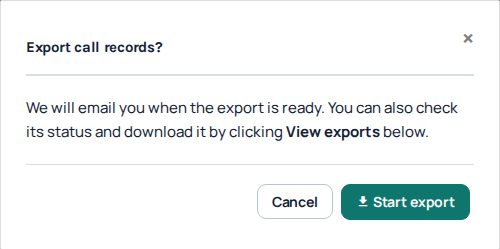
- Read the confirmation and review the current filters. Close it if the scope is wrong, correct the filters and open it again.
- Select Start export once and wait for the request result.
- Open View exports to find the job you just requested. The confirmation explains that an email is sent when the export is ready; you can check the Portal directly without waiting for that email.
A large date range can contain more calls than the page can display at once. The Portal’s historical-range notice distinguishes that on-screen limit from the complete CSV export. Use a narrower range for investigation if it makes the file easier to handle; do not manually copy visible pages and assume they contain every record.
3. Follow the job’s status
- Queued: the export is waiting to start. Wait for this job before requesting another export.
- Running: processing is underway. Progress or written-row information can appear while the file is being prepared.
- Completed: the file is ready. Check its finish time and Available until deadline.
- Failed: the export did not complete. Read the message and use the offered retry after checking the scope.
- Cancelled: processing was stopped. This does not delete the original call records.
- Expired: the download is no longer available. Create a fresh export, or use the offered retry workflow where available.
A progress indicator is not a download link. Wait for Completed rather than trying to use a partial file. If the request result is uncertain, inspect View exports before submitting another request.
4. Download and check the file
- Locate the completed job by its creation time and status.
- Use its download action before the availability deadline.
- Open the CSV in your spreadsheet application and check the column headings, dates and a known call.
- Import telephone-number and identifier columns as text where necessary. Spreadsheet software can otherwise remove leading digits or display long identifiers incorrectly.
- Store the file securely and share only the relevant rows with authorized colleagues.
An export captures its requested scope; changing the page filters afterward does not rewrite a completed file. If you need a different period, apply the intended filters and request another export.
Cancel or retry deliberately
Use Cancel only for the intended queued or running job when that action is available. Wait for its resulting status. A job can finish while you are deciding, so the controls may change.
Retry is offered only for eligible failed, cancelled or expired jobs and reuses the stored filters of that export. Review the resulting job before pressing it again. If you want different filters, return to Call Reports and create an export with those filters rather than assuming a retry adopts your latest page selections.
If the export does not finish or download
If the Portal asks you to finish or cancel an existing export before starting another, open View exports and resolve that active job first. Do not keep pressing Start export.
Check the job’s current status and deadline first. Reopen View exports after a connection interruption. For a failed job, try a smaller relevant date range if the full period is unnecessary. If it still fails, provide Support with the job reference where shown, request time, timezone, filters and visible error. Do not attach a complete private call-history file simply to report a download problem.
Related guides
Reviewed 10 October 2026 against the current IllyVoIP Portal and implementation. Available controls depend on account permissions and service state.