
Generate narration with IllyVoIP, insert each audio file into the matching Google Slides slide, and confirm that the intended presenter can play it. Google Slides links to audio stored in Drive, so a deck that works for its owner can still fail for a colleague who lacks access to those files.
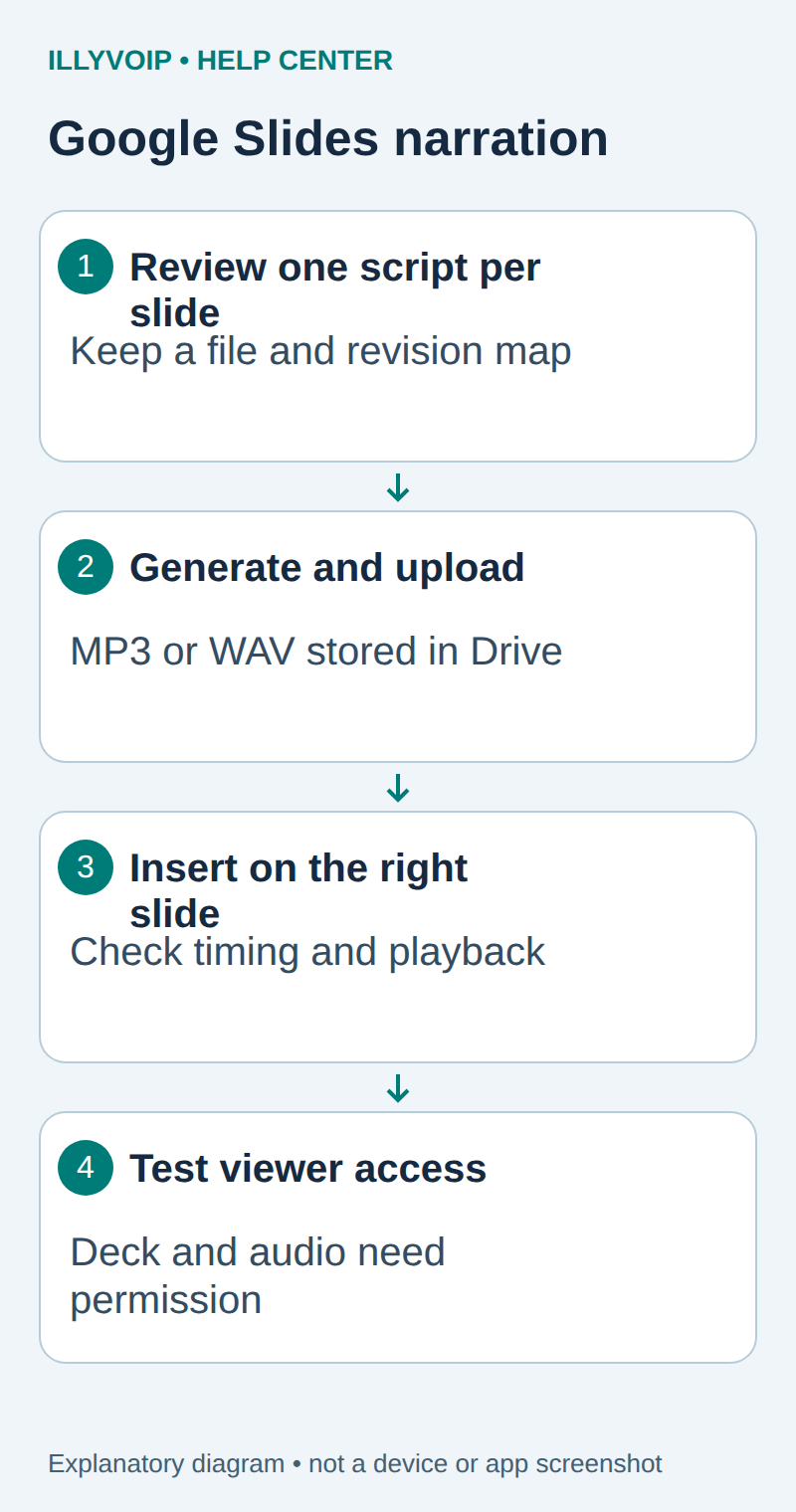
1. Prepare scripts and a simple manifest
You need an IllyVoIP account permitted to use the relevant API, sufficient balance for paid operations and an API key. In the Portal, open Account settings → Developer tools and follow its verification prompts. Keep the key in your server’s secret configuration as ILLYVOIP_API_KEY, outside source control and shared documents. Read-only catalog and reporting requests are different from paid speech generation or SMS submission.
You also need a Google account allowed to edit the presentation and upload audio to Drive. Create one approved script per slide and give each file a stable name, such as slide-03-introduction.mp3. Keep a manifest with slide number, script revision, voice, language, output file and review status.
Describe what the audience needs to hear rather than reading every visible word. Check names and numbers before synthesis. A changed slide should trigger review of its narration; it should not silently reuse an audio file from an older script.
2. Generate and listen to each file
Follow the standalone TTS guide to select an available language and voice, submit a script of no more than 2,000 characters and decode audio_base64 from the successful response. Google documents MP3 and WAV audio stored in Drive for this workflow. Choose a consistent supported format.
Use one saved operation record per script revision. Store the response before decoding, then listen to the complete file and mark it reviewed. A local decode problem can often be fixed from the saved receipt without repeating a paid generation request.
Preserve the exact input, local job identity and response before moving to the next step. A timeout or lost response is an uncertain outcome, not permission to submit the same paid operation again under a new name. Recover from a saved successful response when possible; otherwise reconcile the original attempt. API duplicate-charge protection does not replace your application’s operation history.
This creates narration files; it does not automatically read Google Slides content or install an IllyVoIP add-on. Keep the API key in the generating backend, never in presentation notes or an Apps Script shared with viewers.
3. Upload the reviewed audio to Drive
- Create or choose the approved Drive folder for this presentation’s audio.
- Upload the reviewed MP3/WAV files.
- Wait for uploads to finish and check their names against the manifest.
- Keep access limited to the people who need the presentation and narration.
A duplicate filename can make the wrong file difficult to distinguish. Use revisioned names or record the Drive file reference privately. Do not assume replacing a local file changes an already uploaded Drive object.
4. Insert audio on the intended slide
Open the presentation in Google Slides on a computer. Select the intended slide and choose Insert → Audio. Choose the corresponding Drive audio file and select it. Play the inserted audio and compare the opening words with the slide’s script.
Use the audio playback controls in Format options to choose whether playback starts on click or automatically, where those controls are available. Review volume and whether audio stops when the slide changes. Hide the icon during presentation only if the chosen playback and presenter controls still make sense.
Repeat using the manifest. Do not infer slide order from an unpadded alphabetical file list: slide-10 can appear before slide-2. For a normal narrated deck, avoid unintended overlap between adjacent slides.
5. Check presentation and audio permissions
Share the presentation with the intended people or group. Google’s access checker may suggest changes for embedded audio files; review and confirm only the access your audience needs. A publicly accessible audio file is not necessary just because someone else must present the deck.
- Open the shared deck as an intended viewer or presenter with a separate authorized account.
- Start the slideshow and play audio near the beginning, middle and end.
- Confirm every linked file opens under that account’s access.
- Test the planned playback style and transition behavior.
- Check the venue’s network and output device before the presentation.
Testing in the owner’s already authenticated browser does not prove another person has access. Exporting the deck to a different presentation format is also a separate portability test.
Maintain and troubleshoot the deck
| Item | Meaning or action |
|---|---|
| Audio is absent from the picker | Check the actual file type, upload completion and the Google account currently in use. |
| Only the owner can play it | Inspect linked Drive audio access as well as deck sharing. |
| Wrong narration plays | Match the selected Drive object to the manifest and script revision. |
| Narration overlaps | Review automatic start, stop-on-slide-change and transition settings. |
When revising a slide, replace its narration deliberately and repeat the viewer-access check. Retain an approved older version until the replacement presentation works for its intended audience.
Related guides and reference
Google Slides audio and sharing. IllyVoIP API reference. Reviewed October 12, 2026. Examples are instructional: local checks do not establish a completed paid request, live third-party integration or production PBX acceptance.