
If you used this page to set up X-Lite, use the instructions below when moving your IllyVoIP account to Bria Solo. The current setup uses a Bria account and its web Portal to deliver your voice configuration to the app. It is different from entering everything directly into the old X-Lite account window.
This walkthrough covers a password-authenticated IllyVoIP SIP line. It explains the two sign-ins, connection settings and checks needed before retiring the old client. Bria licensing and IllyVoIP calling service are separate; check Bria's current plan and platform requirements rather than assuming an old X-Lite entitlement carries over.
1. Record the working setup before moving
If X-Lite still works, record the SIP username, server, transport and any deliberate proxy or audio settings. Store passwords securely, not in an unprotected screenshot. Note which incoming number routes to the account and whether other devices share it.
Obtain the current values from IllyVoIP rather than blindly copying an old server address. Keep the old configuration available until the new client has passed your checks. During testing, close the old client so it does not compete for the same registration or receive a call you expected in Bria.
If an administrator manages your office PBX, ask for the extension configuration. A PBX extension and an IllyVoIP provider trunk are different accounts. Do not put the organization's trunk password into a personal client without the administrator's direction.
2. Gather the IllyVoIP SIP line details
- Open Services → SIP Lines and select the intended line.
- Confirm password authentication and obtain the line's SIP username and password.
- Expand Technical endpoints. Record the regional hostname, destination port and transport.
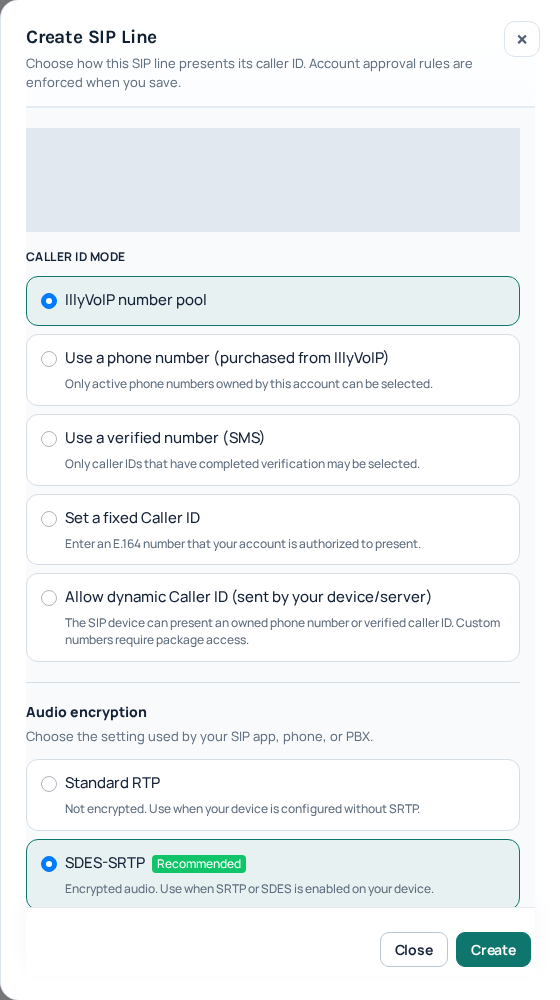
- Check the line's audio-encryption mode, permitted caller ID, any account-verification requirement and available balance or calling package.
- If receiving calls, confirm which active telephone number routes to this SIP line.
Leave an existing IP-authenticated trunk in its intended mode. Use a suitable password-authenticated identity for this guide. See Manage SIP Lines for the Portal workflow and the terms shown when creating or changing a line.
3. Keep the two sign-ins separate
| Where you sign in | Which credentials belong there |
|---|---|
| IllyVoIP Portal | Your IllyVoIP account login, used to manage the service. |
| Bria Portal and Bria app | The email address and password of your Bria account, plus its requested verification or MFA. |
| IllyVoIP voice account inside Bria Portal | The SIP username and SIP password of the selected IllyVoIP line. |
Successfully signing into Bria only proves that your Bria account works. The IllyVoIP voice account must register separately. This distinction is useful when the app opens normally but cannot make calls.
4. Create the Bria account and voice configuration
Follow the official Bria Solo getting-started guide and use the Bria Solo Portal. Verify your email, open the dashboard and follow the voice-account setup prompt. Complete MFA when requested and retain your recovery options securely.
Choose a custom SIP configuration when no suitable preset is offered. Map your connection details as follows; optional controls depend on your current Portal and plan:
| Voice-account setting | IllyVoIP value |
|---|---|
| Service label | A recognizable name such as IllyVoIP. |
| Domain / SIP server | The current regional hostname from Technical endpoints, without a website scheme or path. |
| Port | The destination port paired with your selected transport. Do not rely on Auto when a specific port is required. |
| SIP username / call extension | The SIP username of the line, not your Portal email or incoming telephone number. |
| SIP / voice password | The line's SIP password. |
| Authorization username, if requested | The authentication identity supplied for the line, normally the SIP username. |
| Transport | The matching supported UDP, TCP or TLS mode. |
| Registration | Enable registration for this password-authenticated setup. |
Save the configuration. Do not add an outbound proxy, STUN server or a copied voicemail number merely because a sample contains one. Use only values supplied for your actual arrangement. The provider settings reference linked from Bria's Solo guide also discusses Teams; team invitations and account assignment are not additional Solo setup requirements.
5. Match audio security before the first call
SIP transport and audio encryption are separate choices. Match Bria's SRTP configuration to the IllyVoIP line's audio mode. For an SDES-SRTP line, confirm that the client and selected configuration support that method; selecting TLS alone does not complete the audio setup.
Bria's voice-service settings reference documents an SRTP control associated with TLS. If the required option is unavailable in your plan or current interface, establish a supported configuration with Support before changing a production line. Keep certificate verification enabled. A display-name field does not bypass IllyVoIP caller-ID verification.
Retain a mutually supported audio codec and DTMF method. Change one item at a time if a call fails, and record the result. Avoid copying codec lists or firewall ports from an unrelated provider's example.
6. Install and sign into the Bria client
- Download the client through the Bria dashboard or the official app store link for your device.
- Install it on a supported operating system and grant microphone access when prompted.
- Sign in with your Bria email and password, not the IllyVoIP SIP credentials.
- Allow the saved voice configuration to load. If a saved change has not appeared, follow Bria's restart or sign-out/sign-in prompt.
- Select the IllyVoIP voice account for calling if more than one account is present.
The official guide describes a green connection icon on Windows/Mac and Phone Ready on Android/iOS. If you can sign in but the voice account is unregistered, inspect the displayed SIP error and the voice configuration in Bria Portal. Changing the Bria login password will not correct an IllyVoIP SIP-password mismatch.
7. Complete the migration checks
- With the old client closed, make an outgoing call to a number you control. Use the required international dialing format; normal call charges may apply.
- Confirm two-way audio and the authorized outgoing caller ID.
- Call your IllyVoIP incoming number from another telephone. Confirm that its destination is the tested SIP line and that Bria rings.
- Answer the incoming call and verify audio in both directions.
- Test keypad input against a harmless telephone-menu option if you use IVRs.
- Restart Bria and check that its configuration loads and registers again.
On a mobile device, separately test the background and locked-screen states using Bria's supported incoming-call settings. On a laptop, test your normal headset and any sleep/wake behavior you depend on. A foreground desktop test does not establish mobile background reliability.
After the new setup passes, remove or disable the old client's account as appropriate for your organization. Do not delete it first and lose the only working reference. If you return temporarily to the old setup, close the new client and confirm where incoming calls now arrive.
8. Resolve common migration problems
- Bria sign-in fails: check the Bria account, email verification, MFA and entitlement.
- Bria opens but SIP registration fails: check the IllyVoIP voice credentials, hostname, destination port and transport in Bria Portal.
- Registration succeeds but calls are rejected: check dialed digits, balance/package, selected account and caller-ID policy.
- Outgoing calls work but incoming calls do not: check number routing, competing registrations, Do Not Disturb and forwarding.
- Calls connect with no sound: check microphone permission, selected audio devices, media encryption and the network path.
- Old values return: edit the configuration at its provisioning source in Bria Portal and reload the client as directed.
When requesting help, include the Bria version, operating system, exact error, selected account, timestamp/timezone and which test failed. Do not send SIP passwords, Bria passwords or MFA codes in a screenshot. Share requested logs through the secure support channel.
Frequently asked questions
Can I follow the old X-Lite screenshots in Bria Solo?
Not for the complete setup. Bria Solo uses its Portal and account sign-in to provision the app. Follow the current workflow above.
Does installing Bria transfer my number?
No. Your telephone number stays with its service. Check its IllyVoIP destination and configure the intended SIP line in Bria.
Can X-Lite and Bria stay registered together?
Do not assume that sharing one identity provides simultaneous ringing. Test one client first and agree on the intended multi-device arrangement before keeping both active.