
Use IllyVoIP’s Companies API to manage company records before assigning contacts to them. Preserve the returned company ID, send complete intended updates and review the effect of archiving before removing a company from active use.
This guide is for an account-owner backend integration. Current company mutations are restricted to the account owner. They are not a way to grant an agent account-wide access. Keep the API key on the server and begin with one deliberately selected record.
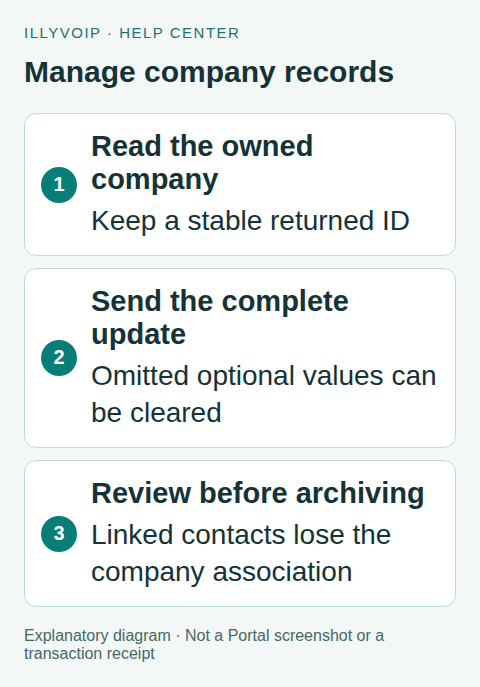
1. Read the account’s companies
Use GET /api/v1/contacts/companies on https://api.illyvoip.com with X-Api-Key. Inspect the returned company IDs and fields. The current read path lists active, owned company records; an absent record is not permission to overwrite another account’s ID.
If you search by name, compare the actual identity and details before deciding there is a match. Two different organizations can have similar names. Keep a mapping between your source CRM company and the returned IllyVoIP ID rather than choosing the first search result.
Read GET /api/v1/contacts/workspace when preparing contact assignments and custom fields. Company management and contact schema are related but separate operations.
2. Create one company
POST the complete intended fields to /api/v1/contacts/companies. This fictional example demonstrates the shape; do not create it in a live account just to test a tutorial:
{
  "name": "Example Company",
  "website": "https://example.test",
  "phone": "",
  "email": "office@example.test",
  "address": ""
}
The current mutation accepts id, name, website, phone, email and address. Name is required. A supplied website must be a valid HTTP/HTTPS URL and a supplied email must be valid. Do not add arbitrary external-identity fields from the Contacts endpoint to the company body.
Inspect the HTTP status and structured result, then retain the returned company ID. A timeout can leave creation uncertain; look up and reconcile the intended record before creating another one. Do not assume company creation has the Contacts endpoint’s external-reference upsert behavior.
3. Update by the returned ID
Read the existing company, construct the complete intended record and include its id in the POST body. Keep the identifier unchanged when renaming the same company.
{
  "id": 123,
  "name": "Example Company Updated",
  "website": "https://example.test",
  "phone": "",
  "email": "office@example.test",
  "address": ""
}
Replace 123 with your owned company’s actual ID. The example is not a partial patch: omitted optional fields currently default to empty values. If the existing company has a phone or address you want to keep, include it. Do not send only a new name and assume every other field is preserved.
Coordinate competing writers. If the source CRM and a Portal user both edit company information, define who owns each field and how conflicts are resolved. Read back the saved record after an update and compare it with the intended values.
4. Associate contacts deliberately
Use the returned company ID as company_id in the supported Contacts API workflow. Follow the separate contact-sync guide for stable contact identity and complete-field updates.
Assigning a company does not independently grant sharing permission to teammates. Preserve responsibility/sharing and required custom fields according to the contact’s intended state. Do not use a company name as a substitute for an owned numeric ID.
In the Portal, inspect the same company and selected contact through Contact Center. Check the association, not just whether both records exist. Avoid running a second independent sync path without a field-ownership plan.
5. Review what archiving will change
Before archiving, identify the exact company and the contacts attached to it. Export or retain a private pre-change record appropriate to your application’s process. Present a confirmation explaining the association change, rather than a vague “remove” button.
The current archive operation marks the company archived and clears company_id on its owned linked contacts. It does not delete those contacts. If you need to preserve a historical association in your CRM, record that deliberately before proceeding.
Do not use absence from one filtered source list as an automatic reason to archive a company. Finish the source sync and resolve identity conflicts first.
6. Archive and verify
After an intentional confirmation, POST to /api/v1/contacts/companies/archive with the actual owned company ID:
{
  "company_id": 123
}
Read the response, then check that the company no longer appears in the active company list and that the relevant contact associations have been cleared. Repeating an archive may return not-found rather than an idempotent success, because the active record has already been archived.
For a lost response, inspect current state before acting again. Do not infer that contacts were deleted, promise a dedicated restore API or create a replacement company automatically. Reconcile the actual records and ask Support if the state is unclear.
Test and troubleshoot
Use local fixtures for create/update shapes, required name, invalid URL/email, wrong owner, an existing ID, omitted-field clearing and archive side effects. Do not archive customer companies as a test. A not-found response needs identity and active-state review; an authorization error needs the correct account-owner workflow.
Keep operation, time, safe reference and sanitized error for Support. Exclude the API key and unrelated contact data.
Frequently asked questions
Does archiving delete all the contacts? No. The current operation removes their company association.
Can I update only the company name? Include the complete intended optional values too, because omitted fields can be cleared.
Related guides and references
- Organize companies and contact fields
- Sync CRM contacts into IllyVoIP with the Contacts API
- Official reference: api.illyvoip.com
Reviewed 9 October 2026 using current IllyVoIP implementation and official references. Check your installed version and account options before applying settings. Examples do not certify a physical device or completed live integration.